How to fetch historical subscription data that is more than 12 months data old?
Problem Statement
You want to know how to fetch historical subscription data that is more than 12 months data old.
Solution
Scope
How to export historical subscription data from Revenue builder?
What are the reports used to download subscription data older than a year?
Summary
We can download the historical subscription data using 4 options.
1. Subscription Index Page: Filter list > Subscription > Created at > select the condition to filter
2. Export Data Page: Add condition > Subscription > Created at > select the condition to filter
3. Export Subscription API
**4. Report Builder
Solution
Export Subscription data via UI:
I. Subscription Index Page
Go to the Subscription Index Page and you can download the report using Advanced Filter Options from 'Filter List'. Click on All Subscriptions > Created at > select the ABSOLUTE condition to filter > Apply filter
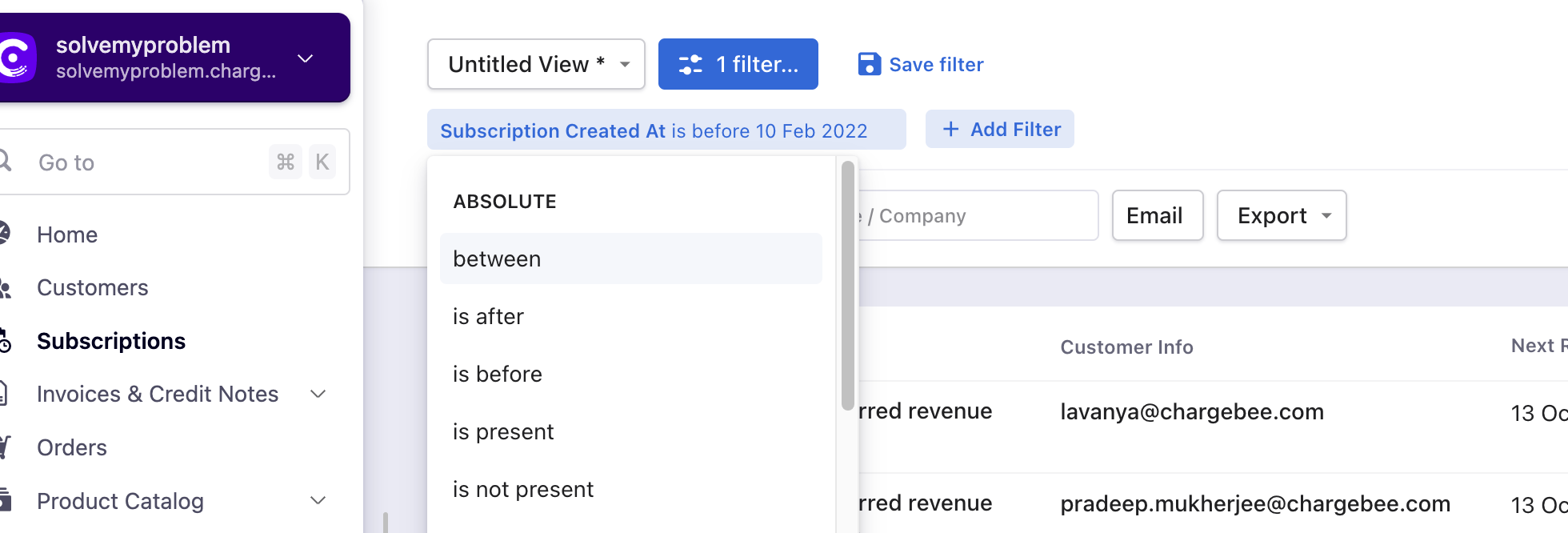
You can also use multiple filters if required and then you can click on Export then Export as CSV.
Note
On the recent UI enhancement you On the recent UI enhancement you can now scroll the index pages - Customers, Subscriptions, Invoices, and Credit Notes vertically. Earlier, the pages will be paginated which may prolong your search however with the new enhancement as you scroll down the list it will load all other data in a single page. Refer to this link for more information.
If you see the subscription, customer, or invoice index pages, as per the current configuration it displays it as 1000+ if the underlying data is more. To view the complete list you can click on the Export CSV option available in the index pages, and on the resulting CSV file, you can figure out the exact number of subscriptions present on your site.
II. Import & Export Data:
Navigate to Settings > Import & Export Data > Export Data > Subscription > Select criteria to export.
Click on Add condition > Created at > select the ABSOLUTE condition to filter.
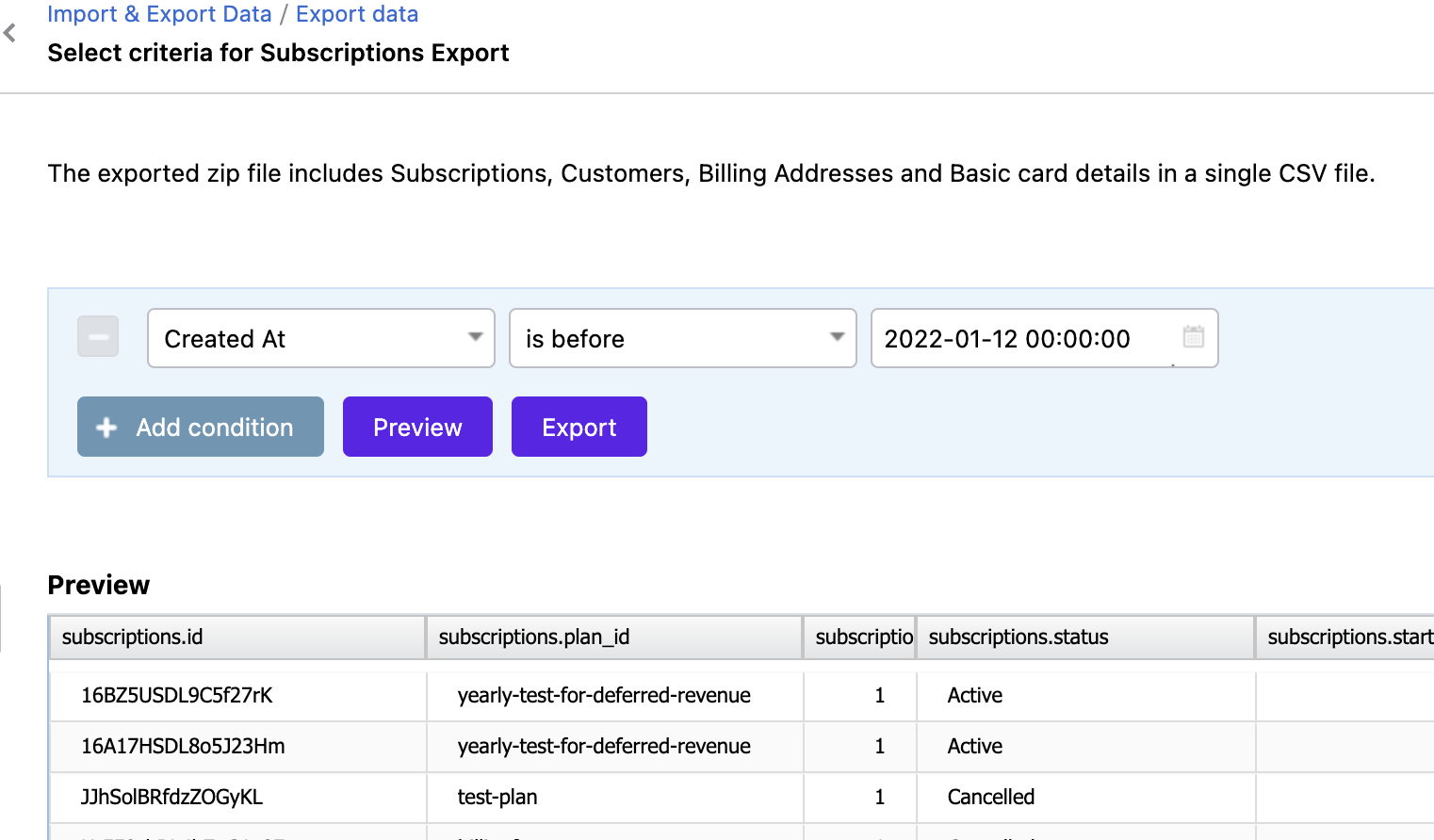
You can 'Preview' the data and 'Export' it as a CSV file.
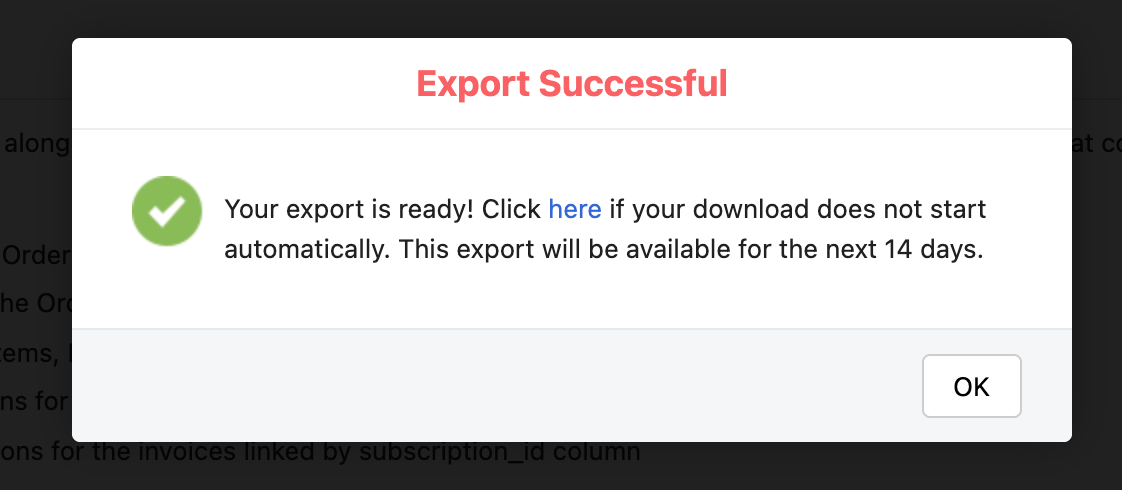
Once the export is initiated, it will be downloaded automatically on your device also this exported report will be available in Chargebee for the next 14 days under Settings > Import & Export Data > Export history.
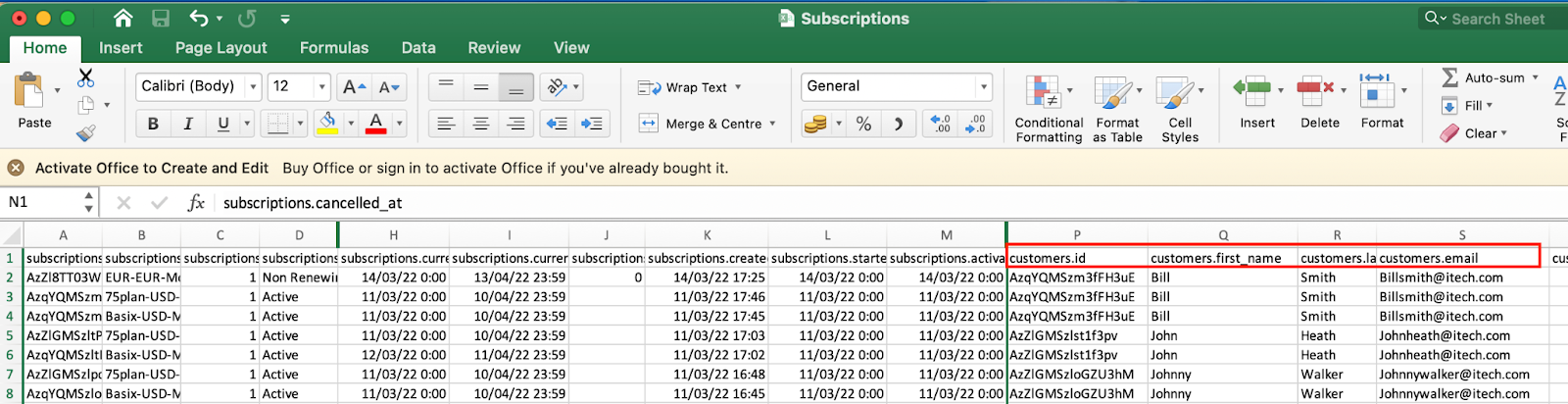
The downloaded zip file will have multiple files according to the entities shown below.
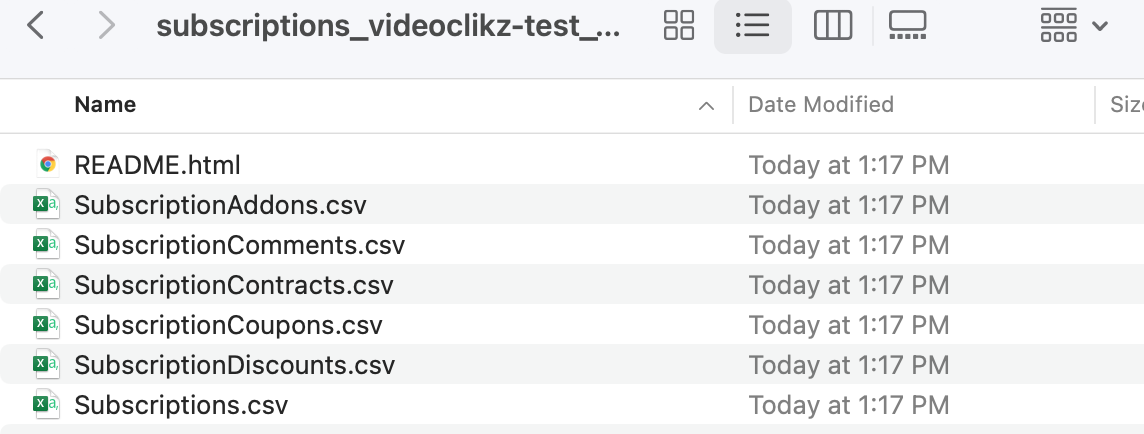
The Subscription.csv file will have the list of subscriptions with the Customer ID, Customer Name, and Customer email address.
Export Subscription API
You can use the Export Subscriptions API and find the relevant parameters to export subscriptions by the status mentioned below.
Relevant Parameters:
subscription[created_at][operator]
optional, timestamp(UTC) in seconds filter
The time at which the subscription was created.
Supported operators : after, before, on, between
Example → subscription[created_at][after] = "143505432
Report Builder
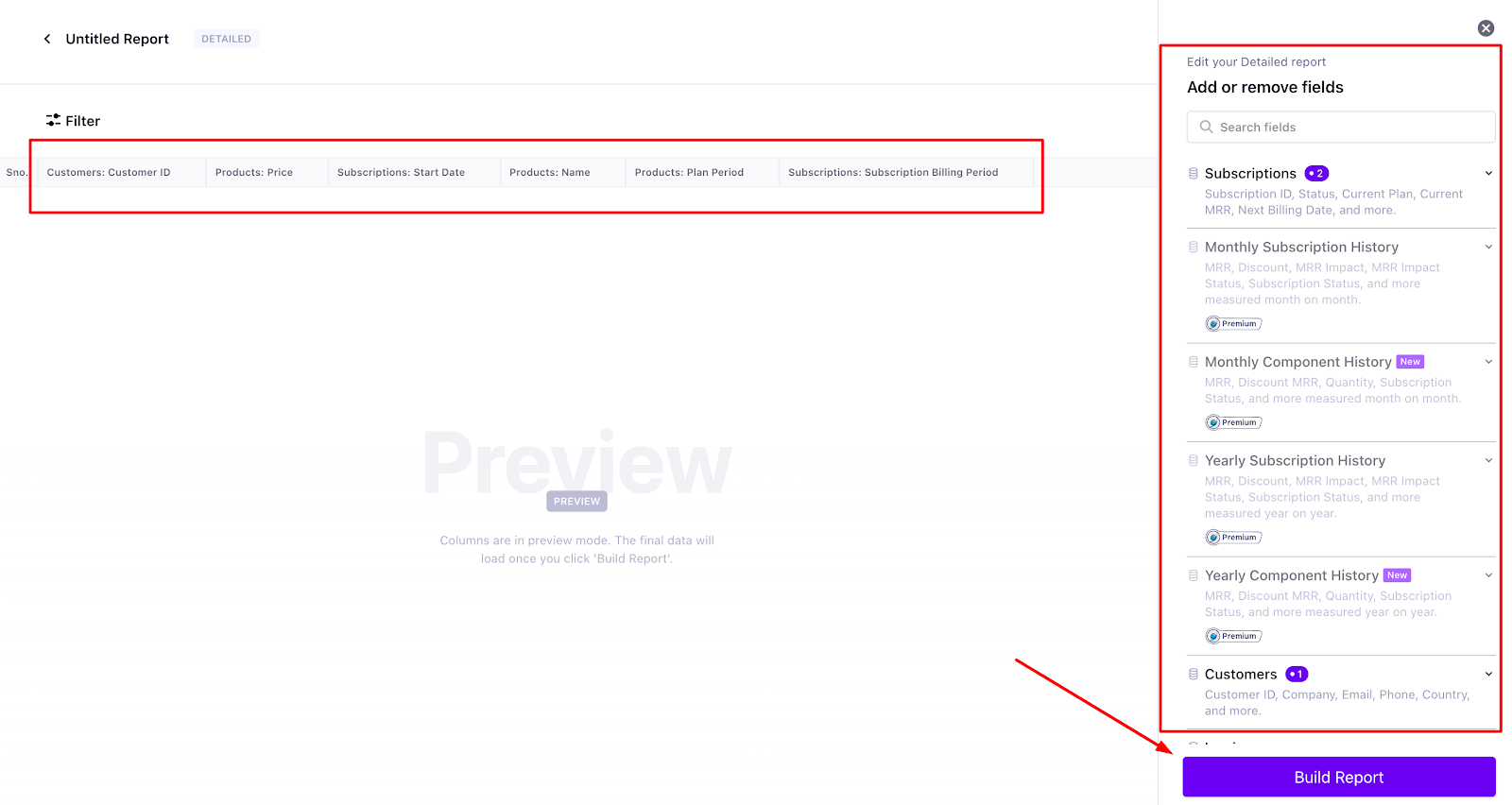
You can create Summary or Detailed Reports using the fields (columns) from different data sources.
You can filter the reports using the fields in the data sources. For a Detailed Report, you can only filter the report using the fields added to the account. For a Summary Report, the filter is available for all the fields in all the data sources linked with the primary data source.
To filter a report, follow these steps.:
- Click Filter.
- Add the field using which you want to filter the report.
- Select the filter criteria.
- Click Apply Filter.
For additional Subscription Data sources, refer to this link for more information.
Was this article helpful?