Is it possible to move the subscription's start date once it's activated?
Problem Statement
You want to know if it is possible to to move the subscription's start date once it's activated.ScopeIs it possible to move the subscription Start date once created?
The subscription was started on the 1st of Sep and already paid, but now the client wants to move the start date to the 1st of October. How can this be processed in Chargebee?
Summary
It would not be possible to change an existing (active/non-renewing) subscription's start date to the future in Chargebee. As an alternative, you can cancel the subscription and create a new subscription with a future date.
Note
For subscription in Future state use 'Edit Start Date'& for Trial State use'Edit Trial end date' from Subscription details page UI.
You can navigate to the specific Customer details page > Select specific Subscription > Select the current term paid invoice and
Step 1: Remove payments associated with it
Step 2: Void the invoice
Step 3: Cancel the subscription (Ensure you have 'Allow override via UI' settings from Settings > Configure Chargebee > Billing LogIQ > Subscription Cancellation)
Step 4: Create a new subscription
Solution
You can navigate to the specific Subscription details page. Then navigate to the Invoices tab & select the current term invoice (Invoice generated for the current term).
Step 1: Remove Payment
From the Invoice details page > Payments and Credits > Click on ellipsis > Remove.

The removed payment amount will be moved to the customer's Excess Payments and will be applied to the upcoming invoices. Note, removing payment is necessary and applicable only on Paid invoices. For Payment due invoices, you can skip Step 1.
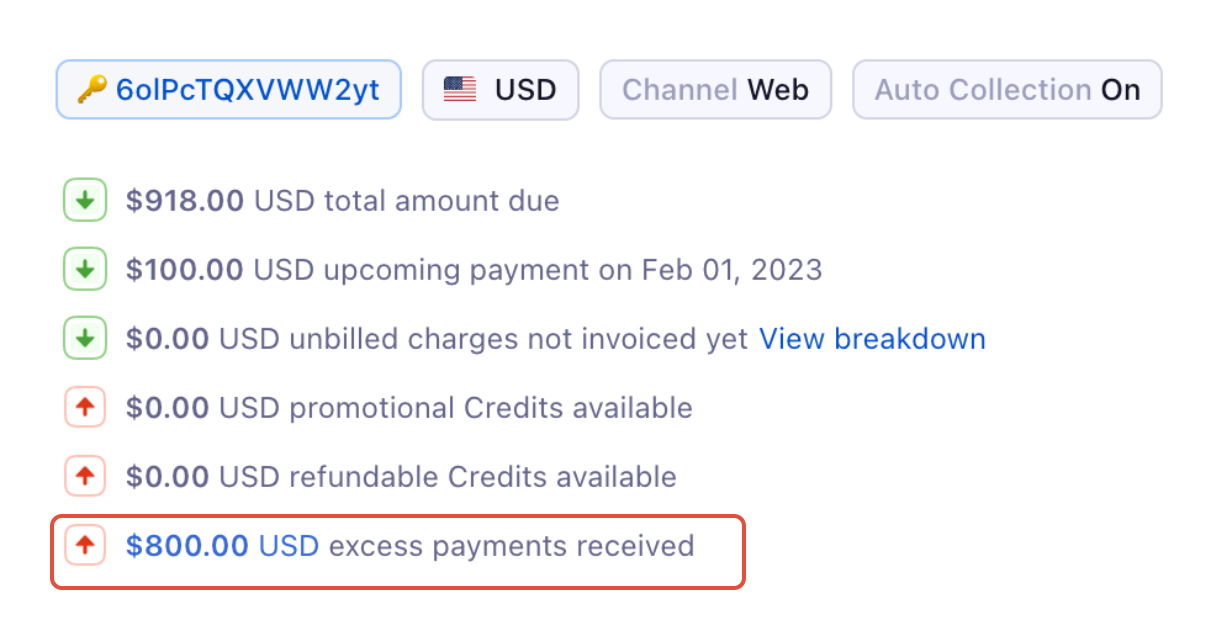
**Excess Payments:**If excess amount has been recorded, it will be added as an Excess Payment at the customer level. This will then automatically be applied to the future invoices. It can also be manually applied to the existing Not Paid or Payment Due invoices of the customer.
Note
Total Excess Payments for a specific customer
We have updated our summary box to provide a more streamlined and elegant user experience. With this upgrade, hyperlinks have been added to the summary box, allowing users to easily access related information. The Total Excess Payments on Summary Section is available at the top of the Customer details page which provides a total amount due of a customer and hyperlink that directs to the details. Refer to this link for more details.
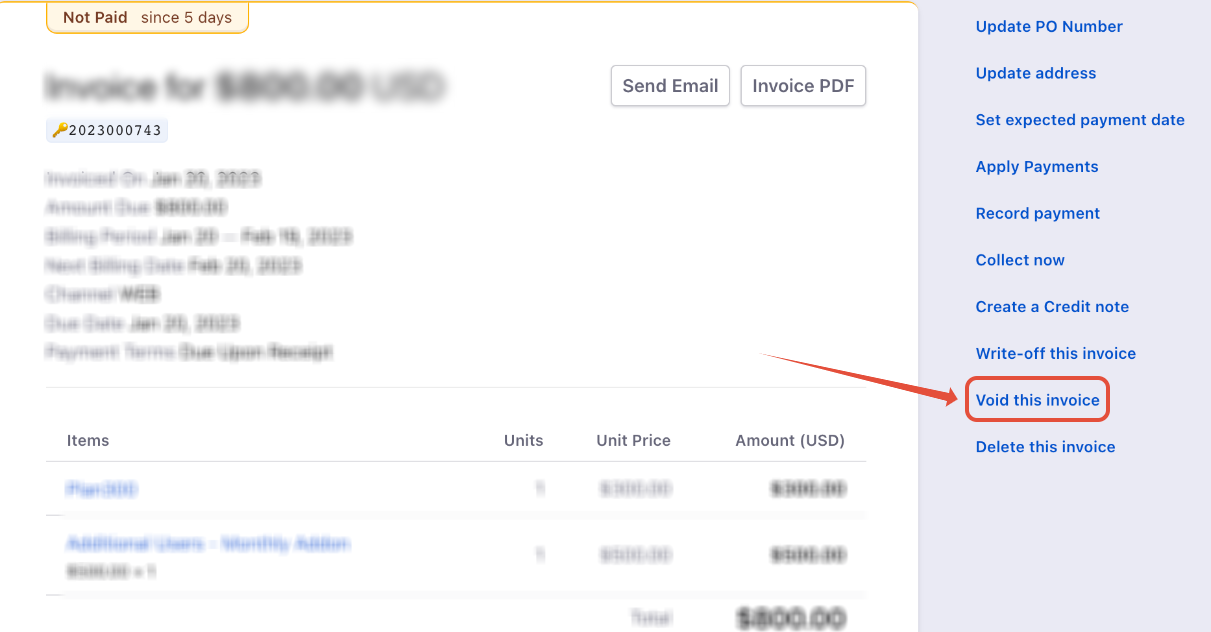
Step 2: Void invoice
Once payments are removed you will see the list of options below and select Void this invoice.
An invoice cannot be voided if it has payments associated with it. Although, you can void an invoice after removing the payments.
Step 3: Cancel the Subscription
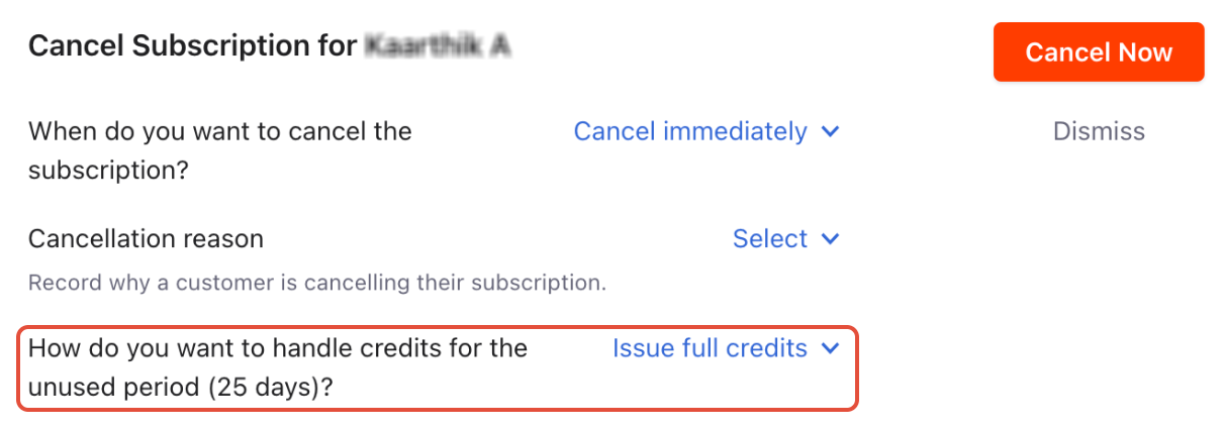
Since we are canceling the subscription only to change the start date, we need to ensure that once the subscription is cancelled, you have to issue full credits for the unused period. But this option will not be available on the Cancel Subscription UI if you are on the day-based billing mode. Follow the instructions as per your site's billing mode.
Note
Ensure 'Allow overriding via Chargebee interface' is enabled on the Subscription Cancellation settings which will allow you to manually change the default configuration while cancelling subscription from Subscription details page UI.
Millisecond-based billing mode.
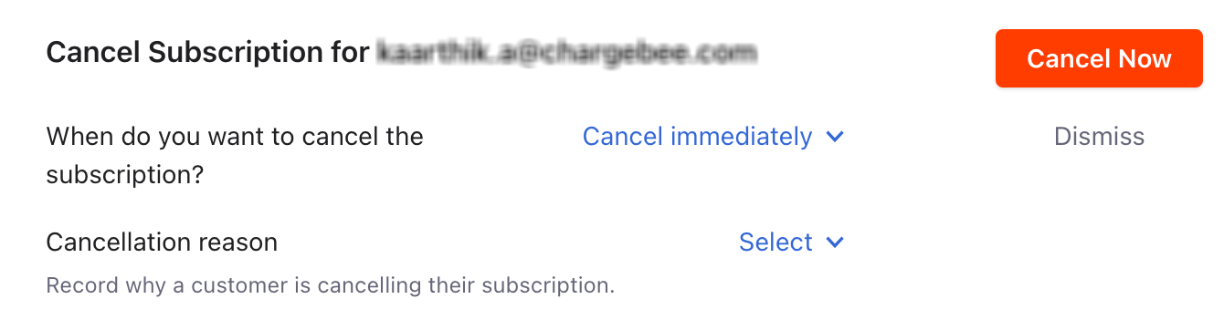
Navigate from the Subscription details page > Cancel Subscription. You can directly choose how to handle credits for the unused period from the pop-up settings. You can select Issue full credits and click Cancel Now.
Day-based billing mode
If you are on the day-based billing mode, we need to pre-configure the settings manually from Settings > Configure Chargebee > Subscription Cancellation. Ensure that 'When a subscription is canceled mid-term, how do you want to handle credits for the unused period?' is set as 'Issue full credits'.
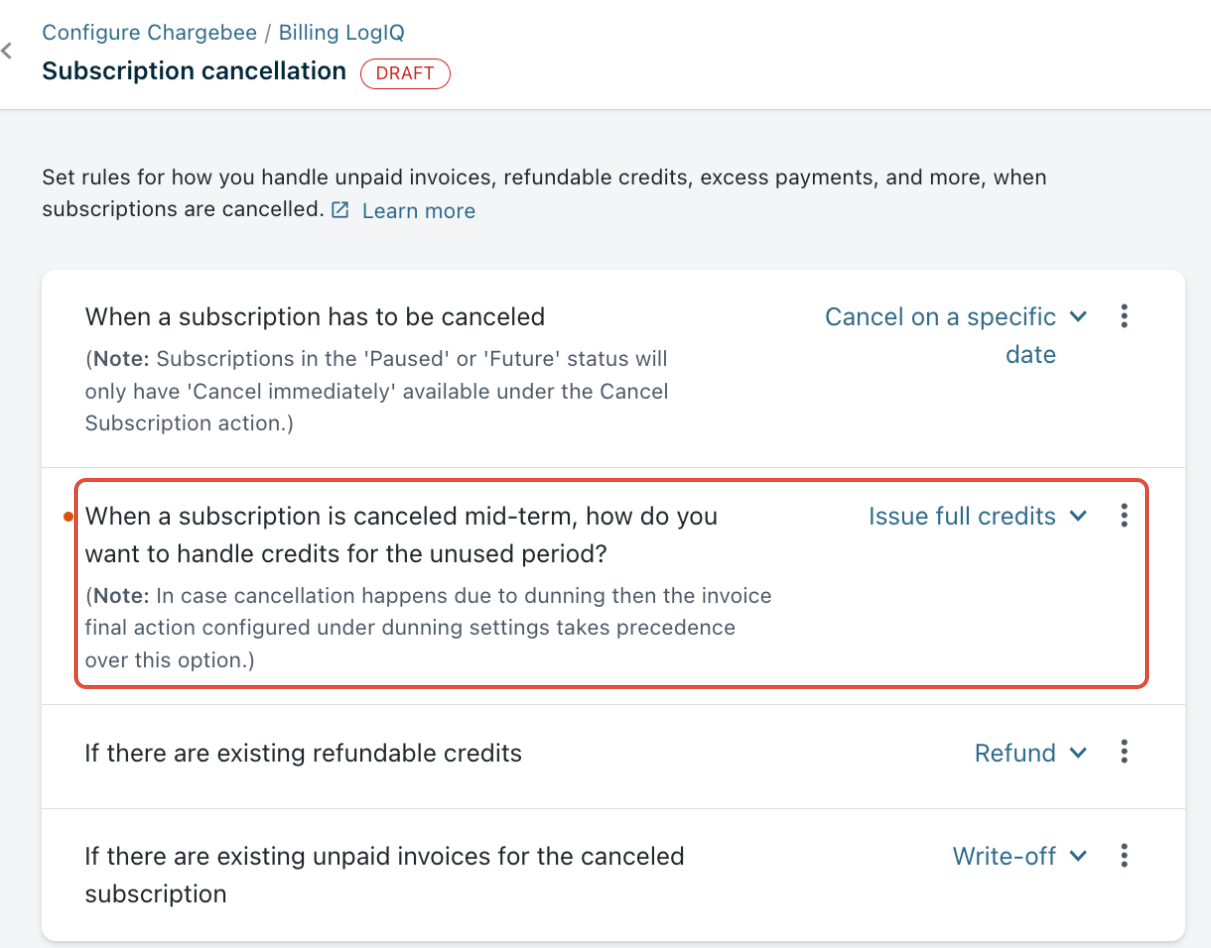
Once this is configured on the site-level settings, click Apply & Confirm. Now, you can navigate back to the same Subscription details page, and click Cancel Subscription.
The payments you remove are settled on the customer's excess payments and as soon as you create a new subscription, these excess payments immediately apply to the newly generated invoice. The customer wouldn't be charged additionally if we are creating the same Plan's subscription.
Was this article helpful?