New in Chargebee: Explore Reveal and understand your payment performance end-to-end.Try Now
Docschargebee docs
HomeBillingPaymentsRevRecGrowthReveal
Support

Product Updates


  • Release Notes

Getting Started


  • Overview
  • Chargebee Billing Data Centers
  • Object Relationship Model
  • Understanding Sites
  • Chargebee Tech Glossary
  • Articles and FAQ

Implementing Chargebee


  • Implementation Guide
  • Go-live Checklist
  • Articles and FAQ

AI in Chargebee


  • Chargebee Copilot
  • Chargebee Model Context Protocol (MCP) Server

Developer Resources


  • Developer Resources Overview
  • API Explorer
  • Articles and FAQ

Product Catalog


  • Product Catalog Overview
  • Coupons
  • Articles and FAQ

Subscriptions


  • Working with Subscriptions
  • Billing
  • Orders
  • Articles and FAQ

Customers


  • Managing Customers
  • Account Hierarchy
  • Email Notifications
  • Branding
  • Configure Multiple Languages
  • Articles and FAQ

Entitlements


  • Entitlements Overview
  • Features Overview
  • Feature Management
  • Managing Product Entitlements
  • Subscription Entitlements
  • Customer Entitlements
  • Grandfathering Entitlements
  • Articles and FAQ

Usage Based Billing


  • Understanding Usages
  • Setting up Usage Based Billing
  • Usage Alerts
  • Metered Billing
  • Articles and FAQ

Chargebee CPQ


  • Chargebee CPQ
  • Chargebee CPQ for Salesforce
  • Chargebee CPQ for HubSpot

Invoices, Credit Notes, and Quotes


  • Invoices
  • Credit Notes
  • Quotes [Legacy]
  • Transactions
  • Articles and FAQ

Taxes


  • Overview
  • Configuring Taxes
  • Country-specific Taxes
  • Articles and FAQ

Hosted Capabilities


  • Overview
  • Hosted Checkout
  • Hosted Self-Serve Portal
  • Hosted Pages Features
  • Additional Hosted Pages
  • Payment Components
  • Pricing Table
  • Managing Payments with Chargebee.js
  • Mobile-Optimized Hosted Pages
  • Articles and FAQ

Site Configuration


  • Users & Roles
  • Custom Fields & Metadata
  • Approvals
  • Mandatory Fields
  • File Attachments & Comments
  • Advanced Filter Options
  • Multicurrency Pricing
  • Multi-decimal Support
  • Configuring Reason Codes
  • Events and Webhooks
  • API Keys
  • Time Zone
  • Time Machine
  • Transfer Configurations
  • Articles and FAQ

Multi Business Entity


  • Multi Business Entity Overview
  • Customer Transfer Overview
  • Articles and FAQ

Mobile Subscriptions


  • Overview
  • Omnichannel Subscriptions
  • Omnichannel One-Time Orders
  • Mobile Subscriptions (Legacy)

Reports and Analytics


  • RevenueStory
  • Home Dashboard
  • Frequently Asked Questions
  • FAQs for Classic Reports Sunset
  • Articles and FAQ

Integrations


  • Sales
  • Customer Support and Success
  • Finance
  • Tax
  • eInvoicing
  • Marketing
  • Stitch
  • Collaboration
  • Contract Management
  • Ecommerce Management
  • Articles and FAQ

Data Privacy & Security


  • Two Factor Authentication
  • SAML Single Sign-On
  • System for Cross-Domain Identity Management (SCIM)
  • EU-GDPR
  • Consent Management
  • Personal Data Management
  • Compliance Certificates
  • HIPAA Guidelines
  • PCI Recommendations and Integration Types
  • Articles and FAQ

Data Operations


  • Bulk Operations
  • Migration
  • Articles and FAQ
  1. Billing
  2. Invoices, Credit Notes, and Quotes
  3. Articles and FAQ
  4. Dunning
  1. Billing
  2. Invoices, Credit Notes, and Quotes
  3. Articles and FAQ
  4. Dunning

What is the difference between Dunning status "stopped" and "exhausted"?

Problem Statement

You want to understand what the difference between dunning status “stopped” and “exhausted” is.

Solution

Scope

What does each dunning status mean? What is the difference between Dunning status "stopped" and "exhausted"?

Summary

Dunning status is set to "stopped" when dunning is either manually stopped for an invoice or the subscription for the invoice is Paused causing dunning on all relevant invoices to be stopped automatically.

On the other hand, if the payment was not collected even after all retries were exhausted, the status is set to "Exhausted".

Solution

While the invoice is on dunning, you have an option to manually Stop or Pause dunning to that particular invoice.

image

**Pause Dunning **If you pause dunning till a specific date, Chargebee will try and collect payment on the expected payment date. There are two scenarios to consider when setting an expected payment date.

  1. Expected payment date falls within the dunning period
  2. Expected payment date falls after the dunning period

Stop Dunning Stopping the dunning Chargebee will neither retry to collect payments nor send dunning email notifications to your customers. Once stopped, you cannot restart the dunning for the invoice again. The invoice will be marked as _Not Paid_. However, the subscription will remain uninterrupted as Active. When you stop dunning forever, you can capture an Expected Payment Date and this information will be saved for further reference.

Dunning Exhausted

If the dunning was not interrupted due to a manual intervention, then the dunning will attempt to retry to collect payment as per dunning settings. If all the dunning retry attempts Failed then it indicates that all the dunning attempts are exhausted.
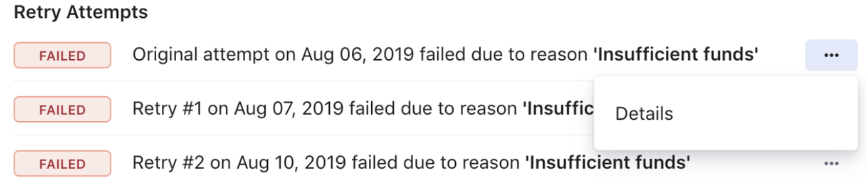
image

In this case, the subscription status will be either Active or Cancelled and the invoice status will be as per the dunning configurations listed below.

  • Mark the invoice as not paid,
  • Void Invoice
  • Write-off the invoice
  • Reverse the invoice

Was this article helpful?