Product Updates
Getting Started
- Overview
- Chargebee Billing Data Centers
- Object Relationship Model
- Chargebee Tech Glossary
- Articles and FAQ
Implementing Chargebee
AI in Chargebee
Developer Resources
Product Catalog
Subscriptions
Customers
Entitlements
Usage Based Billing
Chargebee CPQ
Invoices, Credit Notes, and Quotes
Taxes
Hosted Capabilities
- Overview
- Payment Components
- Managing Payments with Chargebee.js
- Mobile-Optimized Hosted Pages
- Articles and FAQ
Site Configuration
- Mandatory Fields
- File Attachments & Comments
- Advanced Filter Options
- Multi-decimal Support
- Configuring Reason Codes
- API Keys
- Time Zone
- Time Machine
- Transfer Configurations
- Articles and FAQ
Multi Business Entity
Mobile Subscriptions
Reports and Analytics
Integrations
Data Privacy & Security
- Two Factor Authentication
- SAML Single Sign-On
- System for Cross-Domain Identity Management (SCIM)
- EU-GDPR
- Consent Management
- Personal Data Management
- Compliance Certificates
- HIPAA Guidelines
- PCI Recommendations and Integration Types
- Articles and FAQ
Data Operations
Error - Customer email id not present
This article also covers
How to bulk upload a customer details?
Can I skip the invoice email from being sent to the primary address?
Summary
This error occurs when you haven't updated or entered a primary email address under the "Customer Details".You will see this error message even if you have entered the billing, shipping, and additional contact email where the primary email address field is empty.
Ensure that you have the primary email address present with the customer record. You can do this through the UI, API, or the Bulk operation.
Note: If you don't have a primary email you can fill in any email address.
Example, no-reply@domain.com
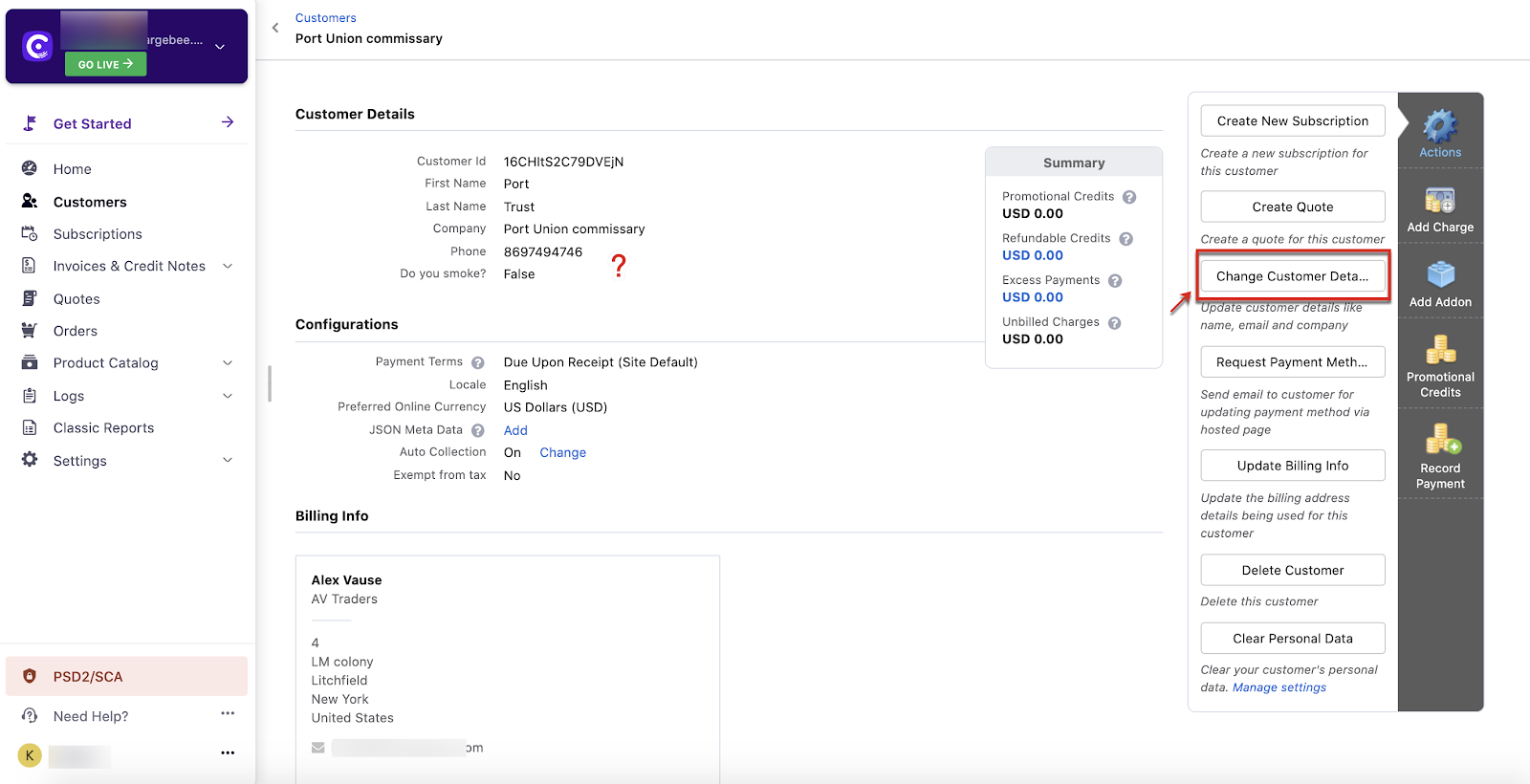
To update the email address to a customer record from the UI, Go to Dashboard,
Customers
Choose the customer
Click Change Customer Details
Enter the Email address
Click on Update customer
You can also perform this action via the API.
To bulk upload email addresses to your customer record, Go to
Settings
Import and Export Data
Choose a bulk operation
Customers
Update Customers
Download the sample CSV
Enter the details
Upload the CSV
You can find the detailed steps in this document. Once the action is done, all the customers mentioned in the CSV will have the email addresses attached to their records.
After this, you will be able to send out emails to your customers.
Note:
-
Adding a Billing Contact - Your customer receives only payment and invoice related emails
-
Adding an Account Contact - Your customer receives an account or subscription-related email
-
Adding an Additional Contact - Your customers can have additional users to receive a copy of their emails.
To know more about this, click here.
Was this article helpful?