How to configure and display merchant's VAT number on the invoice?
Problem Statement
You want to know how to configure and display merchant's vat number on the invoice.
Solution
Scope
Add VAT number on the invoice
Where to input the tax ID of the company for all invoices, not just individual invoices?
Summary While configuring tax for a specific region, there will be an option to update the Tax label and number. This will be displayed as your company's tax number on the invoice pdf. To update the VAT number for the EU/UK region, you will have to add the registered VAT number (VAT Moss/without VAT Moss) respectively. This can be updated under Taxes settings in Chargebee.
Once this is configured, all the invoices generated will have the merchant's VAT number.
Refer to this link if you want to configure and display the customer's VAT number on the invoice
Solution
How to configure and display Merchant's VAT number on the invoice?
To display your company's VAT number on your customer's invoices, navigate from Settings > Configure Chargebee > Taxes.
For the EU region, refer to this link on how to set up taxes.
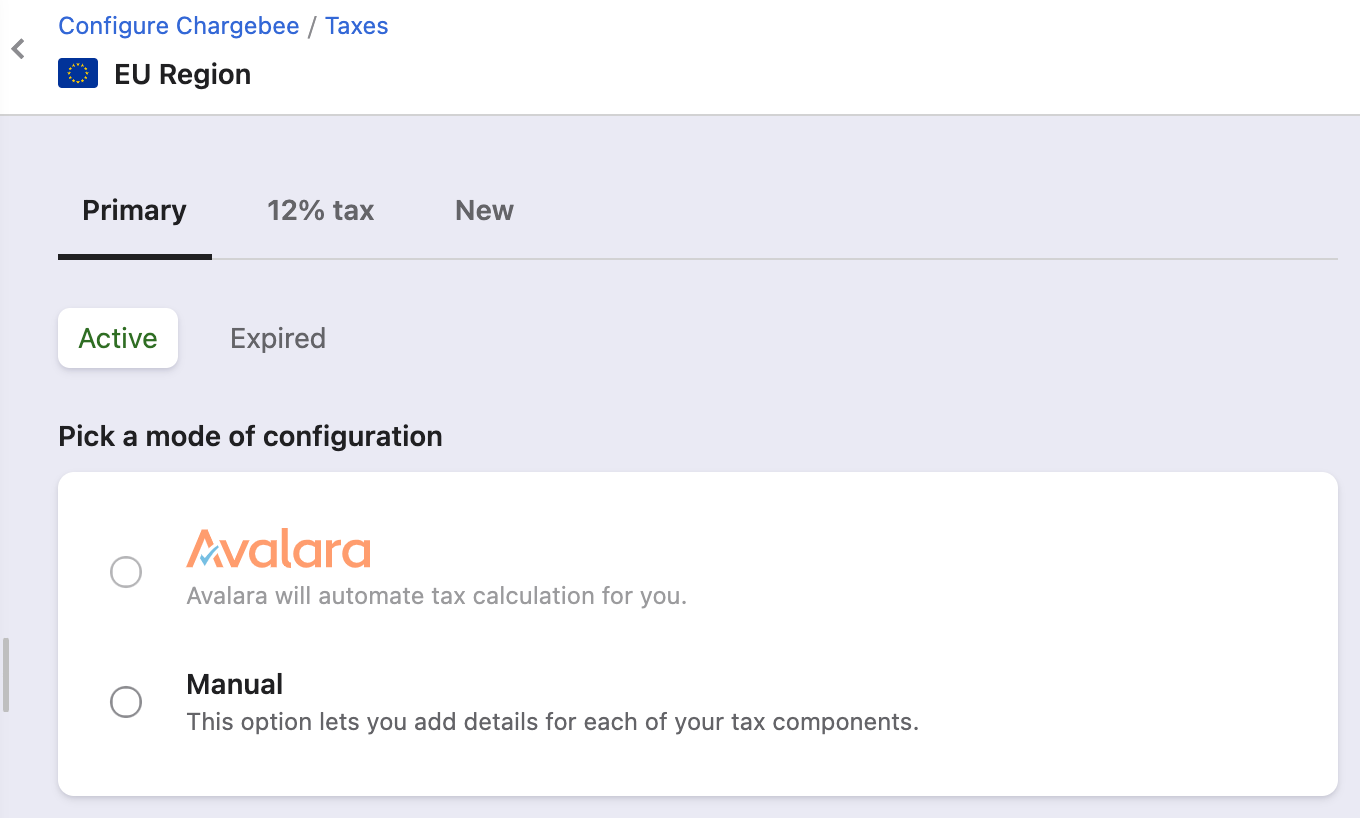
- You need to click on Add Region > EU/UK Region > Pick a mode of configuration
-
Avalara: If you are using Avalara to automate tax calculation for your business, you can integrate your Chargebee site with Avalara and use it as your preferred mode of tax calculation. For more information, Avalara
-
Manual: You can use this option if you want to manually add each of your tax components for this region. In the Add Tax pop-up, specify the Tax name and Tax rate, and click Save.
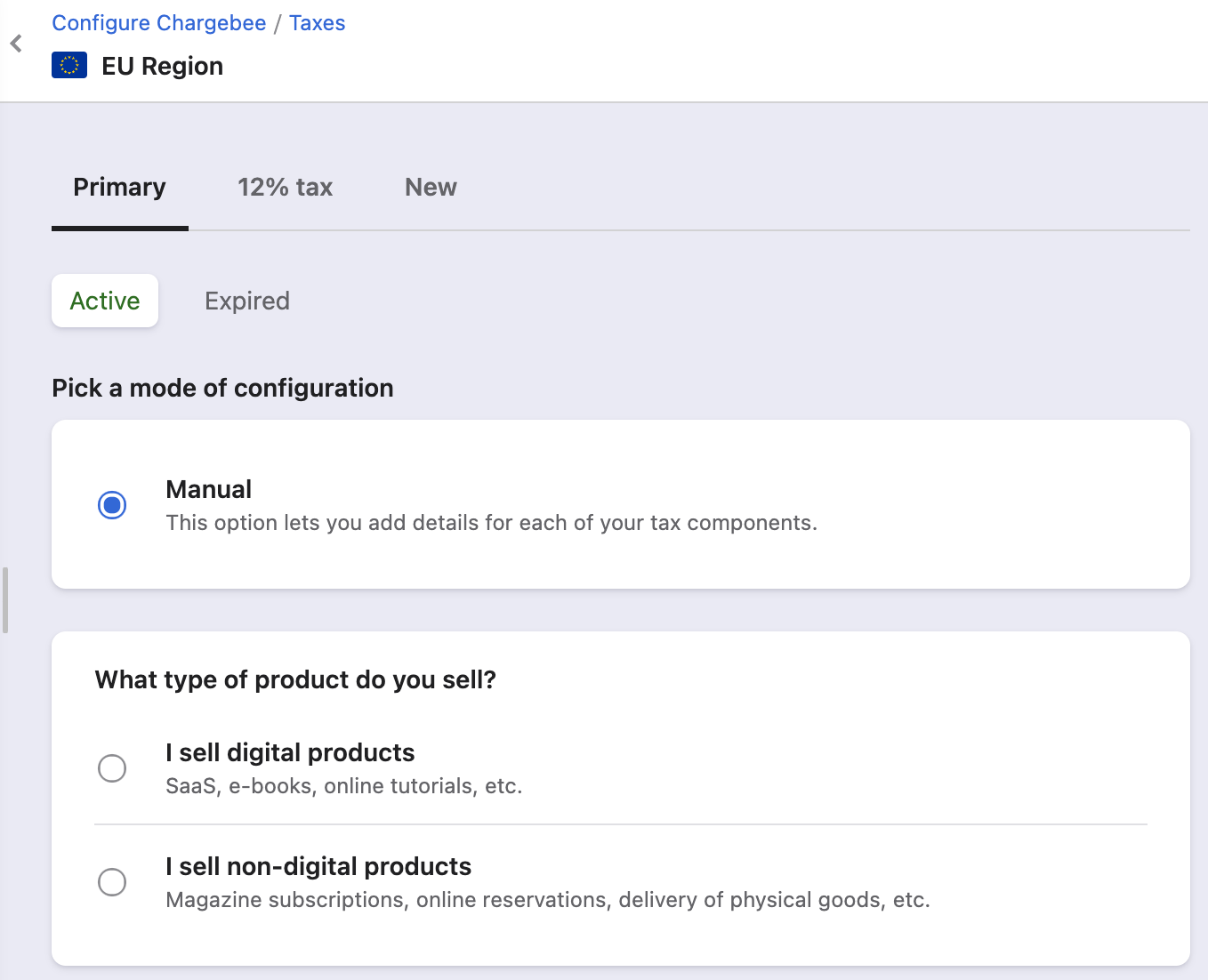
- What type of product do you sell?
-
Digital Products/Services:
- Your buyer's member states' VAT rates apply (destination based)
-
Other services:
-
If you have not registered in your buyer's member state, the VAT rate of your member state applies (origin based)
-
If you have registered in your buyer's member state, the VAT rate of your buyer's country applies (destination based)
-
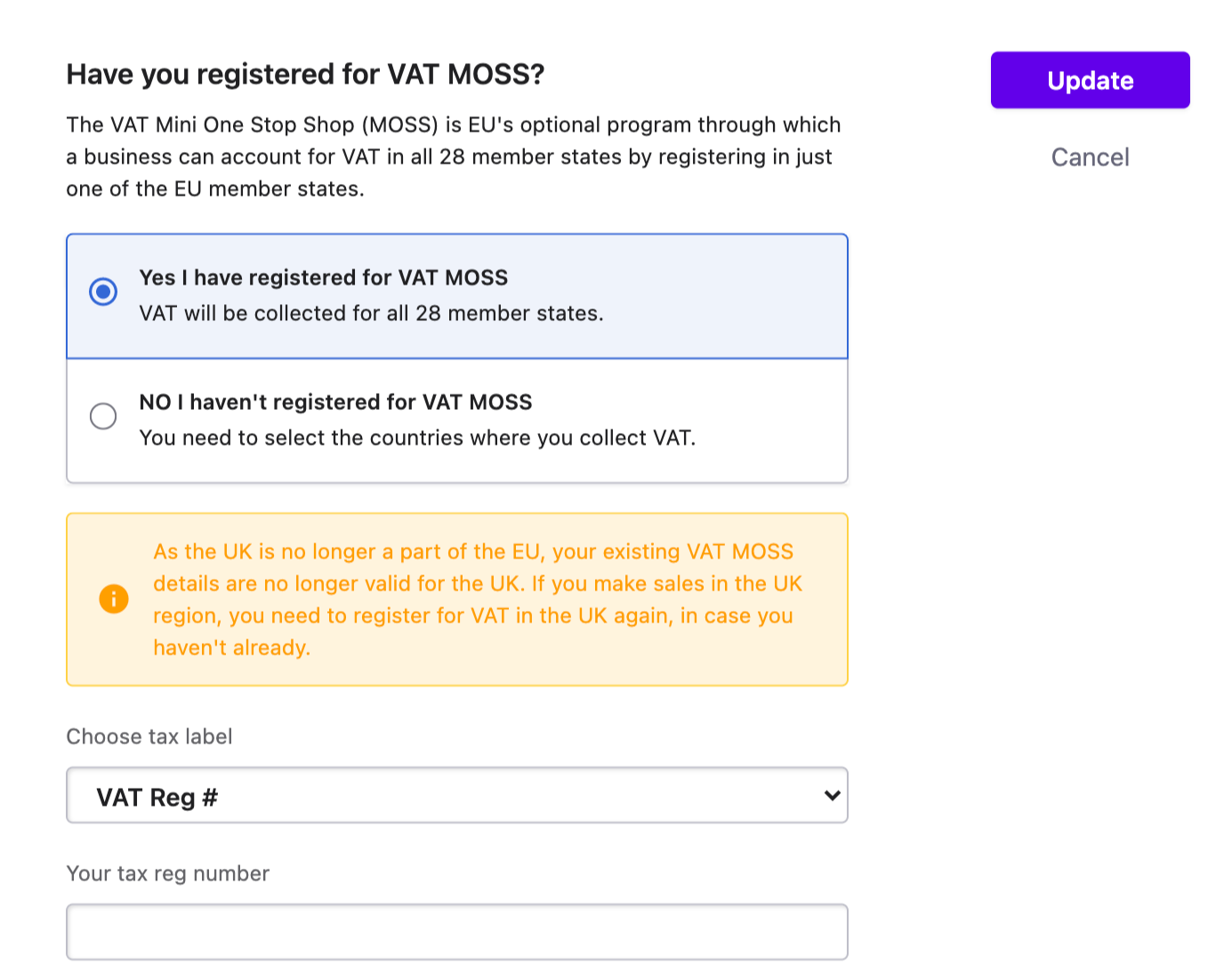
- Have you registered for VAT MOSS?
You can configure your VAT Number as per your registration whether it's VAT MOSS or without VAT MOSS here and this number will be displayed on the customer invoice pdf.
Tax Registration Number:
Set the tax label as EU VAT/UK VAT as per your business and enter your VAT Number here.
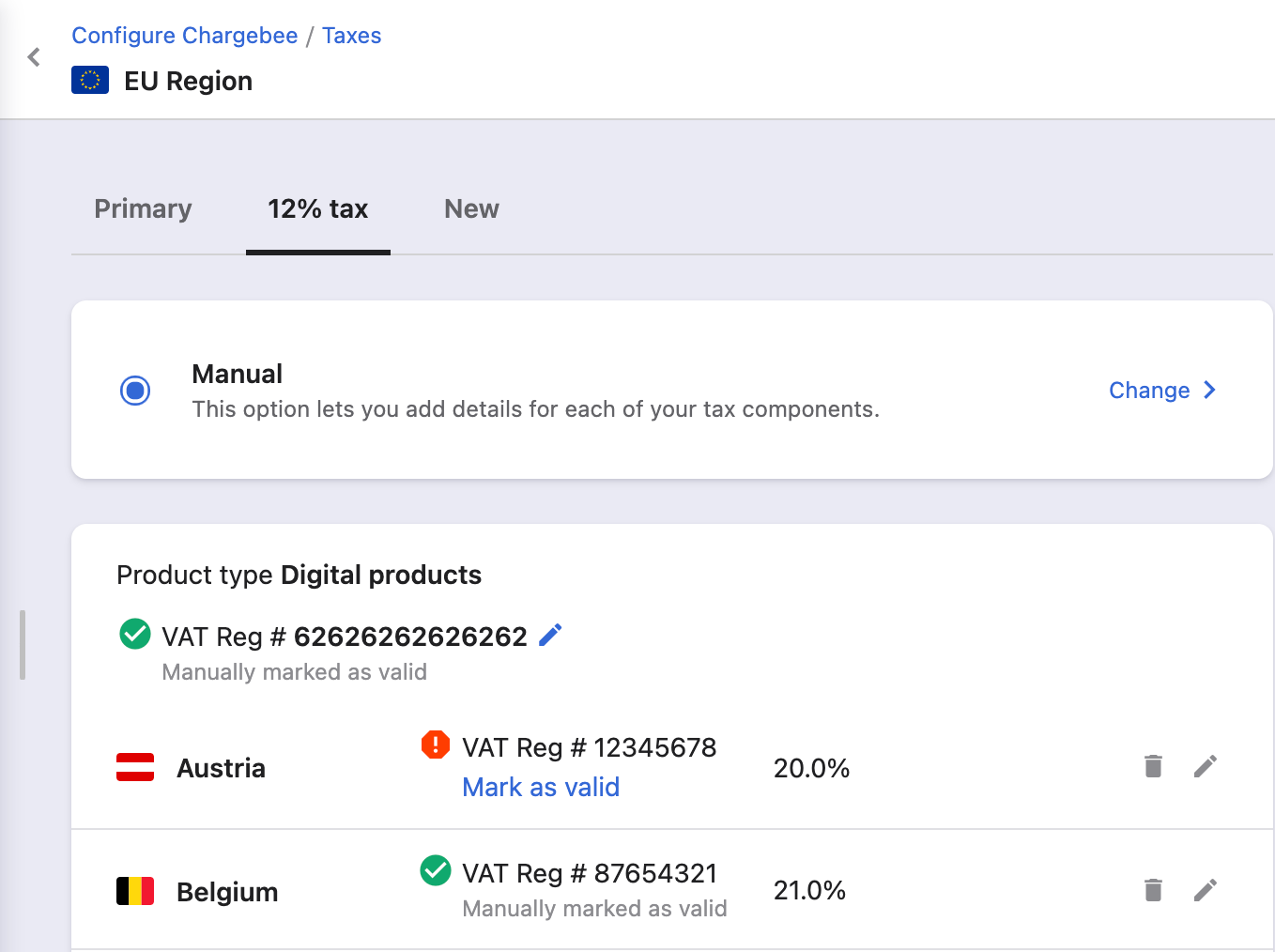
You can configure VAT MOSS or VAT numbers specific to the country. The tax breakup will automatically be calculated. (screenshot for reference)
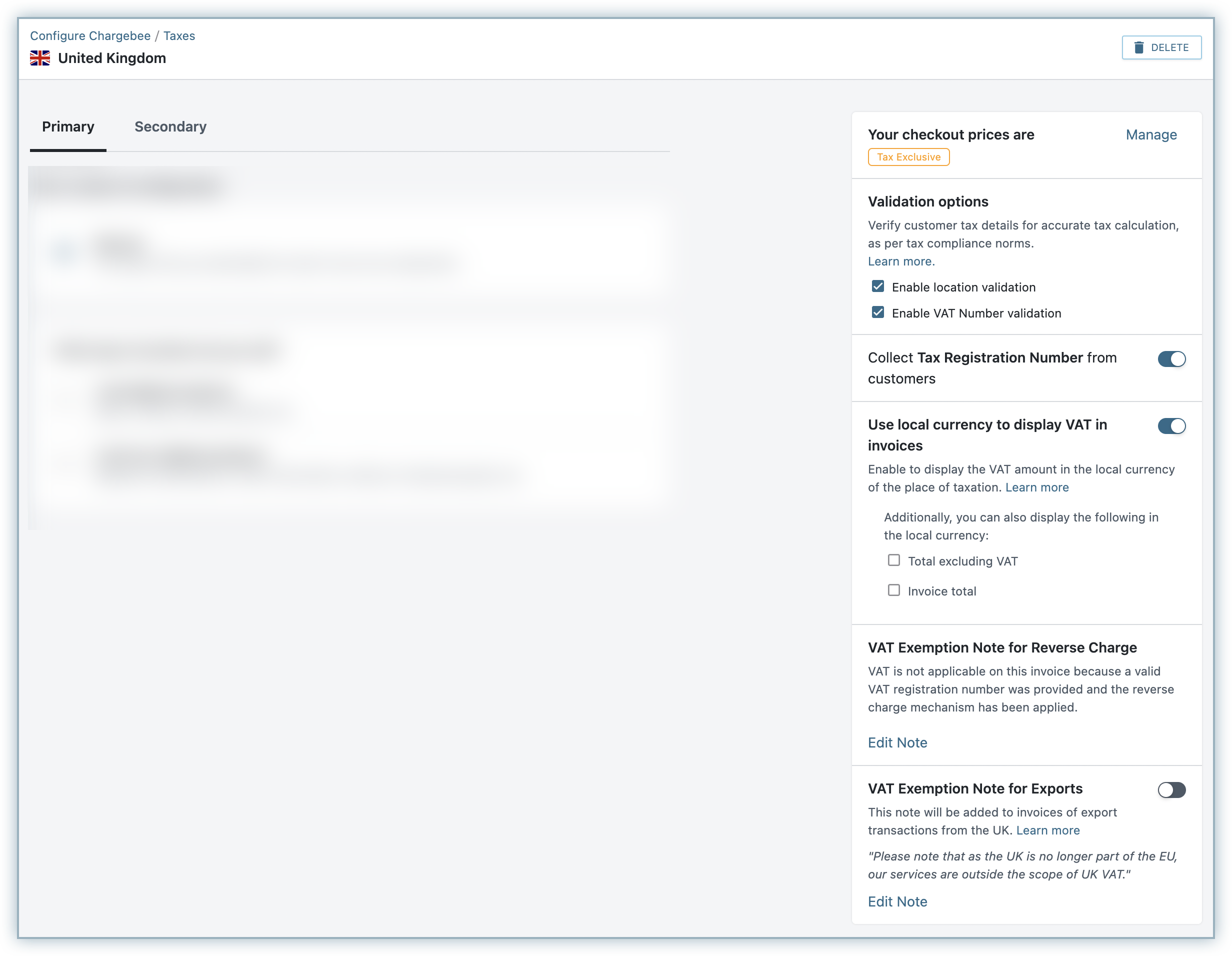
On the UK tax region page, you can configure the following additional settings in the context of the UK tax laws:
-
Price type: You can update the appropriate price type for your checkout prices in the UK region.
-
Location Validation: Choose this option if you want Chargebee to validate your customer's location information.
-
VAT Number Validation: Choose this option to perform UK VAT Validation using the validation service provided by HMRC (Her Majesty's Revenue and Customs (HMRC), when the VAT number is entered by your customers. If you sell to businesses, it is recommended that you collect the VAT Number of your business customers and ensure that it is valid. Chargebee verifies the validity of a VAT number entered against HMRC.
-
Collect Tax Registration Number: Enable this option if you expect your customers to enter their VAT Number while subscribing to your products.
-
Use local currency to display VAT in invoices: This option is helpful when the invoice currency is different from the local currency of the place of taxation. When enabled, the amount of VAT payable will be displayed in the invoice currency as well as the local currency of the place of taxation, as per Article 230 of the EU VAT Directive. Additionally, you can also choose to display the total amount excluding VAT and the total invoice amount in the respective local currency. The exchange rate applied for this purpose is as per the rates listed on the European Central Bank(ECB) website. In cases where a currency's exchange rate is not listed with the ECB, Chargebee uses the exchange rates available with the currency layer and Open Exchange Rates.
-
VAT Exemption Note for Exports: If you export goods/services to other countries from the UK as part of your business, enabling this option adds a note in the respective invoices that refers to the VAT exemption for export transactions. You can edit the note to add or edit the text.
- Merchant VAT Validation:
You as a merchant may have a tax registration number in different EU member countries. Alternatively, for providing digital services more conveniently across the EU region, you may have registered for VAT MOSS. Click here to know more.
Note: The VAT number(s) you enter will be validated automatically when provided. Manually Validating the VAT number will be marked as 'Manually Marked as valid'.
Once this is successfully completed, the invoices that get generated will have the business's VAT number displayed.
How to configure and display the customer's VAT number on the invoice?
Refer to this link - Tax line item not showing on the invoice if you want to configure and display the customer's VAT number on the invoice
Was this article helpful?