How to configure Contract Terms?
Problem Statement
You want to know how to configure contract terms.
Solution
Note: Contract Terms feature is available only on select plans. To know more, visit Chargebee's Plans and Pricing page
To set up contract terms on your Chargebee site, click Settings > Configure Chargebee > Billing LogIQ> Contract Terms and click Enable. Mention your preference for the contract term and apply the changes.
Go to Settings > Configure Chargebee > Checkout & Self-serve Portal > Portal. You can enable Portal for Contract Terms to configure fields that customers on contract subscriptions will see on their self-serve portal.
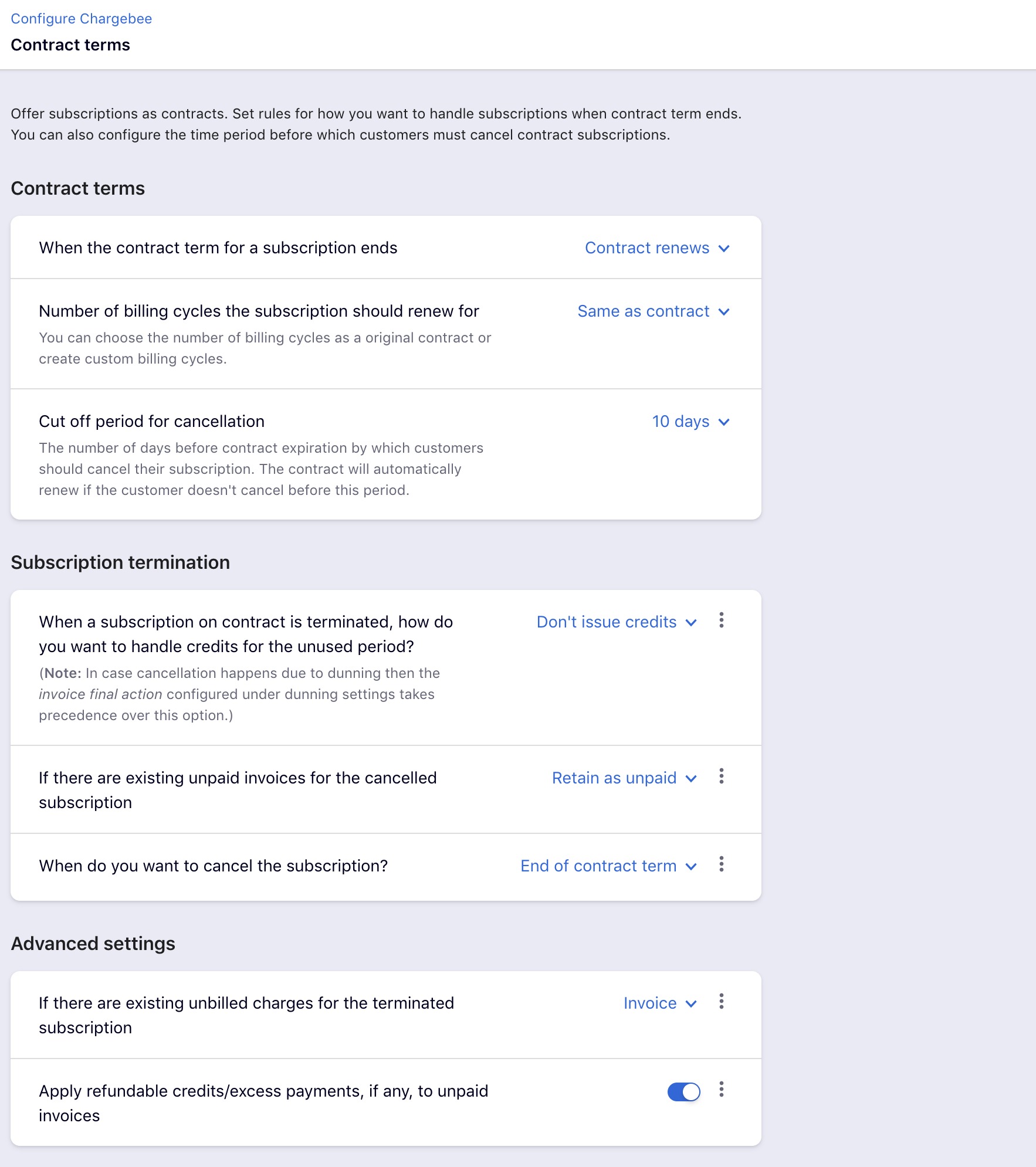
- In Contract Terms, select how you want the subscriptions to renew when the contract term ends. You can select from the following options:
- Contract renews: a new contract and subscription get created for a specific number of billing cycles.
- Subscription renews without a contract: The subscription will remain active without the contract terms.
- Contract and Subscription end: This stops the subscription and the contract upon renewal.
- When you choose to renew the contract,
- Select the number of billing cycles for which the subscription should renew. You can either choose Same as specified in Contract or choose Custom and specify a value.
- In the Cut-off period for cancellation, specify the number of days before the Contract Renewal/Contract Expiration, when the customer can cancel their subscription. You can override all of these settings at a subscription level while creating or modifying the subscription.
- Under Subscription termination, you can select how you want to handle credits for the unused period when a subscription on the contract is terminated. You can select from the following options:
- Don't Issue Credits
- Issue Prorated Credits
- Issue Full Credits Additionally, you can add conditions to handle this differently based on where the subscription cancellation is being invoked. Click the more icon and add conditions to this rule. Select a source, and add the corresponding behavior. For instance, you can issue full credits when your users invoke a cancellation from the Chargebee Interface, otherwise, for all customers who cancel subscriptions from the self-serve portal, you may choose not to issue credits. You can turn the toggle on/off to allow/lock the overriding capability. When overriding is allowed, users will be able to change this global setting at a subscription level.
- If there are existing unpaid invoices for the subscription that is being canceled, you can choose to
- Retain as unpaid: No further action will be taken.
- Attempt Collection: If Auto-collection is ON for the customer, an automatic charge for the due amount will be attempted on the available payment method.
- Write off: The amount that is due will be written off. Credit notes that get created for the write-off will not be sent in response.
- Under when do you want to cancel the subscription, you can select:
- Terminate immediately
- End of contract term
- Under Advanced Settings, if there are existing unbilled charges for the terminated subscription, you can select:
- Invoice - An invoice gets raised for the unbilled charges, and when the auto-collection is turned on for the customer, an automatic charge for the due amount is attempted on the available payment method.
- Delete - The unbilled charges get deleted.
- And finally, you can turn the toggle on to apply refundable credits/excess payments to unpaid invoices.
Once you are done, click Apply to save your configuration. Once you are done, you can start creating subscriptions with contract terms.
Was this article helpful?