Bancontact via Stripe
The inception of the European Union (EU) brought about a wide range of economic benefits and unification for its members, but there are still country-specific preferences related to payment methods.
Bancontact is currently the most preferred payment option in Belgium. It offers a wide range of benefits for consumers, such as allowing smaller transactions, online payments, and contactless card transactions, while ensuring merchants are assured of a direct and guaranteed payment.
Chargebee now enables you to configure and process Bancontact payments with Stripe, allowing you to offer payment options for customers who prefer EU-specific payment methods.
Recurring payments are not supported by Maestro due to restrictions defined by its network.
Prerequisites
To accept Bancontact payments, the following conditions must be met:
- You must have a Stripe account configured to accept Bancontact payments.
- Stripe SEPA must be enabled on the account. This is essential because Bancontact payments are one-time payments and recurring payments are managed by Chargebee as Direct Debit SEPA payments.
Configuring Stripe Bancontact
- Configure Stripe Payment Gateway.
- Access the Chargebee app Settings page. Navigate to Stripe Settings: Settings > Configure Chargebee > Payment Gateway > Stripe.
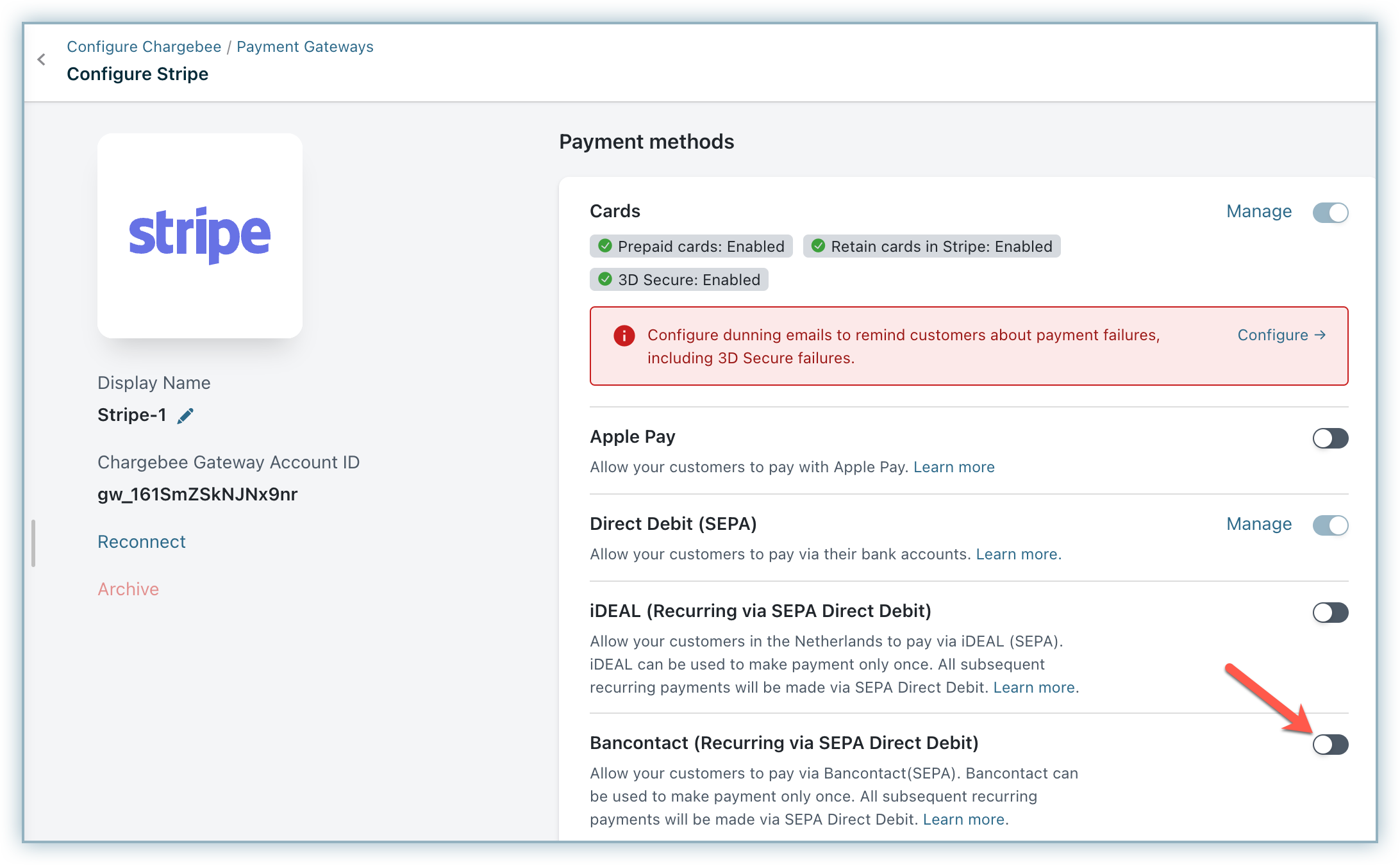
- Enable Direct Debit (SEPA). This must be enabled on both Chargebee and the Stripe gateway. Note: Refer to this document for more information.
- Enable Bancontact (Recurring via SEPA Direct Debit).
- Ensure the Smart Routing settings are configured to accept Bancontact payments via Stripe.
Navigate to Settings > Configure Chargebee > Smart Routing > Manage Rules > For Bancontact Card Payments > Edit.
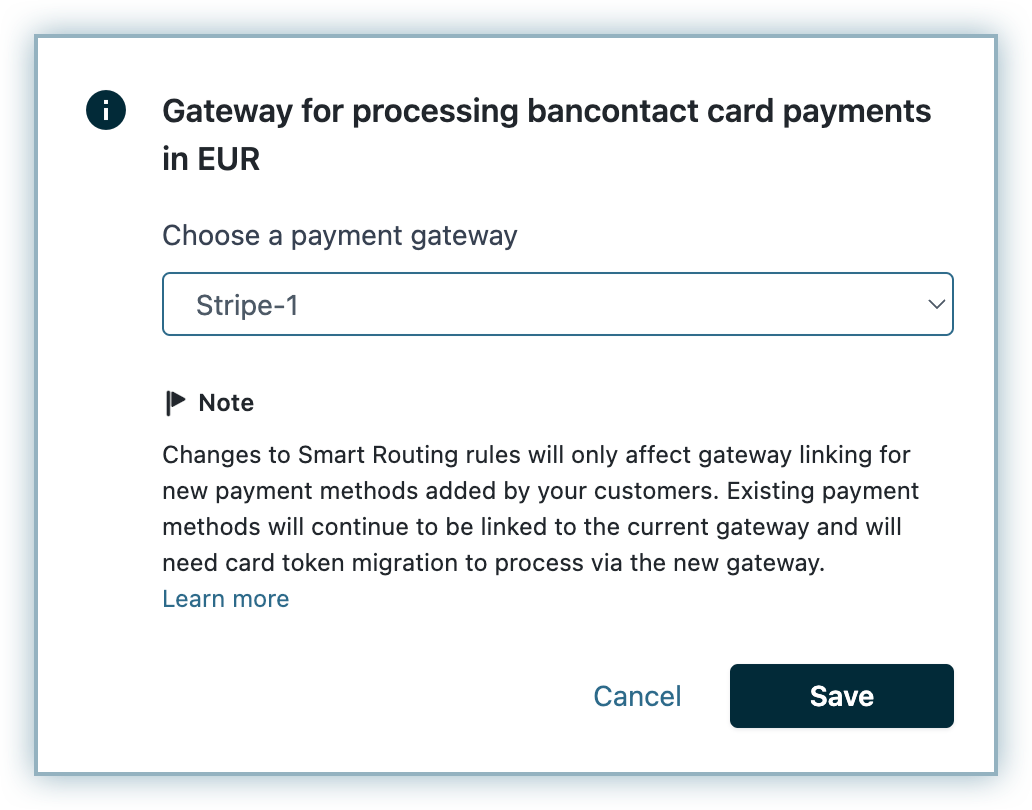
- Select your Stripe account from the Choose a payment gateway drop-down list and click Save.
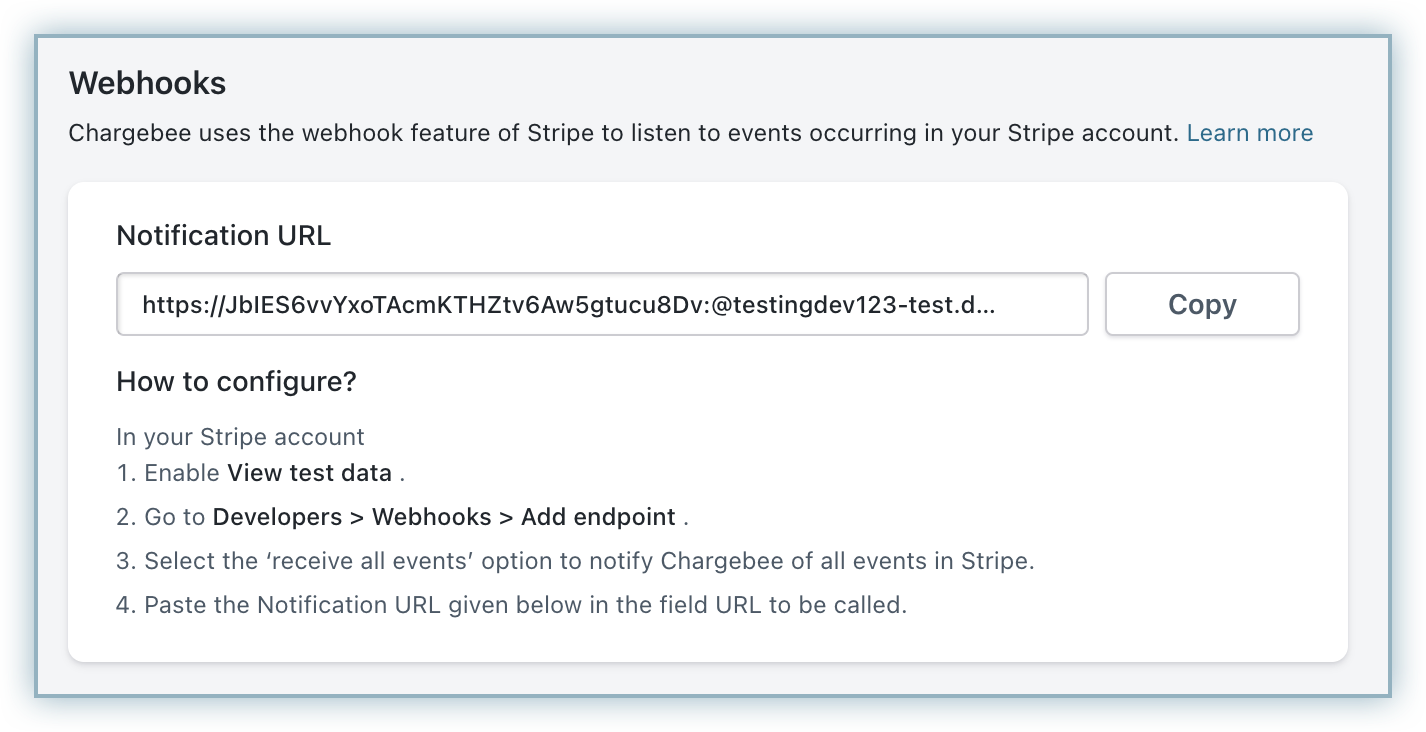
- You need to configure webhooks to get the status of SEPA payments. Learn more about configuring webhooks.
Note
- You can display Stripe Bancontact as a payment method using in-app checkout or access it using Chargebee APIs.
- This integration will not work if you are using in-app browsers.
Email notifications
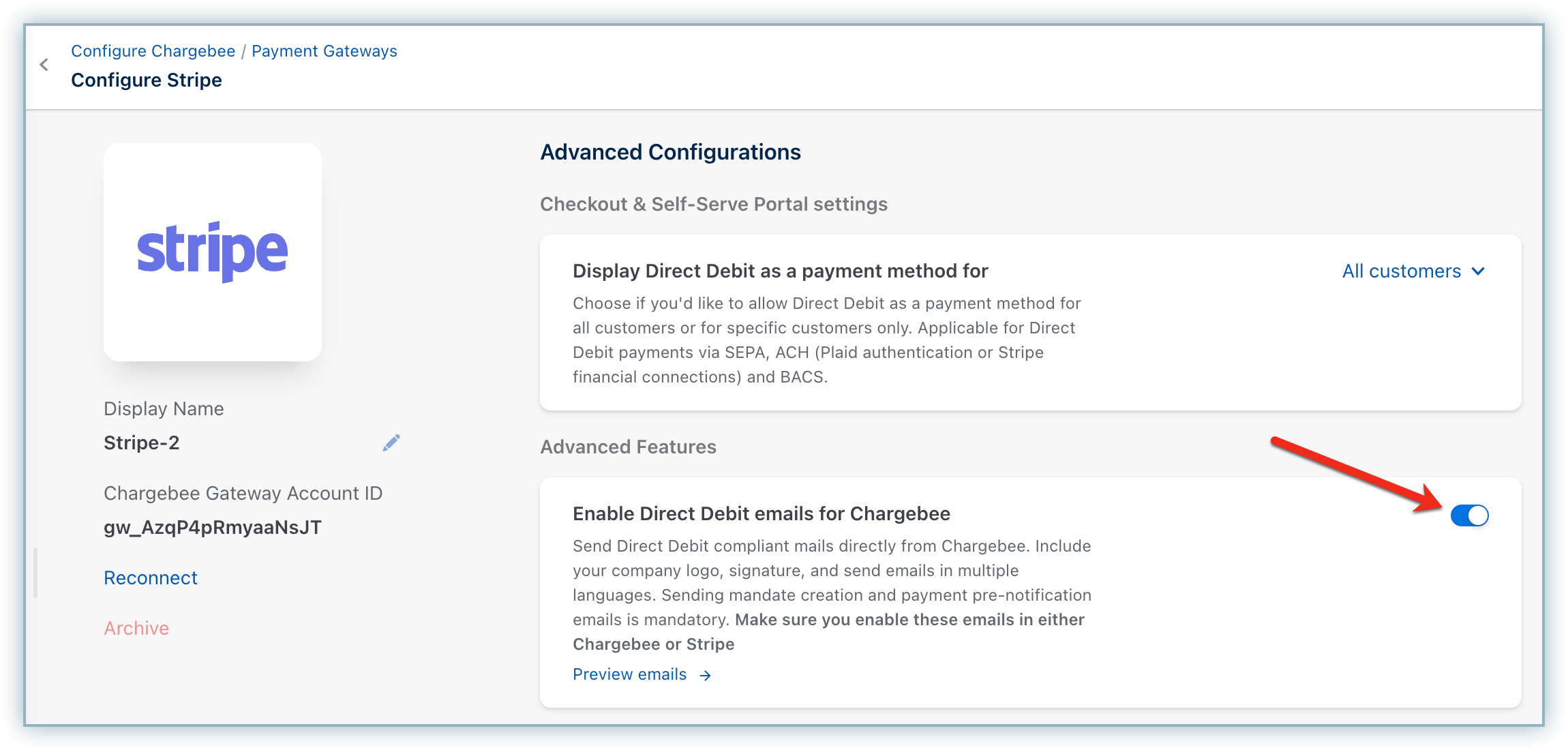
To receive Direct Debit emails for this integration, enable Enable Direct Debit emails for Chargebee on the Configure Stripe page.
Note
- For a seamless customer experience, disable Stripe's direct debit notifications and enable them in Chargebee if you prefer Chargebee to manage them. Enabling notifications in both systems will result in duplicate emails being sent to customers.
Handling recurring payments
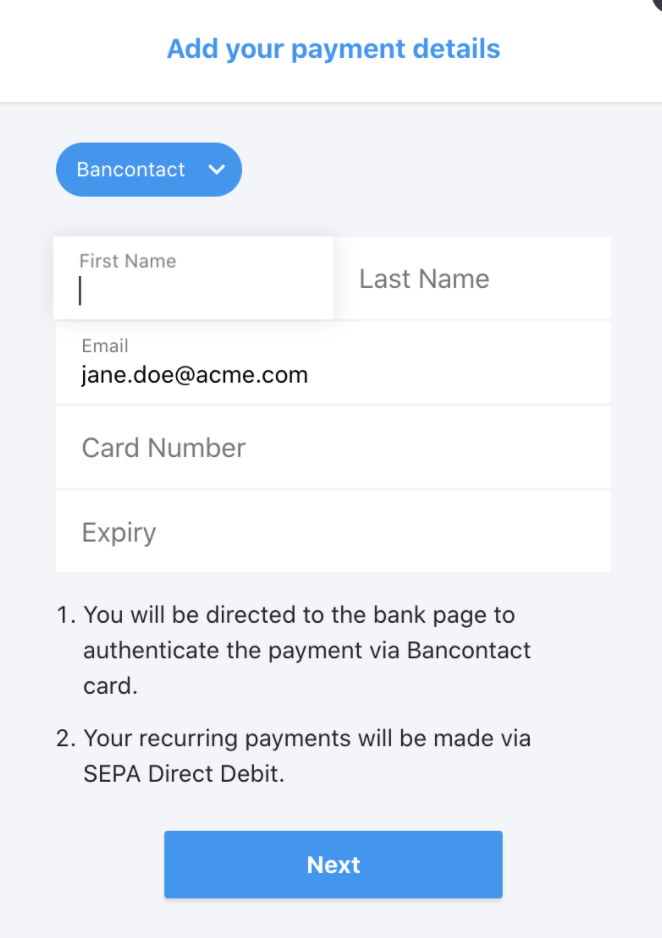
Stripe Bancontact can be used to make the payment only once. Chargebee handles recurring scenarios by converting all the recurring transactions into Direct Debit SEPA payments. Therefore, it is important that you inform your customers during checkout that future payments will be converted to Direct Debit SEPA payments.
Here is a sample content that you can display at your checkout:
According to the European Payment Council, when you enable SEPA Direct Debit payments for customers, an authorization agreement should be available for the customer to view and confirm the mandate. Read more on this.
It is a regulatory compliance requirement of the SEPA scheme to send emails to customers regarding mandate creation and payment pre-notification. You can send this email either from Chargebee or Stripe. The advantage of sending this email from Chargebee is that it allows you to configure elements such as your company logo and signature. Learn more.
Review subscription details
You may want to review the details of the subscription or confirm the status of the payment. Follow the steps below to complete this action:
- Click Subscriptions.
- Access the relevant Subscription ID.
- The Payment Method Details displays the SEPA logo indicating that recurring payments are now active.
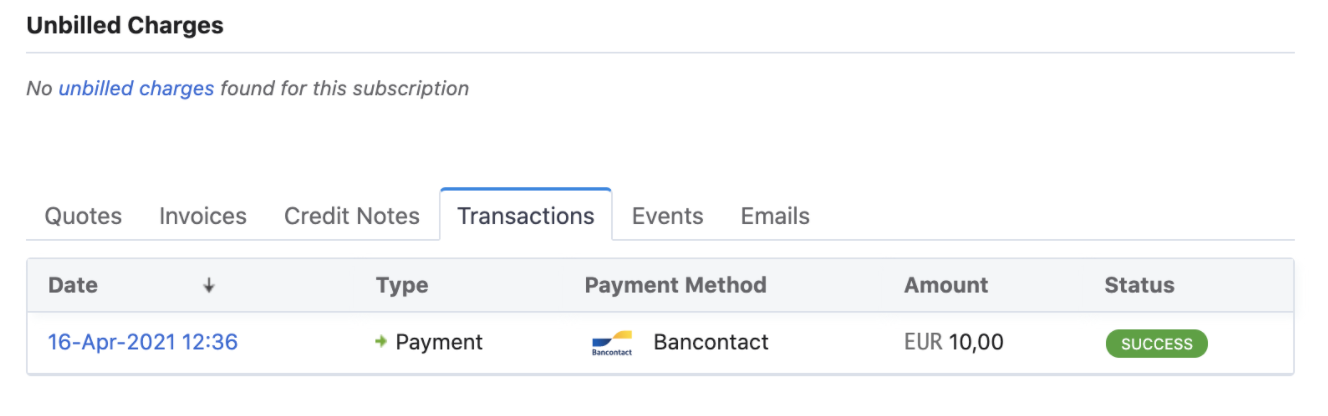
- Click the Transactions tab to view the details of the payment processed.
Note
- Bancontact is a synchronous payment method and the payment status displays Success or Failure in real time.
Was this article helpful?