Anrok
Overview
Anrok is a leading sales tax solution that automates sales tax compliance across financial stacks for SaaS companies in any market. The product covers end-to-end SaaS sales tax for your business which includes your registrations, address validation, and much more.
You can integrate your Chargebee site with Anrok to automate tax application on your Chargebee invoices and credit notes. You can sync your invoices and credit notes to Anrok and generate reports or auto-file your tax returns.
Note
To avoid unnecessary API calls to the tax system for zero-value invoices, and to optimize your usage and reduce associated fees. Reach out to Chargebee Support for assistance.
Availability
- To know more about the availability of this feature, visit our pricing page .
- We recommend that you test the integration on your Chargebee TEST site before configuring it on the LIVE site.
Note
Chargebee is Personal Identifiable Information (PII) compliant and requires the tax providers to be PII compliant as well. Chargebee shares your confidential PII data with Anrok for tax calculation.
Prerequisites
Before integrating your Chargebee site with Anrok, ensure that the following prerequisites are verified on respective applications:
Chargebee
-
Organization Address: The organization address that is configured in your Chargebee site is used as the origin address for tax calculation by Anrok. Ensure that your organization address in Chargebee is added and up-to-date. You can verify and update your organization address on your Chargebee site by navigating to Settings > Configure Chargebee > Business Profile.
-
Customers' Address for Tax determination:
- For physical goods, Chargebee uses your customers' shipping addresses to calculate tax. If the shipping address is unavailable, the billing address is used.
- For digital goods, Chargebee uses your customers' billing address to calculate tax.
-
If you're using Hosted Pages, ensure you set up the following:
- Navigate to Settings > Configure Chargebee > Checkout & Portal > Fields and enable the Shipping/Billing Address fields.
- Mark the fields as mandatory in the hosted pages.
Anrok
- Sign up and set up your Anrok Account. Visit Anrok pricing page for more details.
- Jurisdictions: When your business has 'nexus' in a tax jurisdiction, it has a physical presence and connection in that jurisdiction and is thereby obligated to collect and remit taxes to the State. You must configure nexus jurisdictions in your Anrok account to let Anrok know where to tax. Login to your Anrok account and follow these steps to configure Jurisdictions:
- Click Jurisdictions > Manage physical nexus.
- On the Manage physical nexus pop-up, select a country from the Add Jurisdiction drop-down and specify Effective dates(to determine from when to process transactions) and Notes.
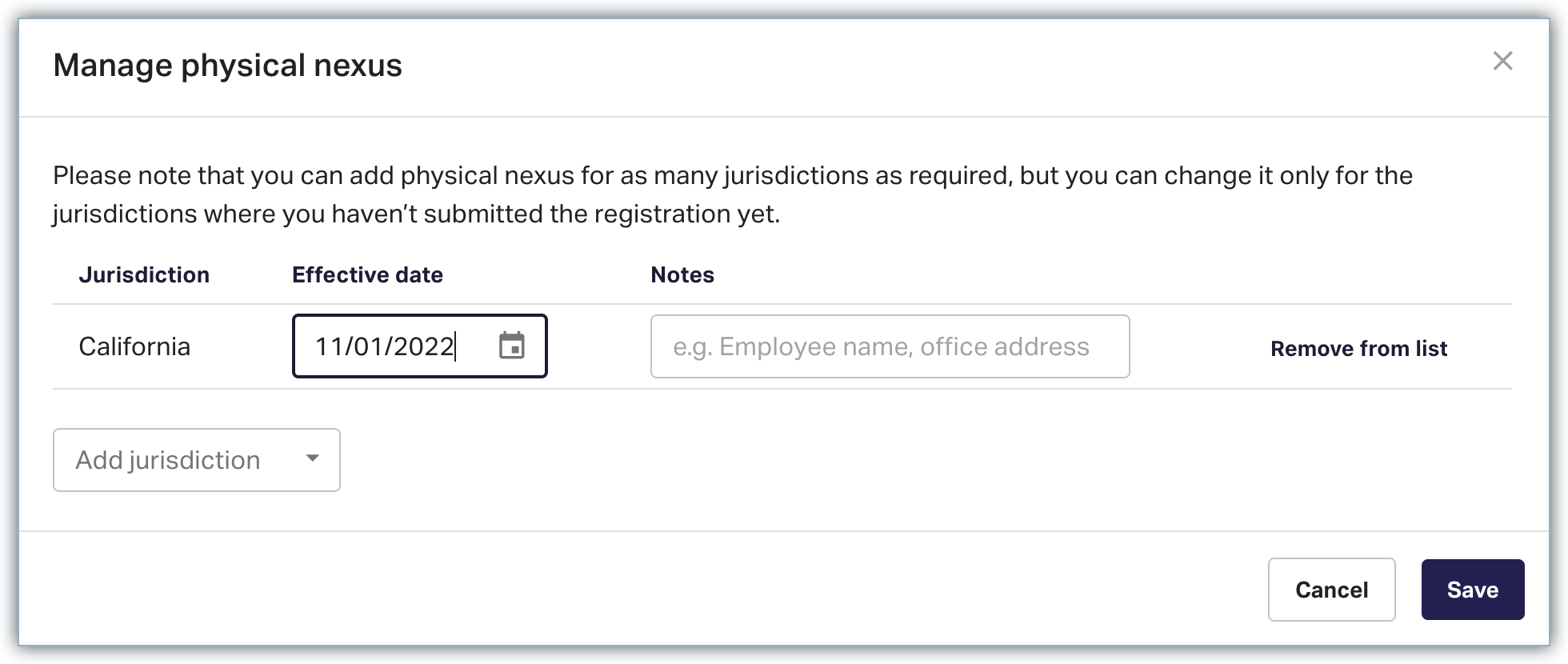
- Click Add jurisdiction drop-down to configure more countries as required.
- Click Save.
- Product Catalog: Sync or add the Plans, Addons, and Charges from Chargebee as Products in Anrok and assign their tax configuration.
- Configure a default product in Anrok to be used for transactions from Chargebee when the product ID does not match with any existing Anrok products. The Quick Charges in Chargebee also get mapped to the default product configured in Anrok.
- API Key: You must retrieve an API key from your Anrok account for Chargebee to connect the applications. Follow these steps in your Anrok account to retrieve the API key:
- Click Data Sources and navigate to the Integration sources section.
- Click the Ellipsis icon next to Chargebee and select Generate/Manage Anrok API Key.
- Copy the key and use it while connecting the applications.
Visit Anrok documentation to learn more.
Sync Overview
The following data is synced between Anrok and Chargebee for tax automation on your Chargebee invoices and credit notes:
- Invoices and Credit notes are synced from Chargebee to Anrok as Transactions.
- Plans and Addons are synced from Chargebee to Anrok as Products.
- Tax rates are synced from Anrok to Chargebee.
Configuration
Following are the steps to integrate Anrok account with your Chargebee site:
- Connect Anrok account with Chargebee site
- Validate addresses for existing customers
- Enable Anrok as mode of tax calculation for taxable region - United States
Connecting Anrok Account with Chargebee Site
Follow the steps below to connect the applications:
-
Log in to your Chargebee site, and click Apps > Go to Marketplace > Tax Management > Anrok.
-
On the Anrok configuration page, click Get Started if you already have an Anrok account, or click Sign up to create a new account and continue.
-
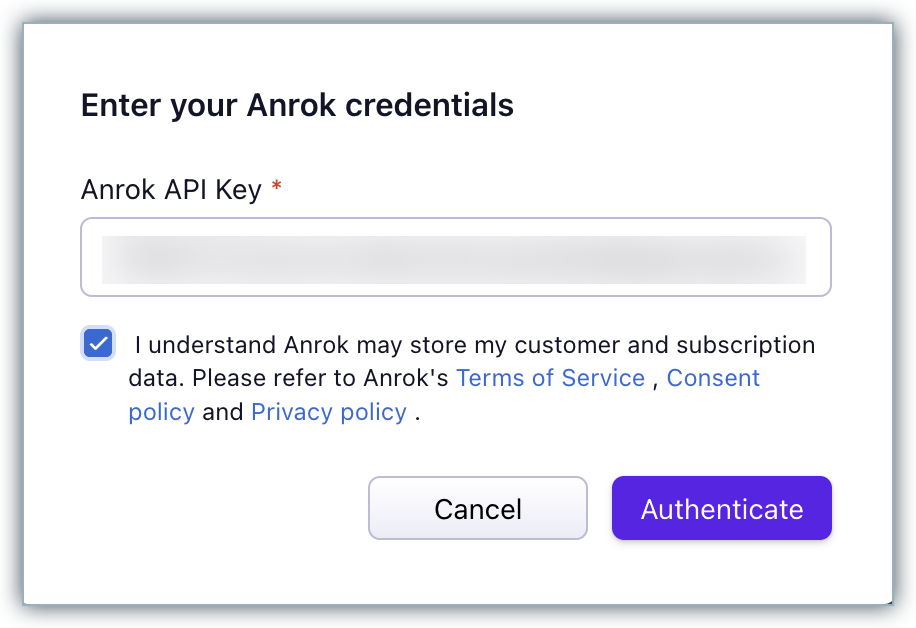
Enter your Anrok credentials by specifying the Anrok API Key that you retrieved for Chargebee. Click the "I understand Anrok.." checkbox for affirmation and click Authenticate.
-
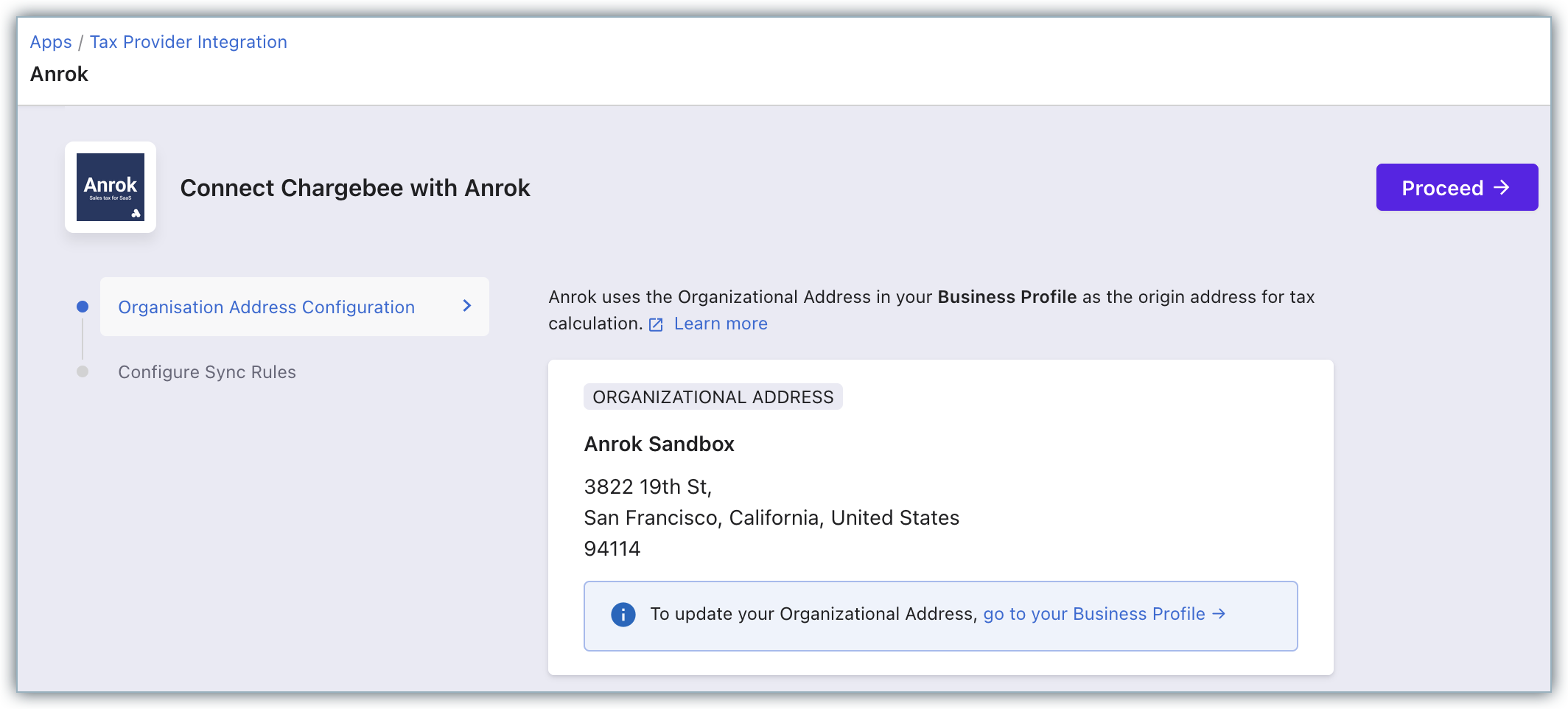
Enter or confirm your organization address. Chargebee auto-populates the address that is specified in your settings, you can change this if required or click Proceed.
-
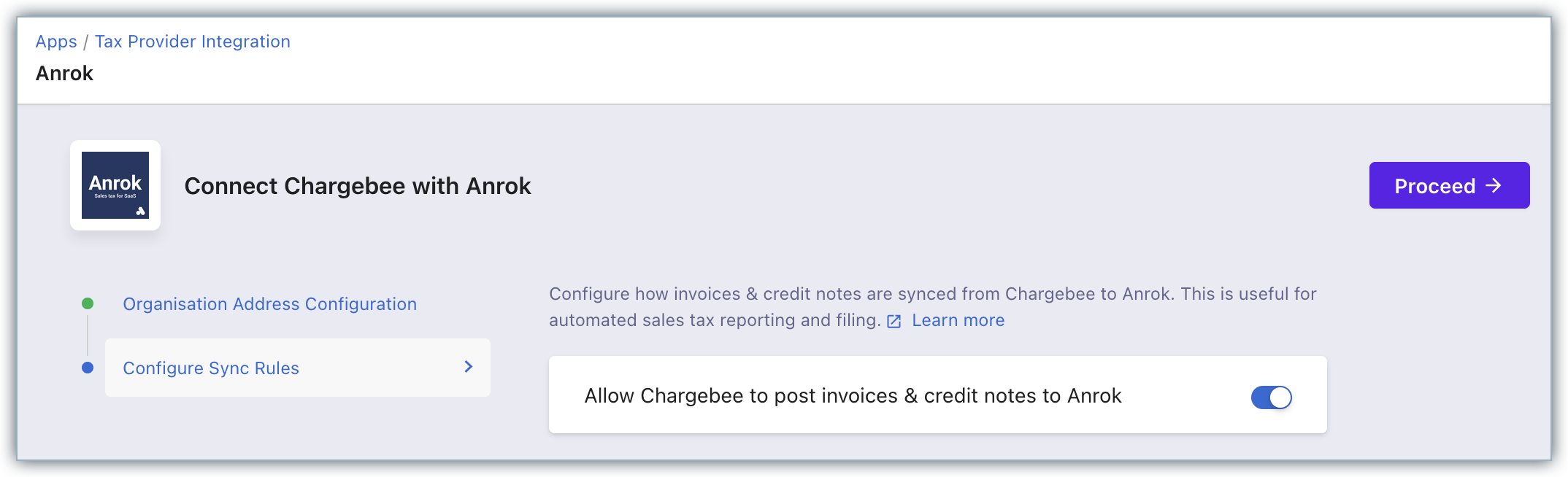
In Configure Sync Rules, enable the toggle button to allow Chargebee to sync invoices and credit notes to Anrok.
-
Click Proceed.
The Anrok account is successfully connected with your Chargebee site.
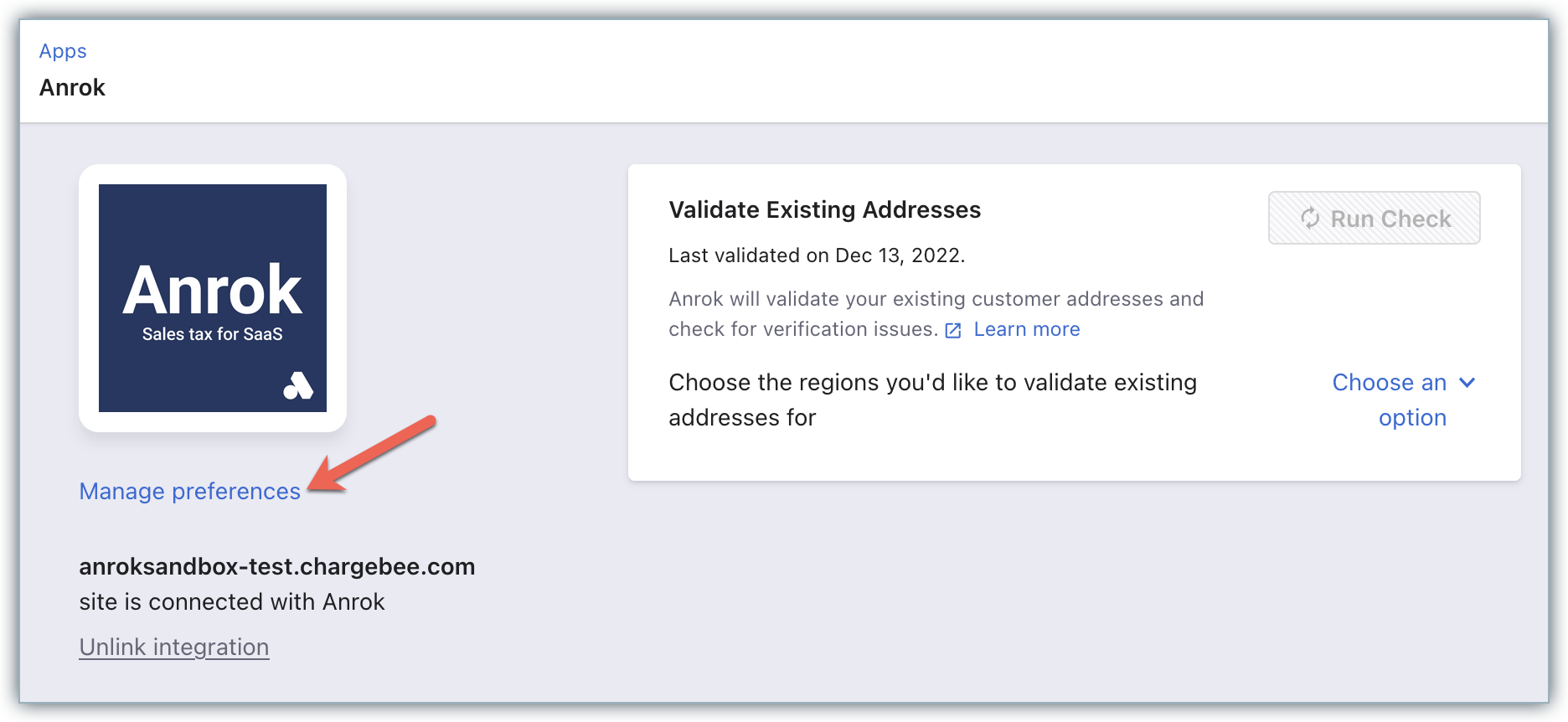
You can make changes to the integration preferences at any point of time by clicking Apps > Apps Connected > Anrok > Manage > Manage Preferences.
Validating Addresses for Existing Customers
The Chargebee-Anrok integration validates the taxable address for all new customers who subscribe with you after enabling Anrok. For customers who have signed up before enabling Anrok, Chargebee will cancel their subscriptions during renewal if tax cannot be determined. Subscriptions on the verge of cancellation can be determined using the Validate Existing Addresses feature that allows you to view and fix invalid addresses.
Under Validate Existing Addresses, select your taxable region - United States from the drop-down, and click Run Check.
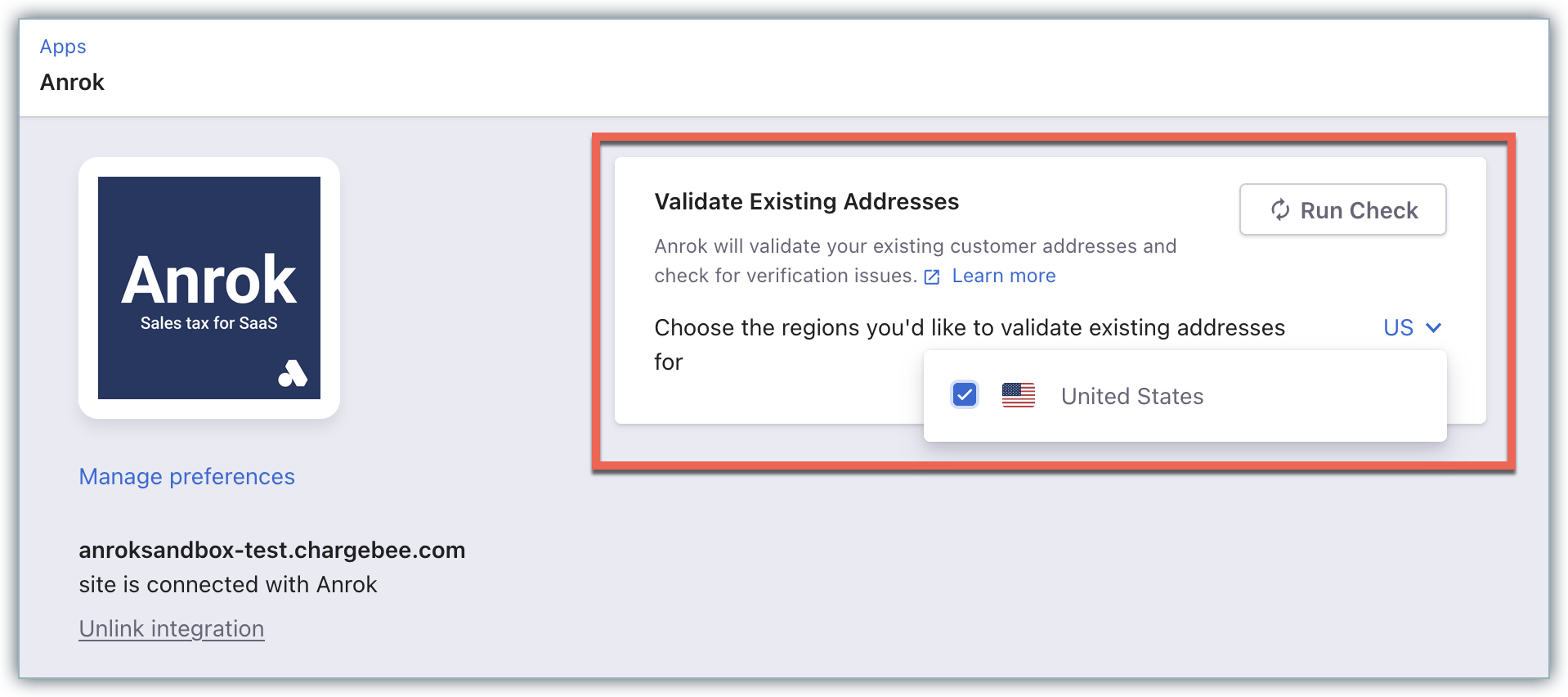
During the first check that is run after the integration is configured, all the existing subscriptions' taxable addresses gets validated. Subsequent address validations will check only the addresses that are added after prior validation and not all the addresses. You can look for any possible address errors and have them fixed.
In order to validate the address, Chargebee makes a taxability api check to validate if the address is taxable.
Note
Note that validating addresses is not a full address validation but a taxability check.
Enabling Anrok for Tax Calculation for Taxable Regions/United States
This is a crucial step in the integration. Unless you execute this step, Anrok will not be used for automatic tax calculation in Chargebee. After connecting the Anrok account with your Chargebee site, click Go to Taxes on the Anrok app page.
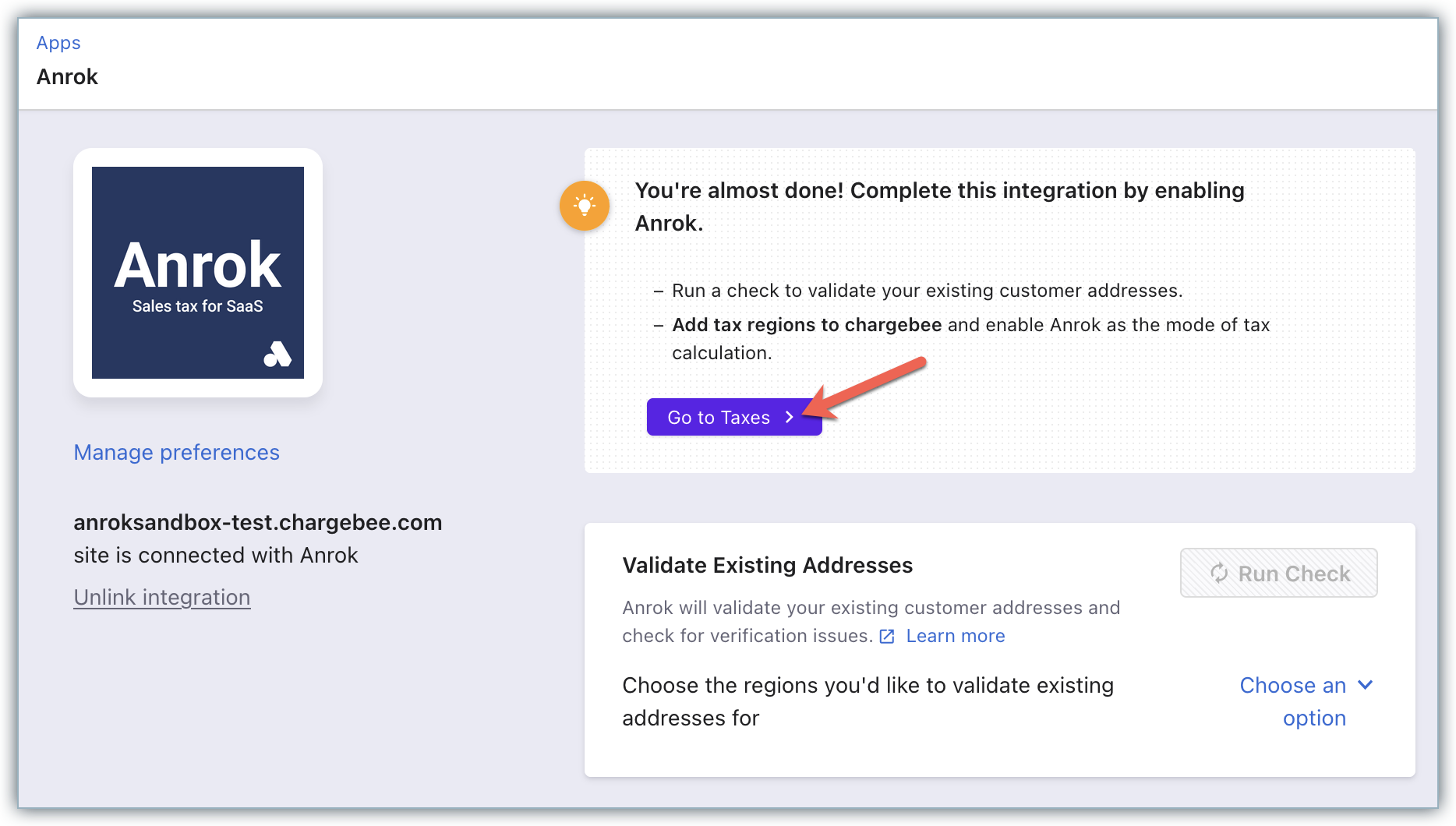
Alternatively, you can click Settings > Configure Chargebee > Taxes.
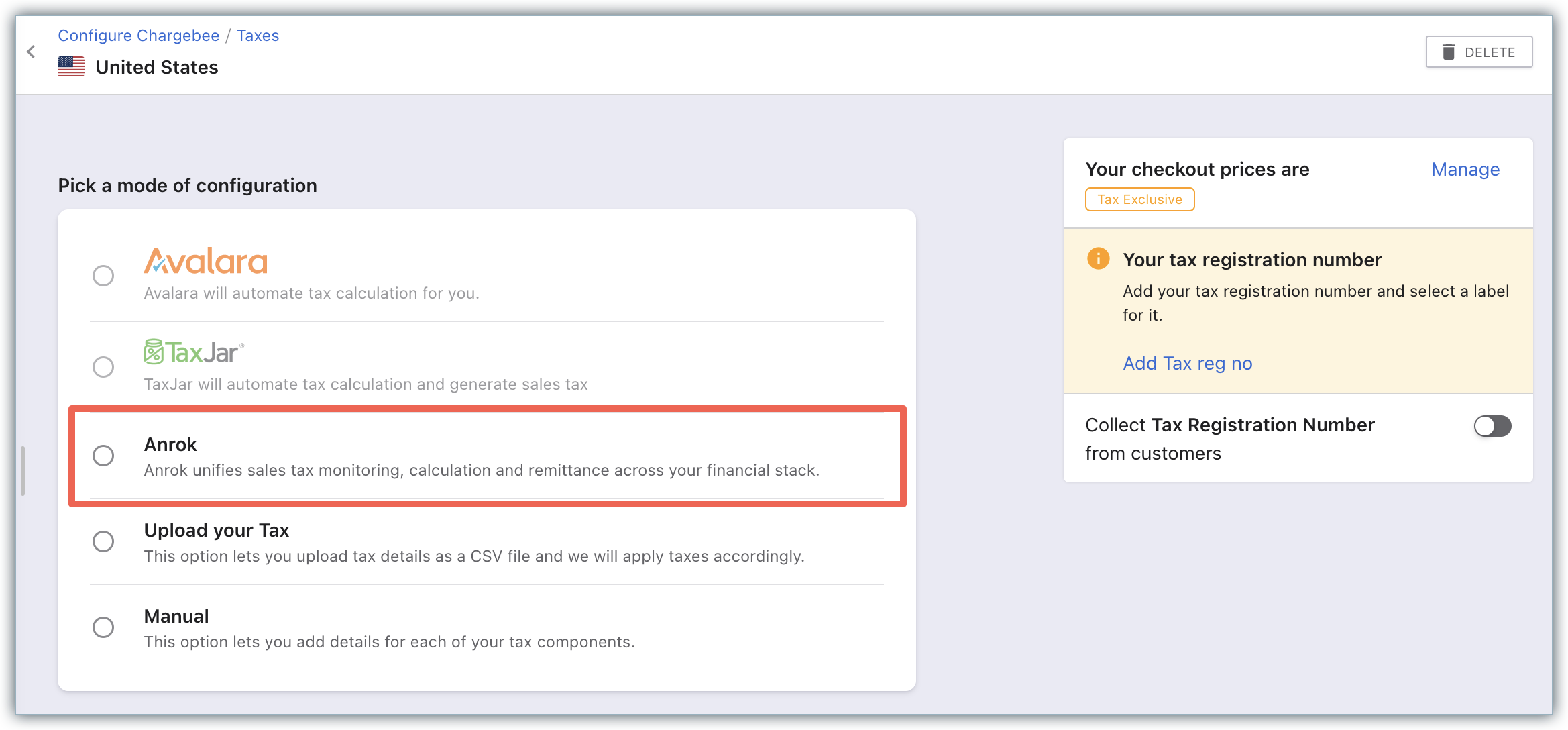
Go to the taxable region - United States and select Anrok as your preferred mode of tax calculation.
Unlinking Integration
Follow these steps to unlink the Anrok integration from your Chargebee site,
- Click Settings > Configure Chargebee > Taxes and switch from Anrok to your preferred mode of tax calculation for United States, by clicking Change.
- Navigate to Apps > Apps Connected > Anrok > Manage, and click Unlink integration.
Limitations
- While using third-party integrations for taxation in the EU region, note that the value for ‘isTaxed' field will be false in the invoices(unlike how it would be true with manual taxation) for reverse charge scenario, even when reverse charges are applied in the invoice as applicable.
- The tax rates sent from Anrok to Chargebee are rounded off to two decimal places. This could lead to a slight variation in the tax rates and consequently - cent mismatch in the total invoice amount between the two applications.
Was this article helpful?