Custom MCP Server
Overview
Custom MCP servers let you combine tools from Chargebee's full tool catalog into a server tailored to your use case—for example, an invoice lookup server that exposes only the subscription and invoice tools your AI client needs. For an overview of Chargebee MCP servers, see Chargebee MCP Servers.
Unlike the predefined Knowledge Base, Data Lookup, and Onboarding MCP servers, custom servers let you pick any combination of available tools.
Custom MCP servers require Latest Product Catalog. They are not available on sites using Legacy Product Catalog.
Note
Custom MCP servers are available only for test and sandbox sites. They are not available for live sites.
Create a custom MCP server
- Log in to Chargebee Billing.
- Navigate to Settings > Configure Chargebee > Agentic AI > MCP Servers.
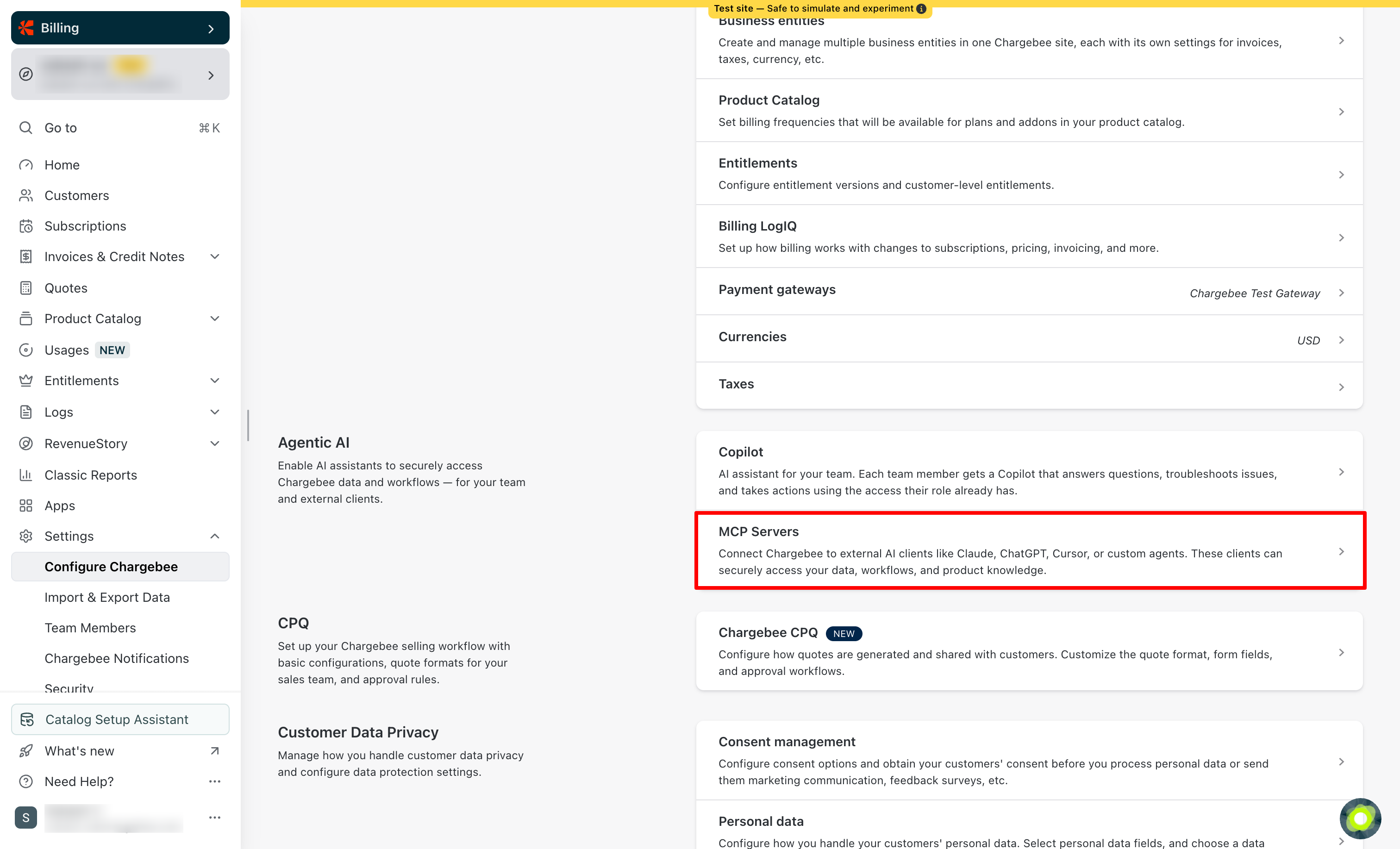
- In the Custom MCP servers section, click + Create custom server.
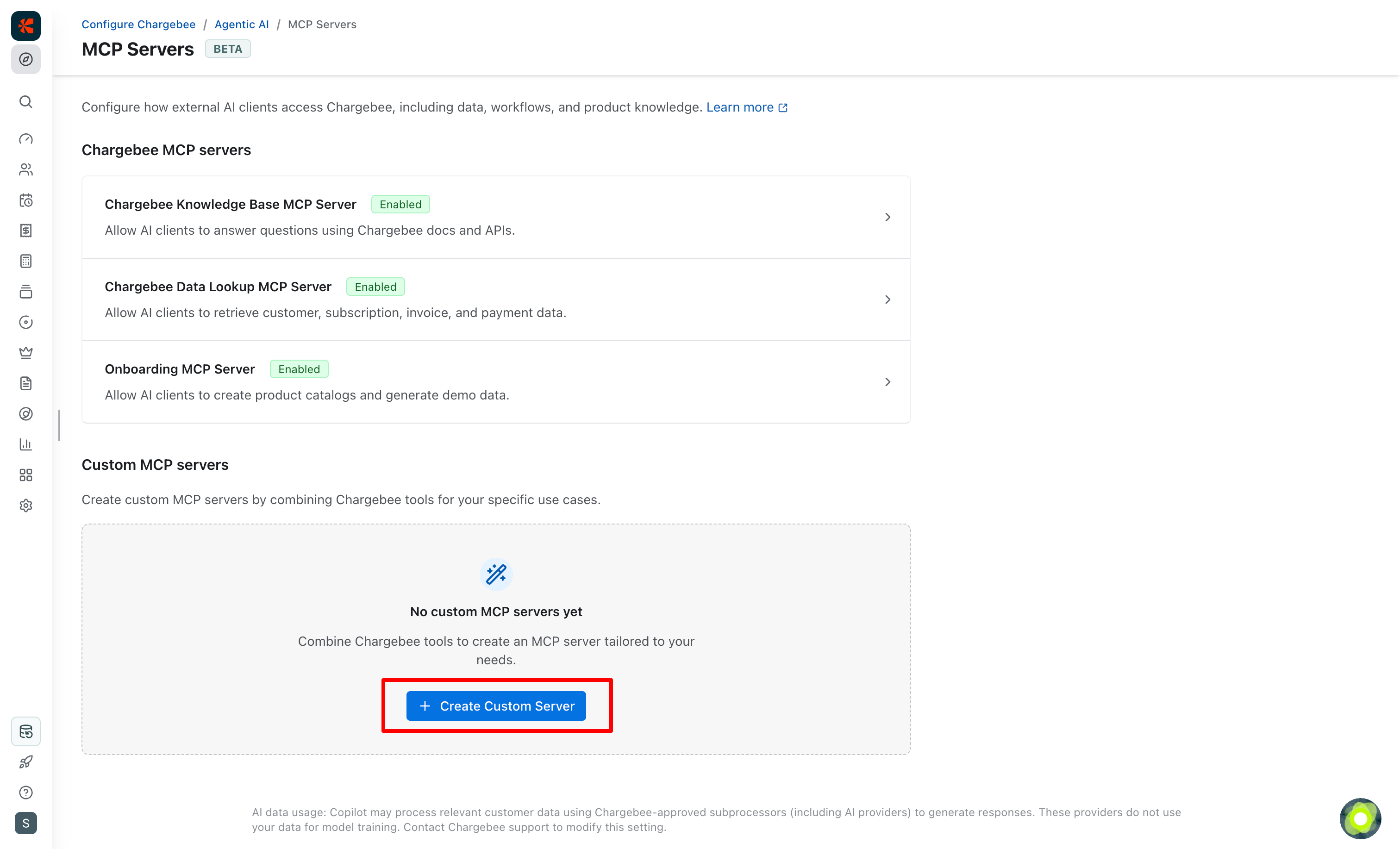
- In the Create MCP server dialog, enter a Server name and Description, then click Create.
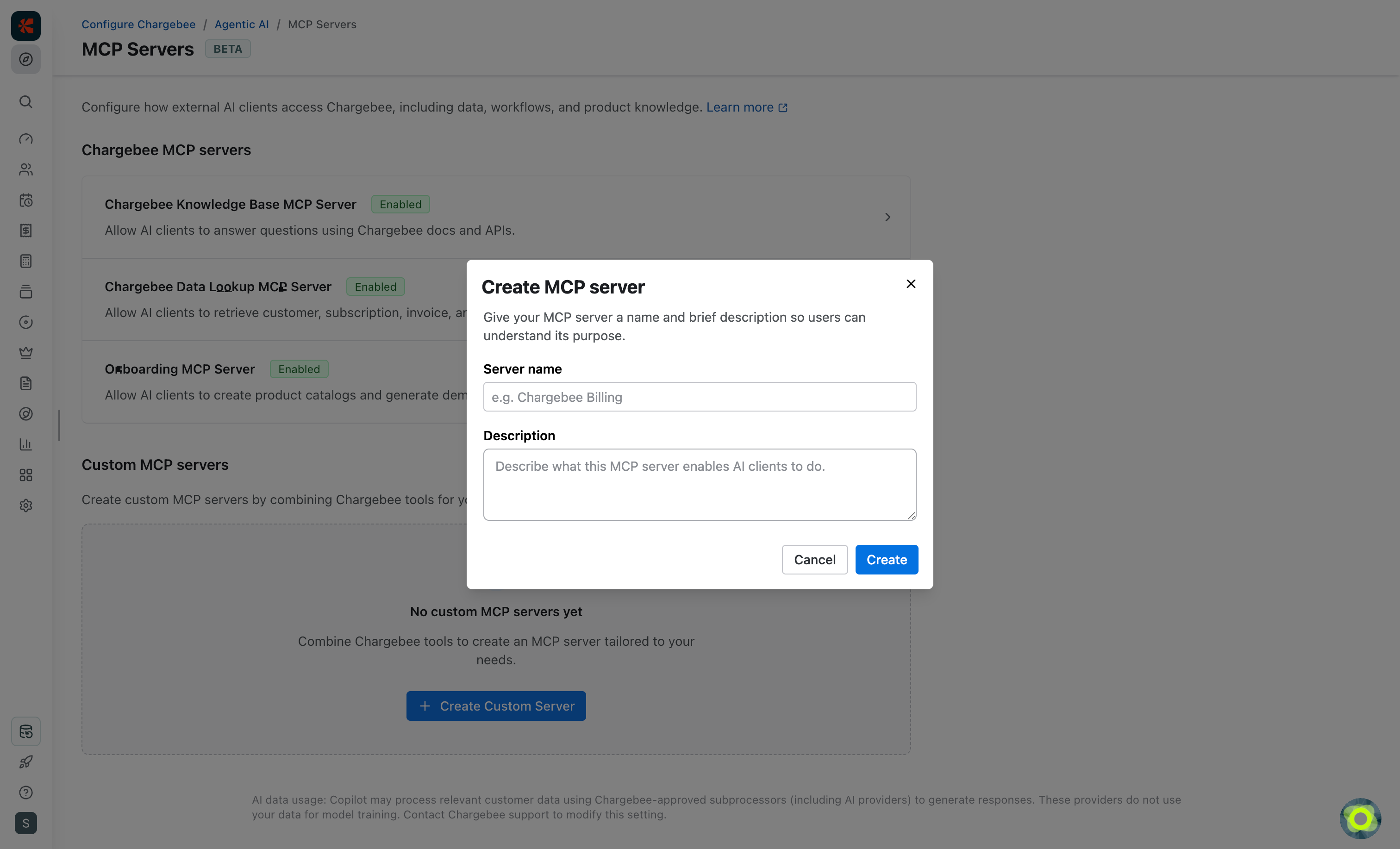
- You are redirected to the new server's Toolsets tab. The Add tools sidebar opens automatically.
- Search or browse toolsets, select the tools you need, then click Add tools.
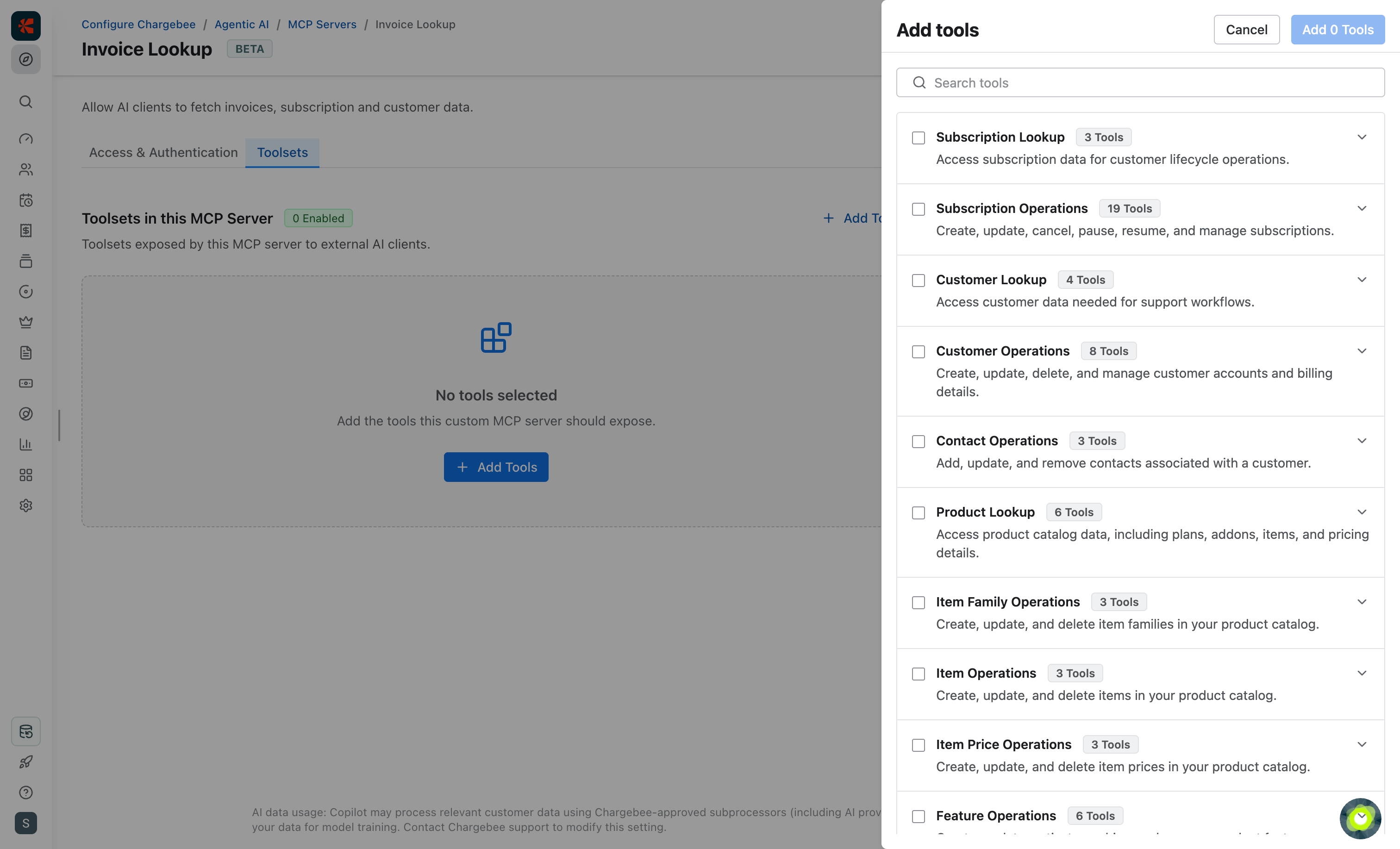
- Selected tools appear grouped by toolset on the Toolsets tab.
Manage tools
To add more tools later, click + Add tools on the Toolsets tab and repeat the selection flow.
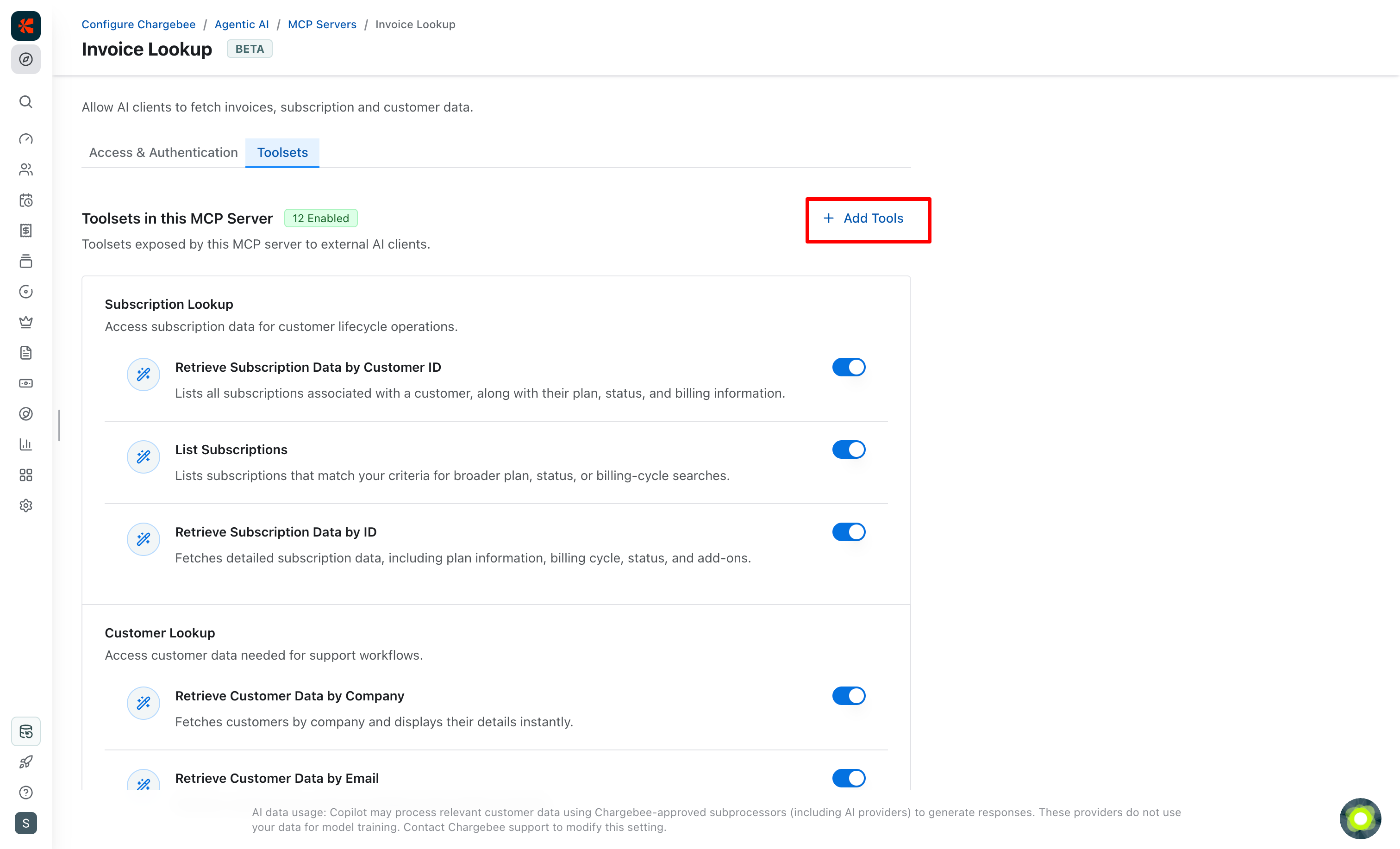
Turn on or turn off individual tools using the toggle next to each tool.
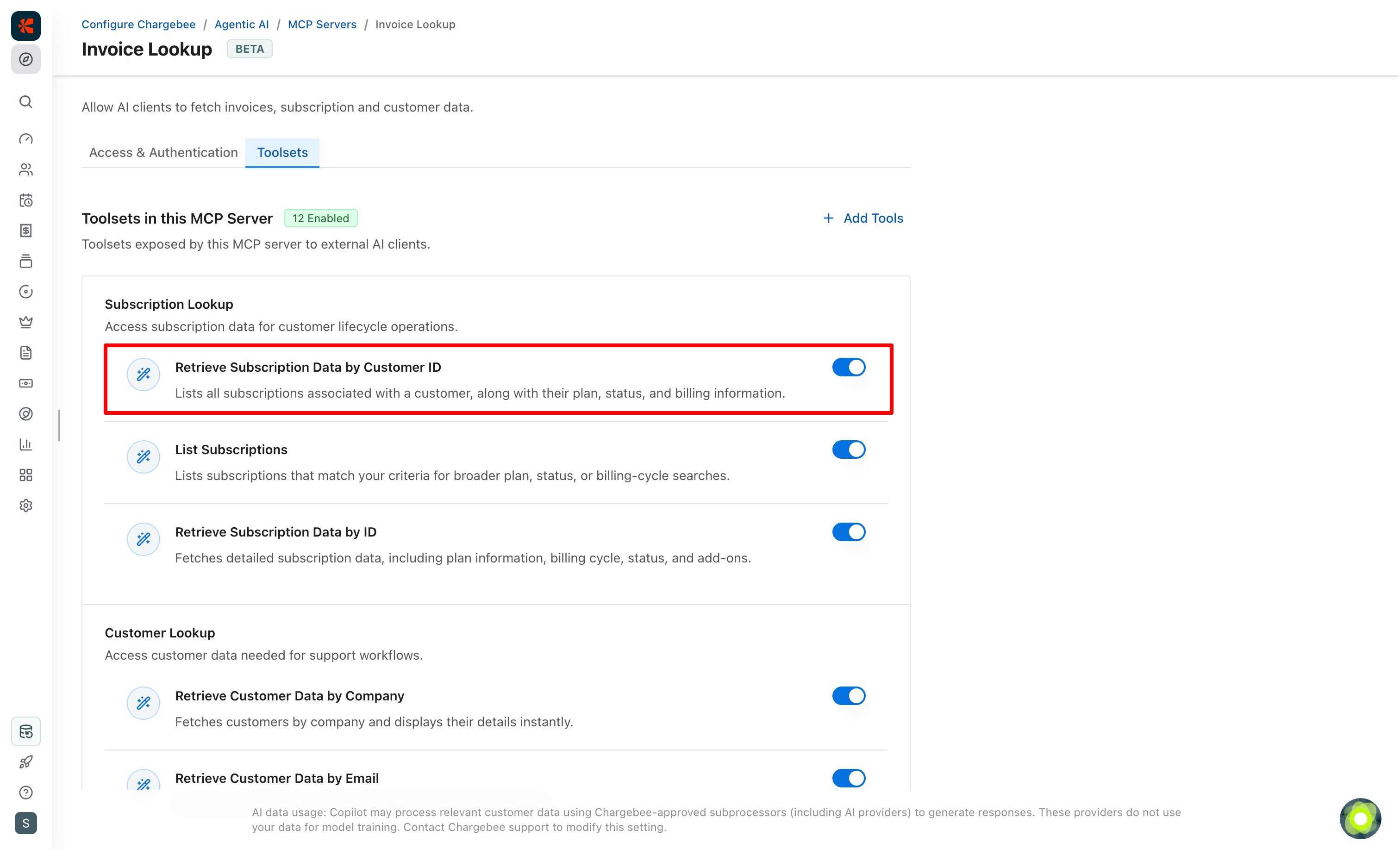
Access and authentication
Under the Access & Authentication tab, turn on the MCP Access toggle to allow external AI clients to access this server via MCP.
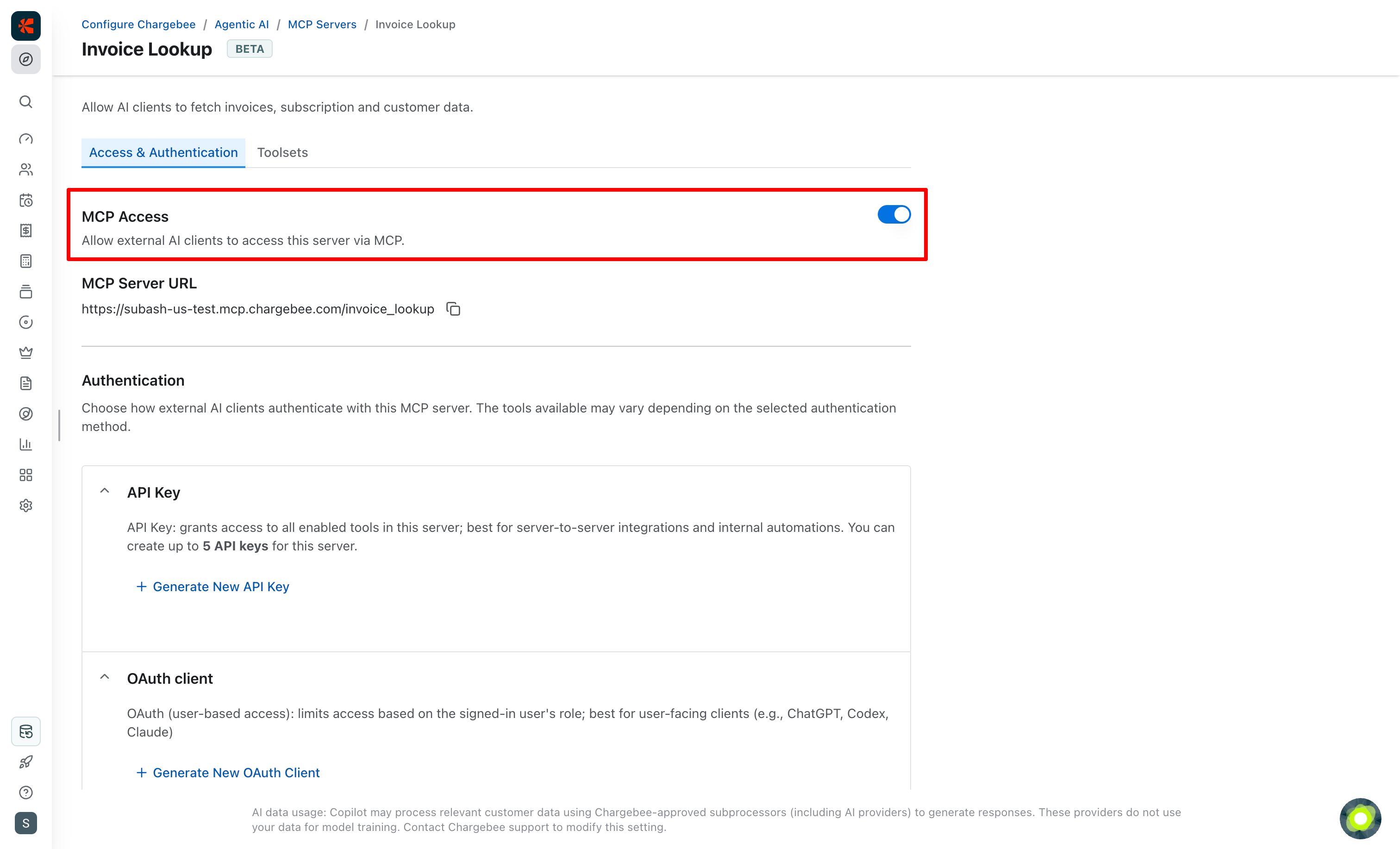
Server URLs
Under MCP Server URL, you'll find the server URL for this MCP server for your Chargebee site. The URL slug is derived from the server name you provided—for example, a server named invoice lookup mcp server uses the slug invoice_lookup_mcp_server. Depending on your site's data center, you will see a URL in one of the following formats:
US data center
https://YOUR-CHARGEBEE-SUBDOMAIN.mcp.chargebee.com/YOUR-CUSTOM-SERVER-SLUG
EU data center
https://YOUR-CHARGEBEE-SUBDOMAIN.mcp.eu.chargebee.com/YOUR-CUSTOM-SERVER-SLUG
AU data center
https://YOUR-CHARGEBEE-SUBDOMAIN.mcp.au.chargebee.com/YOUR-CUSTOM-SERVER-SLUG
Authentication
Choose how external AI clients authenticate with this MCP server. The tools available may vary depending on the selected authentication method.
Best practices
- Enable only the servers and toolsets your organization needs
- Rotate keys and OAuth credentials periodically
- Ensure that systems accessing the MCP servers have appropriate customer data protection measures in place
API Key
The API Key method grants access to all enabled tools in this server and is best suited for:
- Server-to-server integrations
- Internal automations
- Trusted development environments
You can create up to 5 API keys for this server.
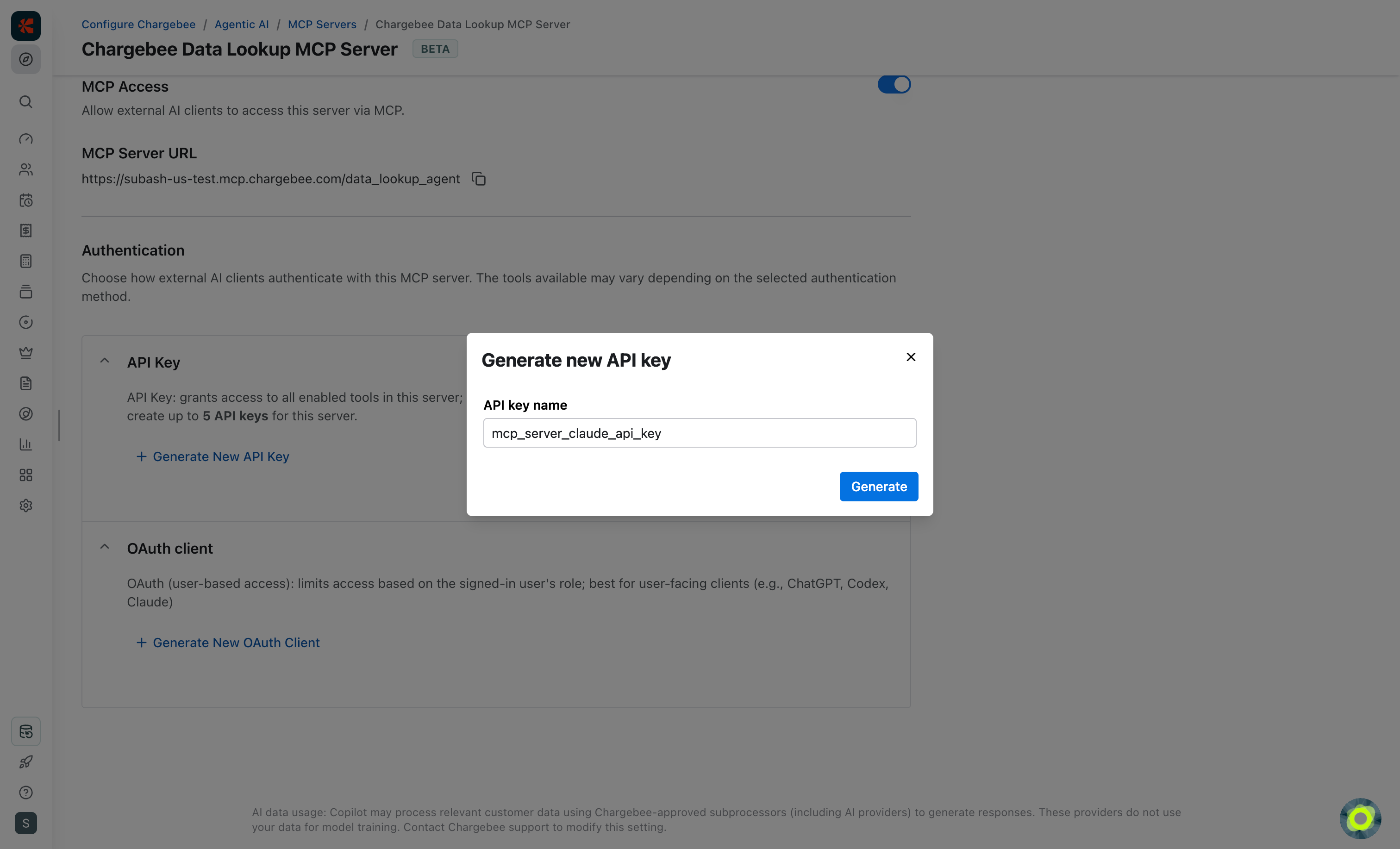
Clients authenticate by sending the API key in request headers:
Authorization: Bearer YOUR-API-KEY
Configuration code snippets for API key are available for some of the commonly used AI clients.
OAuth
The OAuth method provides user-based access. Among the enabled toolsets for the MCP server, the tool access is further limited by the signed-in Chargebee user's access level in Chargebee. OAuth is best suited for:
- User-facing AI clients
- Shared developer tools
- Integrations where access should reflect your user's access level in Chargebee
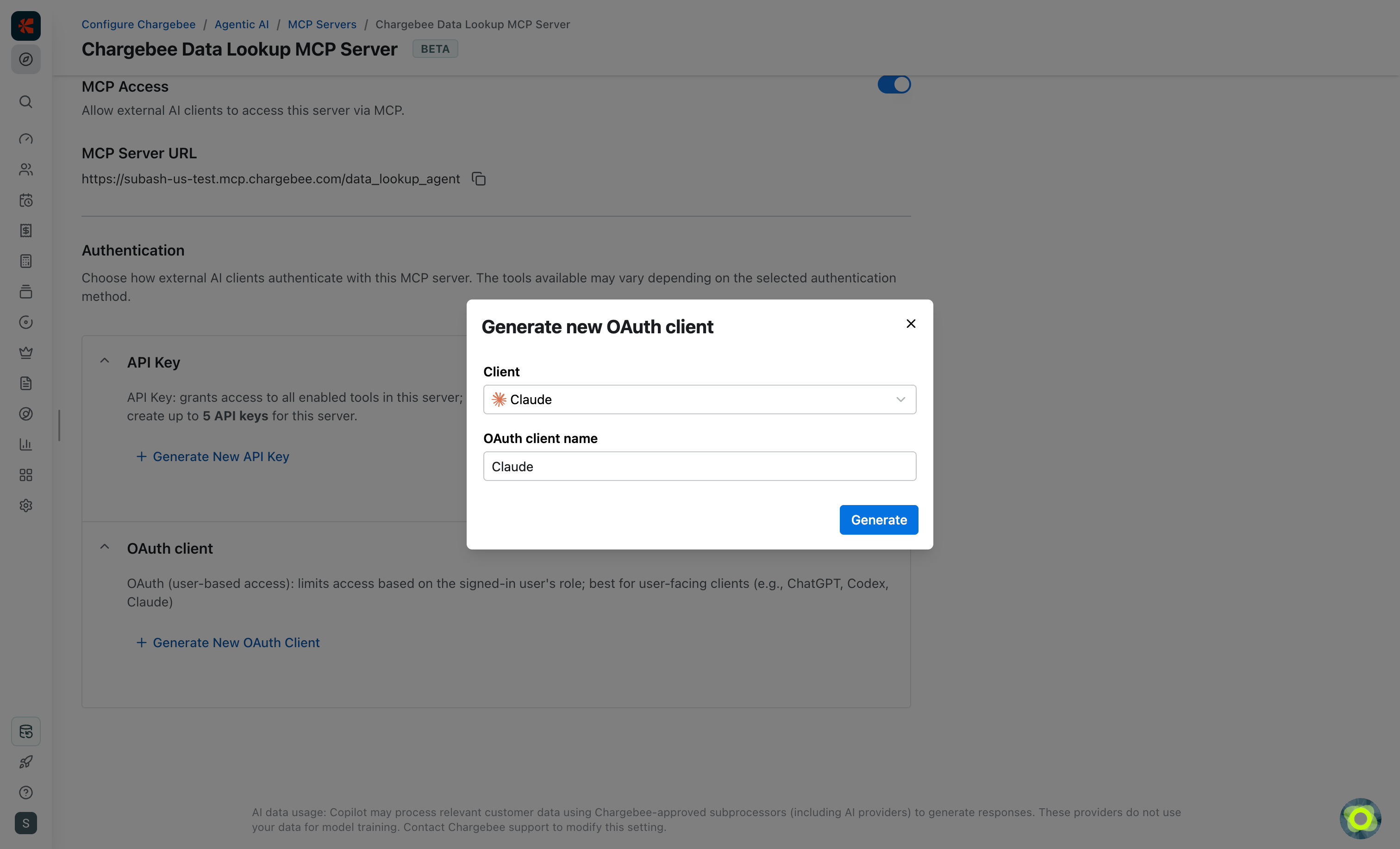
Configuration code snippets for OAuth are available for some of the commonly used AI clients.
Use the same OAuth client ID for users of the same MCP client. For example, if you have 100 Claude Code users, you can generate one OAuth client ID and share it with all 100 users. Claude Code (or any other MCP client) will then direct them to the Chargebee Billing login page. Once signed in, they will be redirected back to the MCP client, and their MCP access will be limited by their Chargebee user access level.
See also
- Chargebee Knowledge Base MCP Server: Answer questions using Chargebee docs and API references.
- Chargebee Data Lookup MCP Server: Retrieve customer, subscription, invoice, and payment data from your Chargebee site.
- Onboarding MCP Server: Create product catalogs and generate demo data for test and sandbox sites.
Was this article helpful?