OAuth Authentication for SMTP
OAuth authentication provides a more secure way to connect your email provider to Chargebee for sending email notifications. Instead of storing passwords, OAuth uses secure tokens that can be revoked at any time and don't expose your actual credentials.
Overview
Chargebee supports OAuth authentication for the following email providers:
| Provider | Description |
|---|---|
| Microsoft 365 | Connect your Microsoft 365 (Outlook, Office 365) business email account |
| Google Workspace | Connect your Google Workspace (Gmail) business email account |
Note:
OAuth authentication is available for business accounts only. Personal email accounts (such as personal Gmail or Outlook.com accounts) may have limitations based on your email provider's policies.
Benefits of OAuth vs Password Authentication
| Feature | OAuth Authentication | Password Authentication |
|---|---|---|
| Security | Uses secure tokens; password never shared | Password stored and transmitted |
| Token Refresh | Automatic token refresh; no manual intervention | Password changes require reconfiguration |
| Revocation | Can revoke access anytime from email provider | Must change password to revoke access |
| MFA Compatibility | Works seamlessly with MFA-enabled accounts | Requires app passwords for MFA accounts |
| Compliance | Meets modern security standards | May not comply with strict security policies |
Prerequisites
Before configuring OAuth authentication, ensure you have:
For Microsoft 365
- A Microsoft 365 business or enterprise account
- Admin consent for the Chargebee application (may be required by your organization)
- The email account you want to use for sending notifications
For Google Workspace
- A Google Workspace business account
- Admin approval for third-party app access (if required by your organization)
- The email account you want to use for sending notifications
Connecting via OAuth
Follow these steps to connect your email provider using OAuth authentication:
Step 1: Navigate to SMTP Settings
- Go to Settings > Configure Chargebee > Email Notifications > Change SMTP settings
- Click Configure SMTP server
Step 2: Select OAuth Authentication
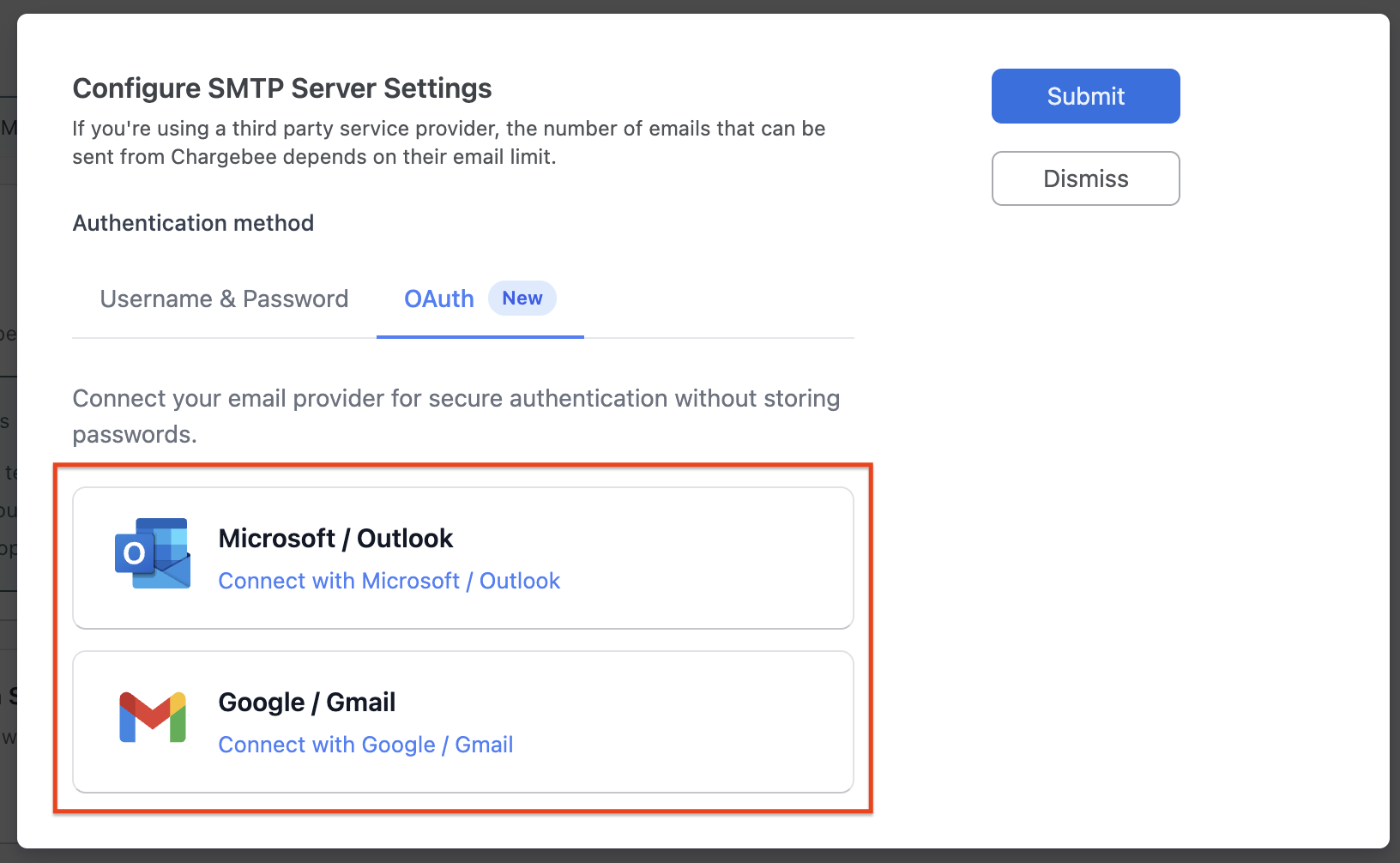
- In the SMTP configuration modal, click on the OAuth tab
- You will see the available OAuth providers (Microsoft and Google)
Step 3: Choose Your Provider
Select the email provider you want to connect:
- Click on Microsoft to connect a Microsoft 365 account
- Click on Google to connect a Google Workspace account
Step 4: Authenticate with Your Provider
- A popup window will open, redirecting you to your email provider's login page
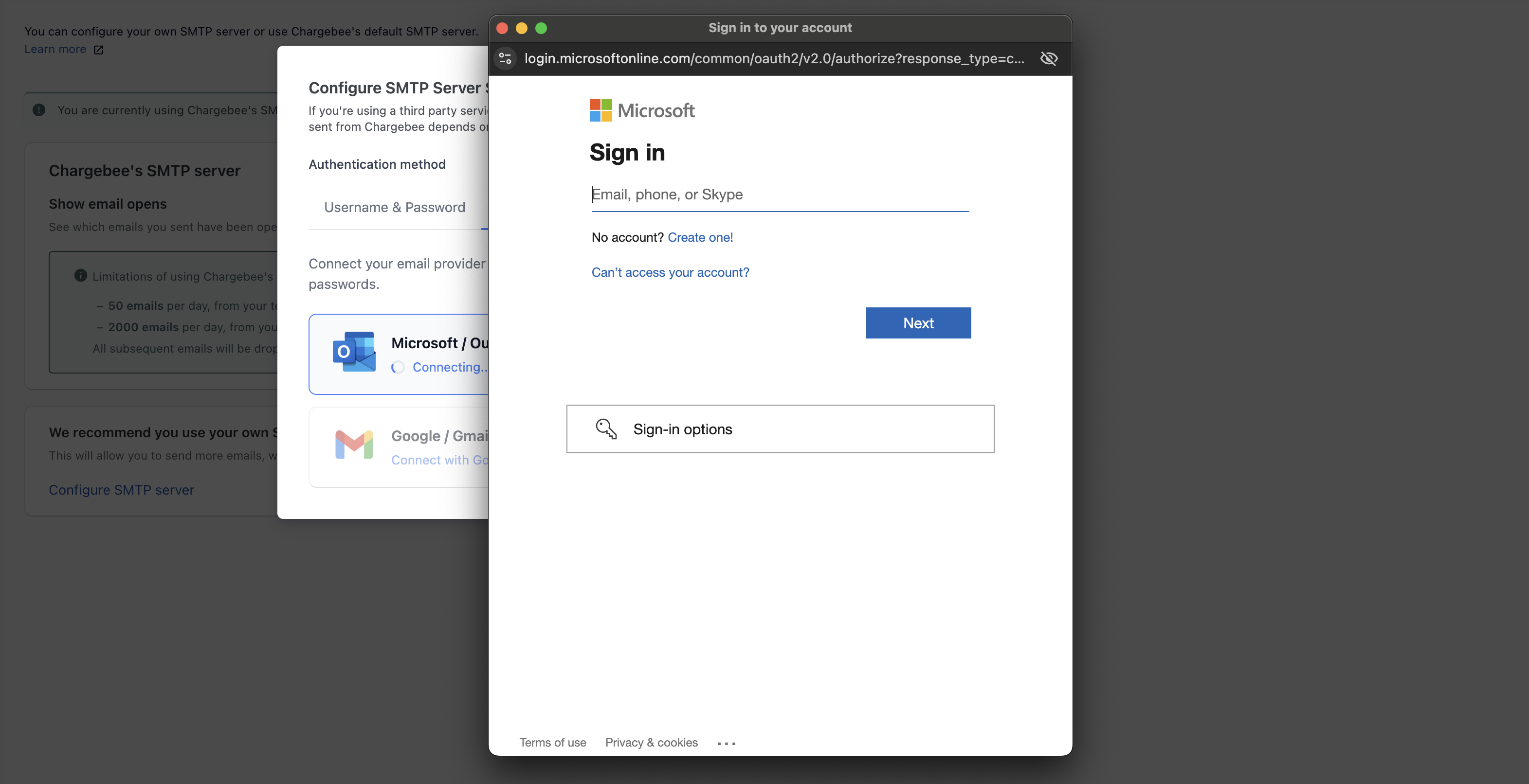
- Sign in with your email account credentials
- Review the permissions requested by Chargebee
- Click Accept or Allow to grant access
Note:
- Ensure your browser allows popups from Chargebee.
- If the popup is blocked, check your browser's popup blocker settings.
- The popup must complete the authentication flow; do not close it manually.
Step 5: Verify Connection
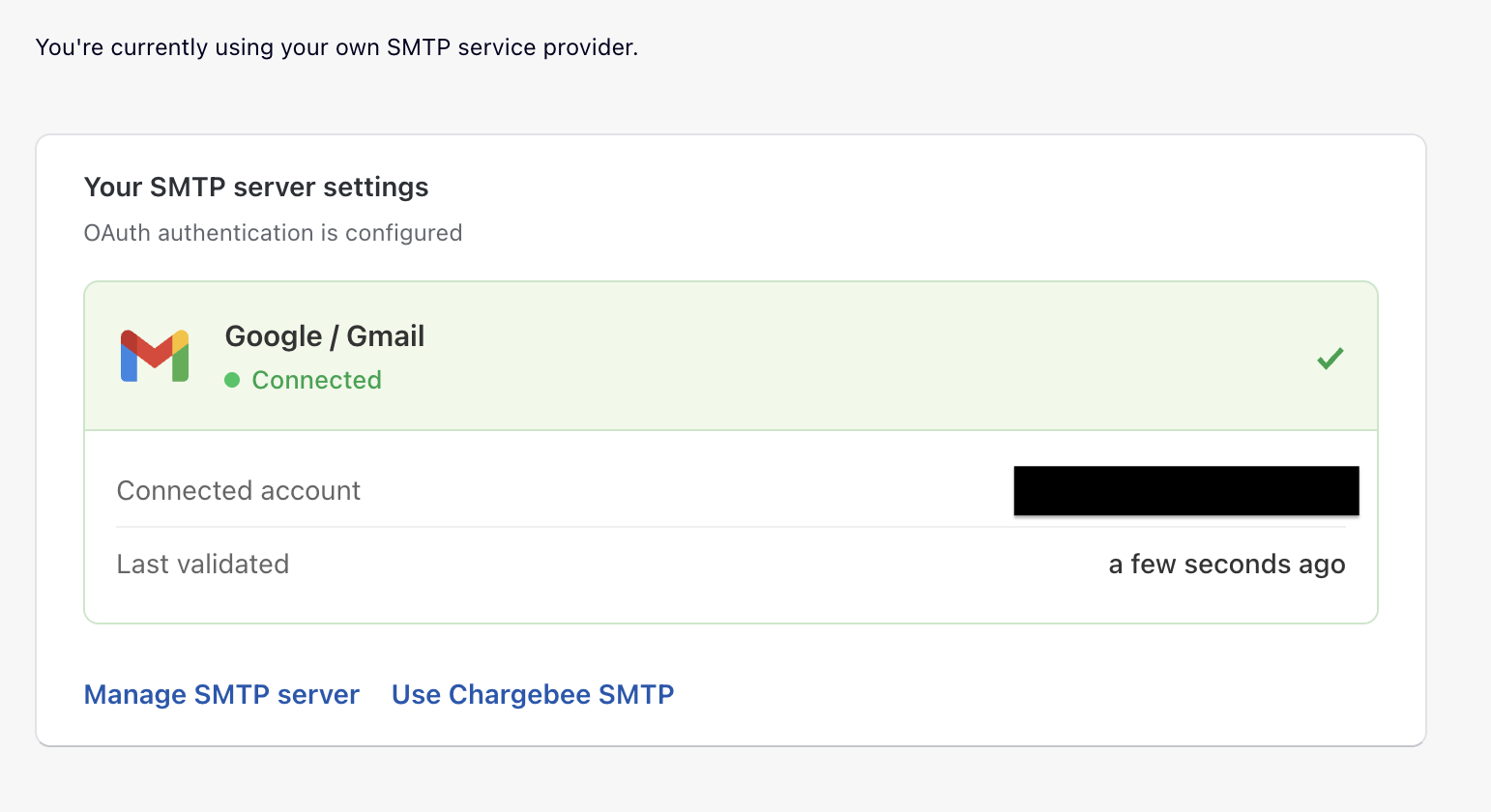
Once authentication is successful:
- The popup will close automatically
- You will see a confirmation showing the connected email address
- The connection status will display "Connected" with a timestamp
Managing OAuth Connections
Viewing Connection Details
After connecting via OAuth, you can view:
- Connected Email: The email address used for sending notifications
- Provider: Microsoft or Google
- Connected At: The time when the OAuth connection was established
Disconnecting OAuth
To disconnect an OAuth connection:
- Go to Settings > Configure Chargebee > Email Notifications > Change SMTP Settings
- Click Manage SMTP server
- Click Disconnect
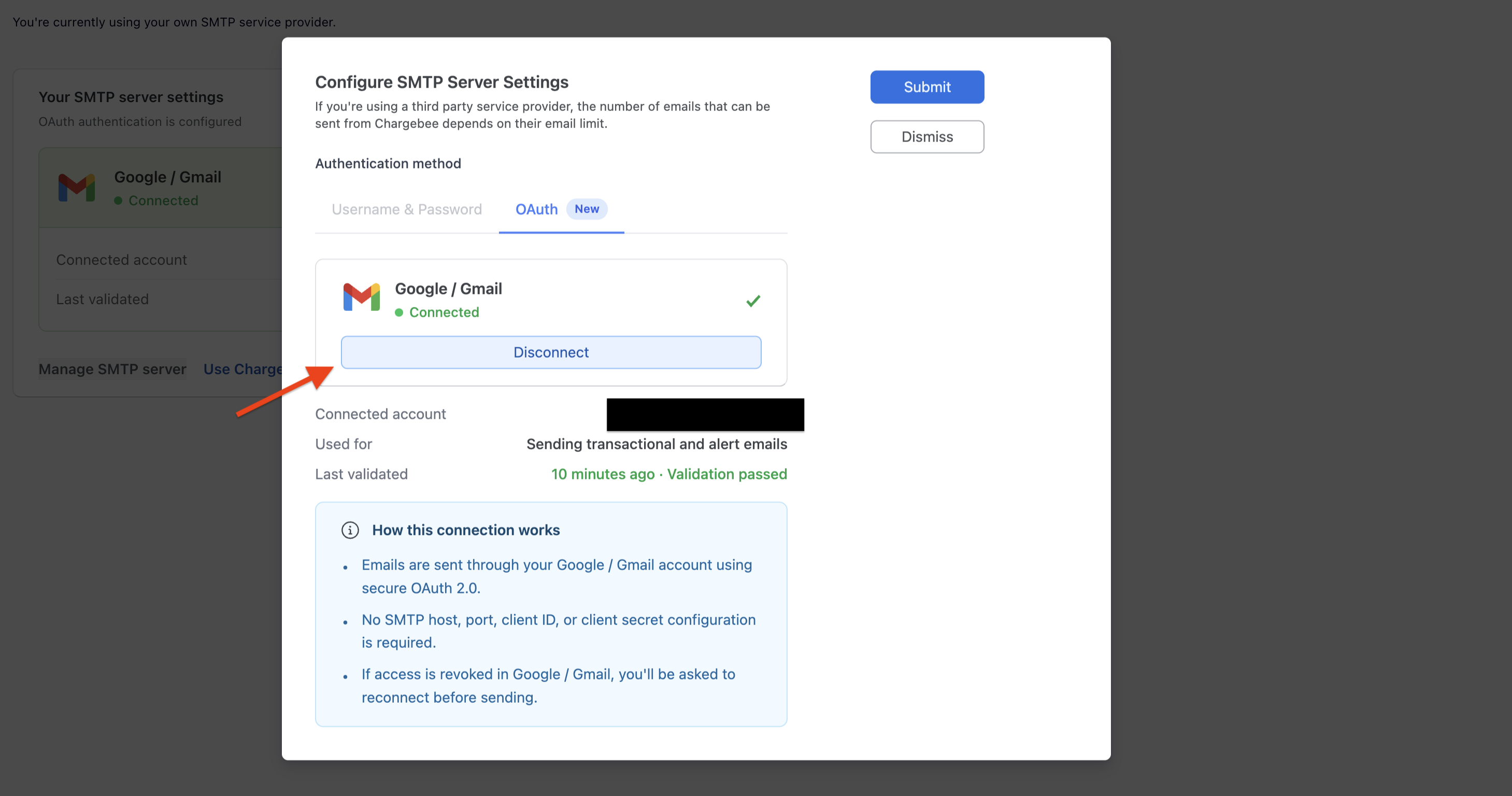
- Confirm the disconnection when prompted
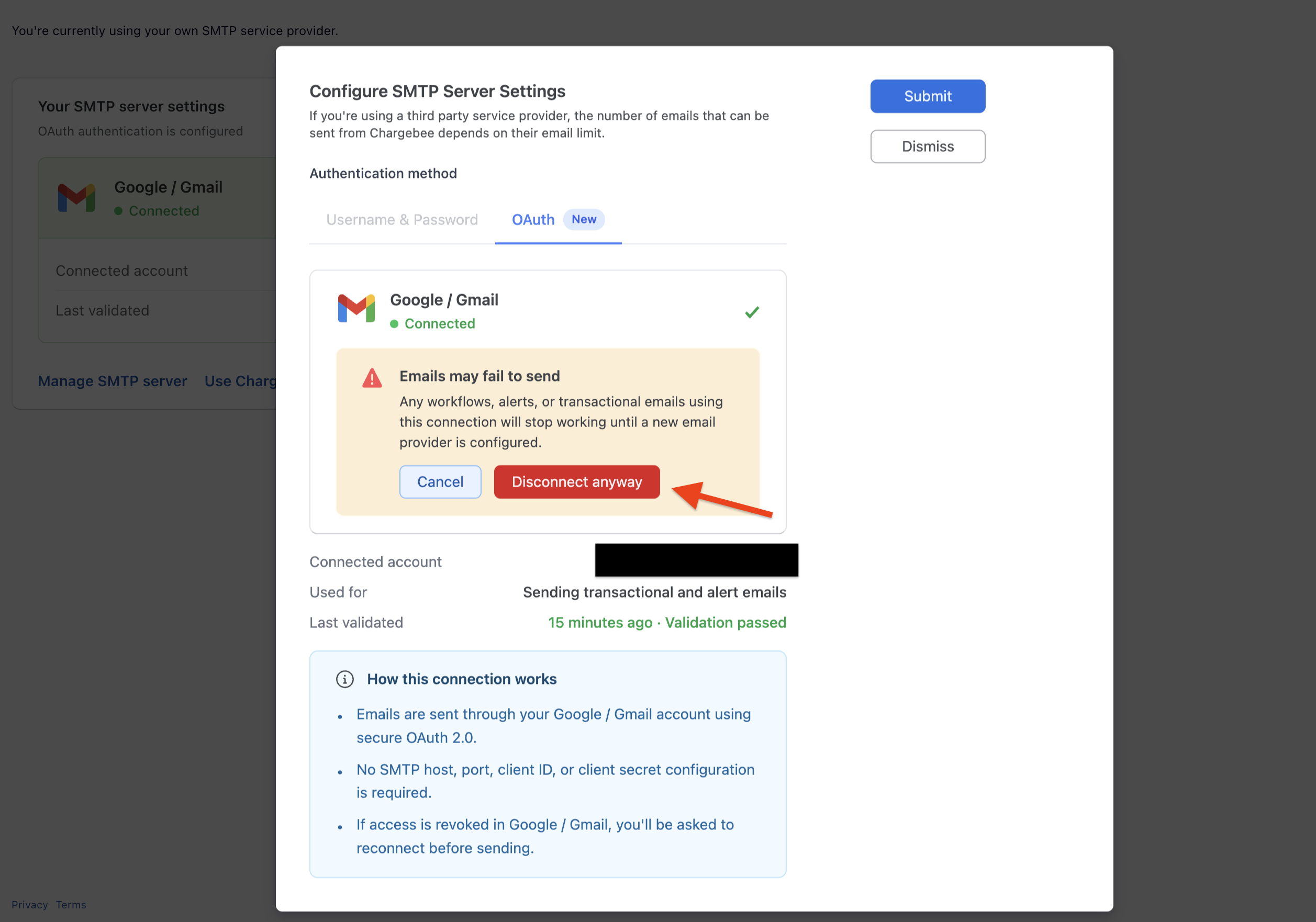
Warning
Disconnecting OAuth will immediately stop all email notifications from being sent through this connection. Ensure you have an alternative SMTP configuration ready before disconnecting.
Reconnecting OAuth after Disconnection
If you need to reconnect:
- Follow the same steps as the initial connection
- You may need to re-authorize Chargebee in your email provider's settings
How OAuth Works
When you connect via OAuth:
- Authorization: You authorize Chargebee to send emails on your behalf
- Token Exchange: Chargebee receives secure access and refresh tokens
- Email Sending: Chargebee uses these tokens to authenticate with your email provider's SMTP server
- Token Refresh: Tokens are automatically refreshed before expiration
Token Expiration and Refresh
- OAuth tokens have a limited lifespan (typically 1 hour for access tokens)
- Chargebee automatically refreshes tokens before they expire
- If a refresh fails (e.g., due to revoked access), you will need to reconnect
Troubleshooting
Popup Blocked
Problem: The authentication popup doesn't appear or is blocked.
Solution:
- Check your browser's popup blocker settings
- Allow popups from your Chargebee site domain
- Try using a different browser
- Disable browser extensions that might block popups
Connection Failed
Problem: The OAuth connection fails after authentication.
Solution:
- Ensure you're using a business email account (not a personal account)
- Check if your organization requires admin consent for third-party apps
- Verify your email account has the necessary permissions
- Contact your IT administrator if your organization has restrictions
Admin Consent Required (Microsoft 365)
Problem: Microsoft shows "Admin consent required" or "Need admin approval" message.
Solution:
- Contact your Microsoft 365 administrator
- Request approval for the Chargebee application
- The admin can approve the app from the Azure Active Directory admin center
- Once approved, retry the connection
Emails Not Being Sent
Problem: OAuth is connected but emails are not being delivered.
Solution:
- Verify the connection status in SMTP settings
- Check if the OAuth token needs to be refreshed (try disconnecting and reconnecting)
- Verify the connected email account is active and not suspended
- Check your email provider's sending limits
Token Expired or Revoked
Problem: Previously working OAuth connection stops sending emails.
Solution:
- The OAuth access may have been revoked from your email provider
- Disconnect the current OAuth connection in Chargebee
- Reconnect following the standard OAuth flow
- Check your email provider's connected apps settings
Security Considerations
Permissions Granted
When you authorize Chargebee via OAuth, the following permissions are typically requested:
Microsoft 365:
- Send mail as you (SMTP.Send)
- Maintain access to data you have given it access to (offline_access)
Google Workspace:
- Send email on your behalf (gmail.send)
- View your email address (userinfo.email)
Revoking Access
You can revoke Chargebee's access at any time:
For Microsoft 365:
- Go to Microsoft Account - App Permissions
- Find Chargebee in the list of apps
- Click Remove to revoke access
For Google Workspace:
- Go to Google Account - Third-party apps
- Find Chargebee in the list of apps
- Click Remove Access
Note:
Revoking access will immediately disable email sending through OAuth. Make sure to configure an alternative SMTP method before revoking access if you need uninterrupted email delivery.
Frequently Asked Questions (FAQs)
1. Can I use OAuth with a personal Gmail or Outlook account?
OAuth is primarily designed for business accounts (Google Workspace and Microsoft 365). Personal accounts may have restrictions. We recommend using business accounts for reliable email delivery.
2. What happens if my organization's admin revokes the OAuth consent?
If admin consent is revoked, Chargebee will no longer be able to send emails through your account. You will need to reconnect after the admin re-approves the application.
3. Do I need to update my SMTP configuration when my password changes?
No! This is one of the key benefits of OAuth. Since OAuth doesn't use your password, password changes don't affect your email configuration.
4. Can I have both OAuth and password-based SMTP configured?
No, you can only have one active SMTP configuration at a time. You can switch between OAuth and password-based authentication, but only one will be active.
5. How do I know if my emails are being sent successfully?
Check the Email Logs in Chargebee to monitor email delivery status. Navigate to Settings > Configure Chargebee > Email Notifications > Email Logs.
6. Is OAuth more reliable than password-based SMTP?
OAuth is generally more reliable because:
- It's not affected by password changes
- It works seamlessly with MFA-enabled accounts
- Tokens are automatically refreshed
7. What scopes does Chargebee request for OAuth?
Chargebee requests only the minimum permissions needed to send emails:
- Microsoft:
SMTP.Sendandoffline_access - Google:
gmail.sendanduserinfo.email
Related Articles
- SMTP Configuration Overview - Overview of SMTP options
- Basic Authentication - Configure username/password SMTP
- Email Notifications - Learn about email notification types
- DMARC Regulation - Understand DMARC and email deliverability
- Email Logs - Monitor your email delivery
Was this article helpful?