How to import a deleted invoice?
Problem Statement
You want to know how to import a deleted invoice.
Solution
Scope
I deleted an invoice by mistake. How do I restore it?
How to restore the deleted invoice?
How find the source through which the invoice was created (imported or scheduled activity)?
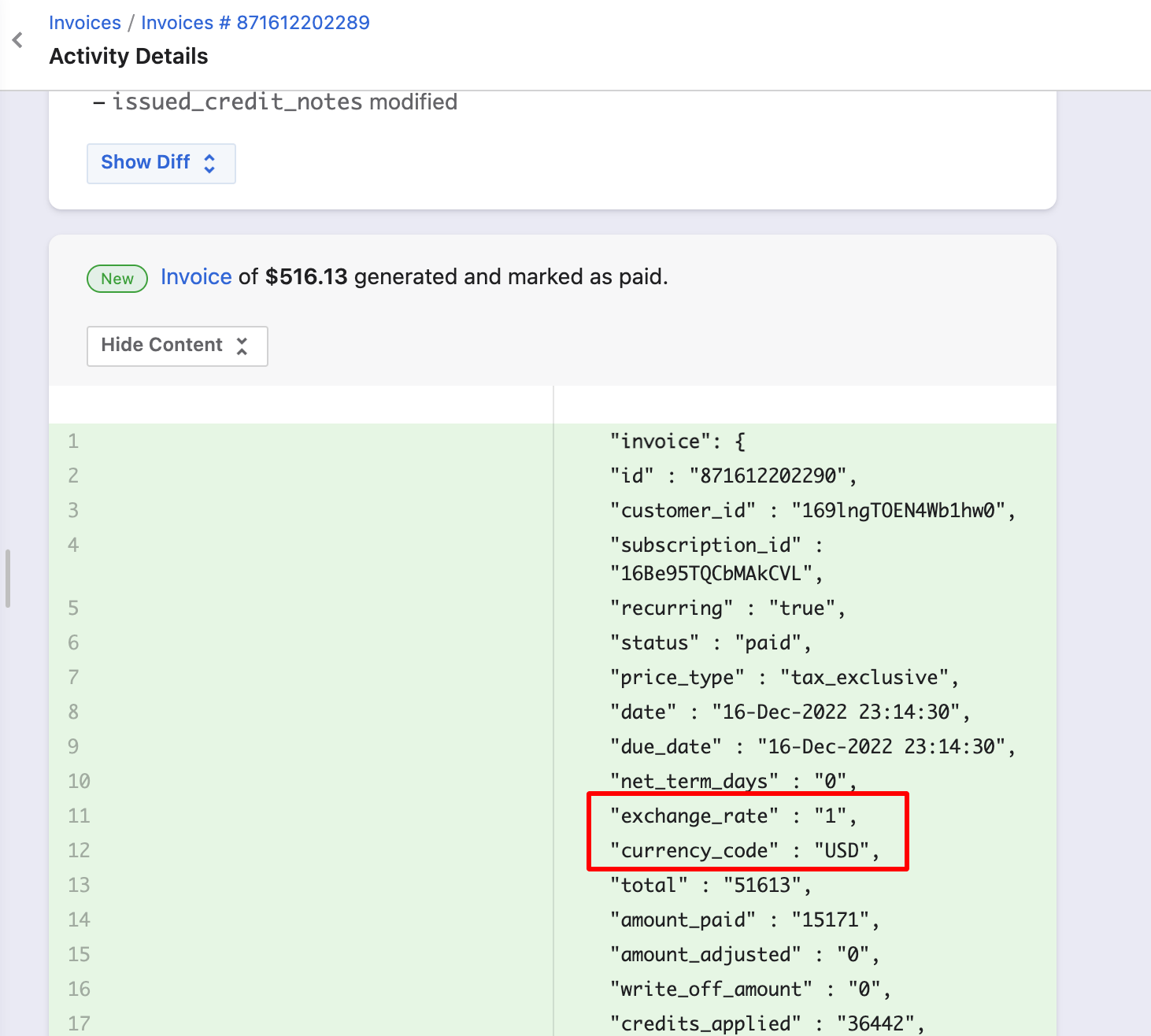
How to check the exchange rate using invoice content?
Summary
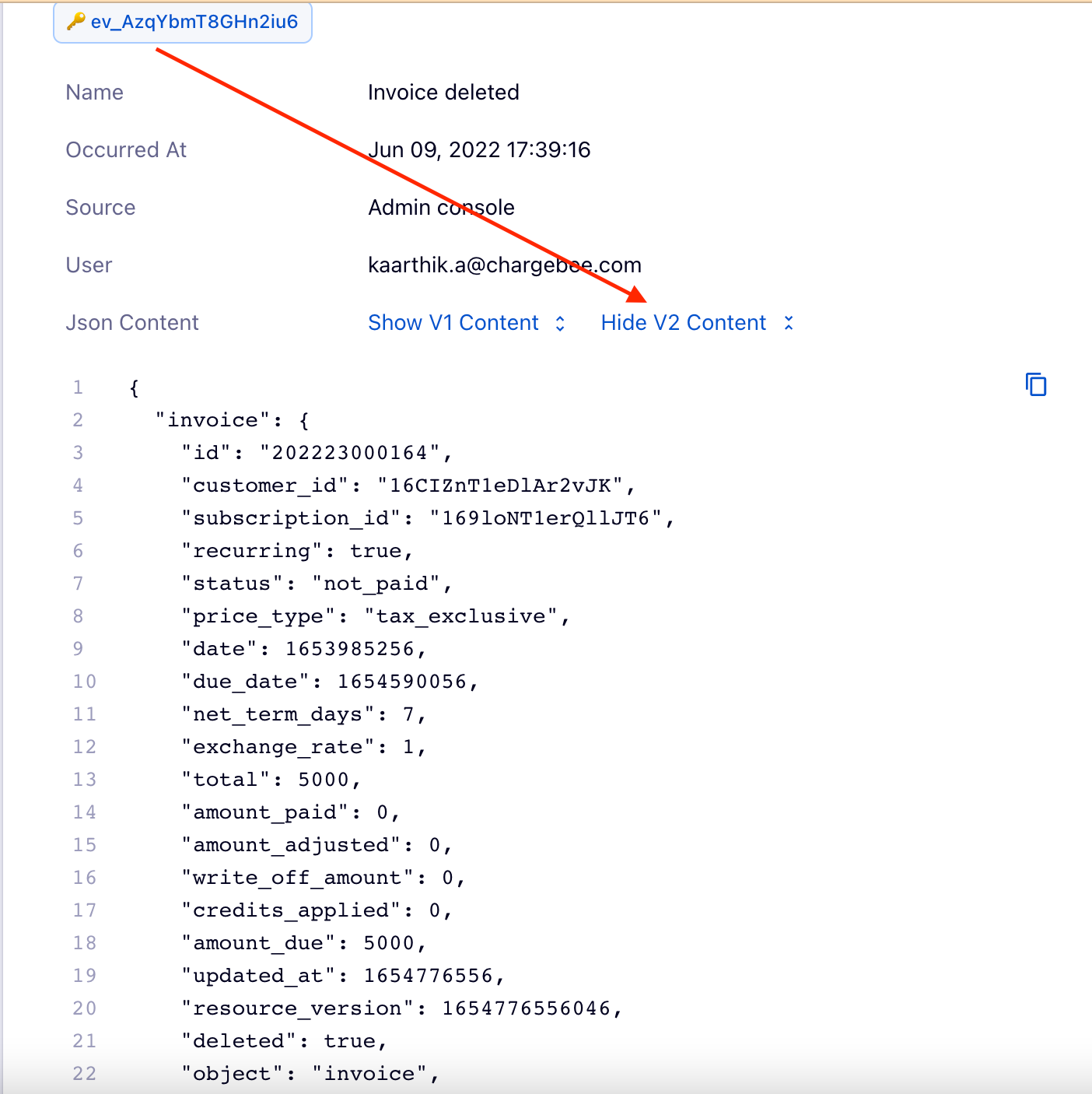
You can gather the deleted invoice data by navigating to the subscription details page > events > 'invoice deleted' event > Click on event id> Show V2 content.
Once you have the data of the deleted invoice, you can restore the deleted invoice in one of the two ways:
-
Import Invoice API for a single invoice
-
Bulk operation for multiple Invoices.
Solution
Firstly, we need to gather the details of the deleted invoice
Navigate to the Events from the Subscription detail page or from to Events Index page under logs.
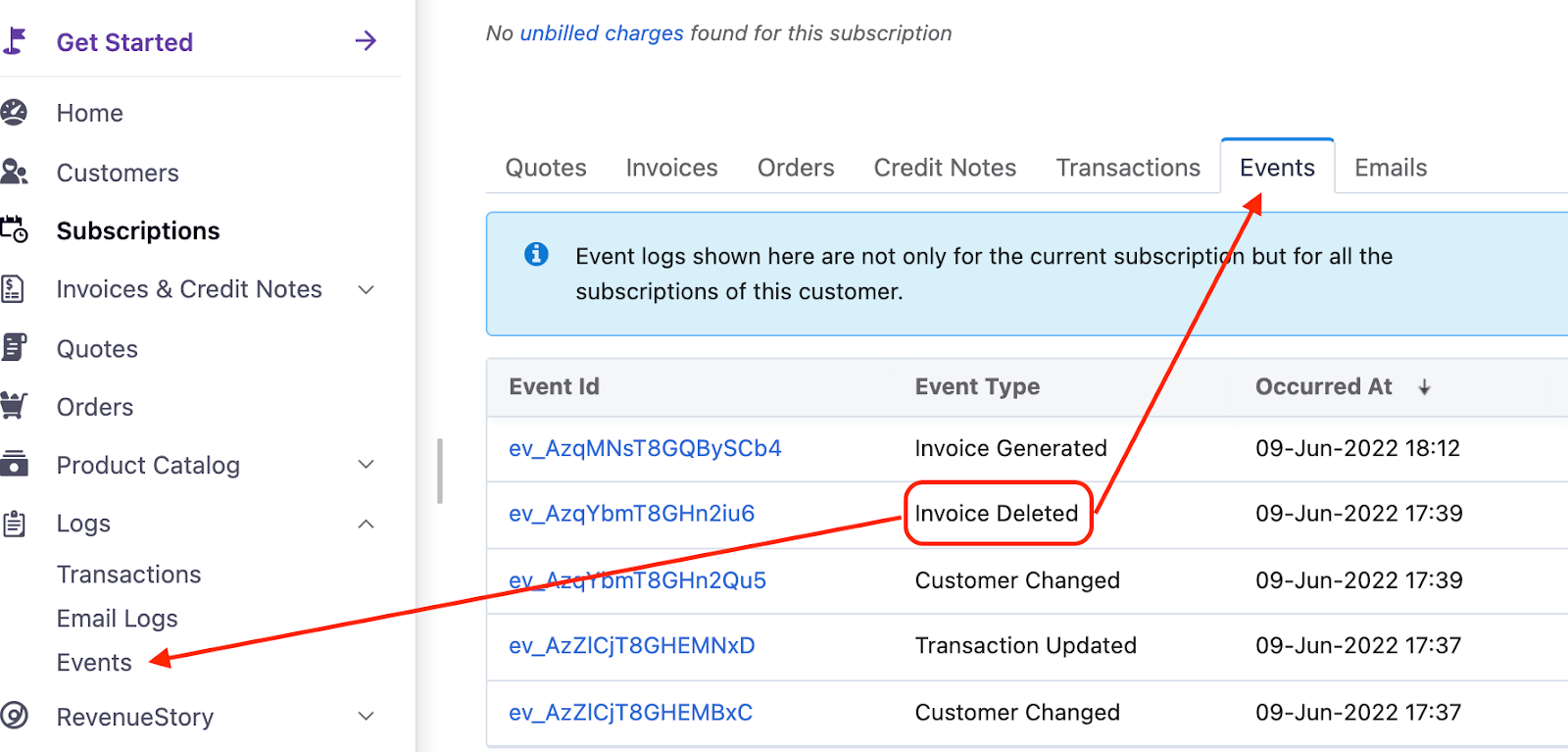
Once we locate and open the Invoice Deleted event, click 'Show V2 Content'
You can also check the exchange rate using the invoice content, as given below.
Option 1: Import Invoice API
Step 1: Now, you have all the data to import the deleted invoice. Now, use the import an invoice API. Refer to these links for the relevant APIs to Import an Invoice: Latest Product Catalog.
Note: If you have a product family and charges under the Product Catalog, then you are in Latest Product Catalog version. Click here to know more.
Sample request
  curl https://{your-site}.chargebee.com/api/v2/invoices/import_invoice

        -u {site_api_key}

        -d id="202223000164"

        -d customer_id="16CIZnT1eDlAr2vJK"

        -d subscription_id="169loNT1erQllJT6"

        -d date=1653985256

        -d total=5000

        -d status="payment_due"

        -d billing_address[first_name]="John"

        -d billing_address[last_name]="Doe"

        -d billing_address[line1]="PO Box 9999"

        -d billing_address[city]="Walnut"

        -d billing_address[state]="California"

        -d billing_address[zip]="91789"

        -d billing_address[country]="US"

        -d line_items[date_from][1]=1651318752

        -d line_items[date_to][1]=1653997152

        -d line_items[description][1]="Basic50"

        -d line_items[unit_amount][1]=5000

        -d line_items[quantity][1]=1

        -d line_items[entity_type][1]="plan"

        -d line_items[entity_id][1]="basic50"
Sample response
{
  "invoice": {
    "id": "202223000164",
    "customer_id": "16CIZnT1eDlAr2vJK",
    "subscription_id": "169loNT1erQllJT6",
    "recurring": true,
    "status": "payment_due",
    "price_type": "tax_exclusive",
    "date": 1653985256,
    "due_date": 1653985256,
    "net_term_days": 0,
    "exchange_rate": 1.0,
    "total": 5000,
    "amount_paid": 0,
    "amount_adjusted": 0,
    "write_off_amount": 0,
    "credits_applied": 0,
    "amount_due": 5000,
    "updated_at": 1654778558,
    "resource_version": 1654778558486,
    "deleted": false,
    "object": "invoice",
    "first_invoice": false,
    "amount_to_collect": 5000,
    "round_off_amount": 0,
    "has_advance_charges": false,
    "currency_code": "USD",
    "base_currency_code": "USD",
    "generated_at": 1653985256,
    "is_gifted": false,
    "term_finalized": true,
    "channel": "web",
    "tax": 0,
    "line_items": [{
      "id": "li_AzqMNsT8GQBxNCb2",
      "date_from": 1651318752,
      "date_to": 1653997152,
      "unit_amount": 5000,
      "quantity": 1,
      "amount": 5000,
      "pricing_model": "flat_fee",
      "is_taxed": false,
      "tax_amount": 0,
      "object": "line_item",
      "subscription_id": "169loNT1erQllJT6",
      "customer_id": "16CIZnT1eDlAr2vJK",
      "description": "Basic50",

      "entity_type": "plan",
      "entity_id": "basic50",
      "discount_amount": 0,
      "item_level_discount_amount": 0
    }],
    "sub_total": 5000,
    "linked_payments": [],
    "applied_credits": [],
    "adjustment_credit_notes": [],
    "issued_credit_notes": [],
    "linked_orders": [],
    "dunning_attempts": [],
    "billing_address": {
      "first_name": "John",
      "last_name": "Doe",
      "line1": "PO Box 9999",
      "city": "Walnut",
      "state": "California",
      "country": "US",
      "zip": "91789",
      "validation_status": "not_validated",
      "object": "billing_address"
         }
   }
 }
Note: Importing an invoice status as 'Paid' status is only when you are trying to move from a different billing provider to Chargebee. If we import an invoice in Paid status for a deleted invoice, it would create an invoice with a new payment. The previously deleted invoice will have payments moved to excess payments, which will not be linked to the invoice created in Paid status, which would cause duplicate payments for the same invoice.
Once the invoice is imported successfully, you will see the same invoice created in Chargebee.
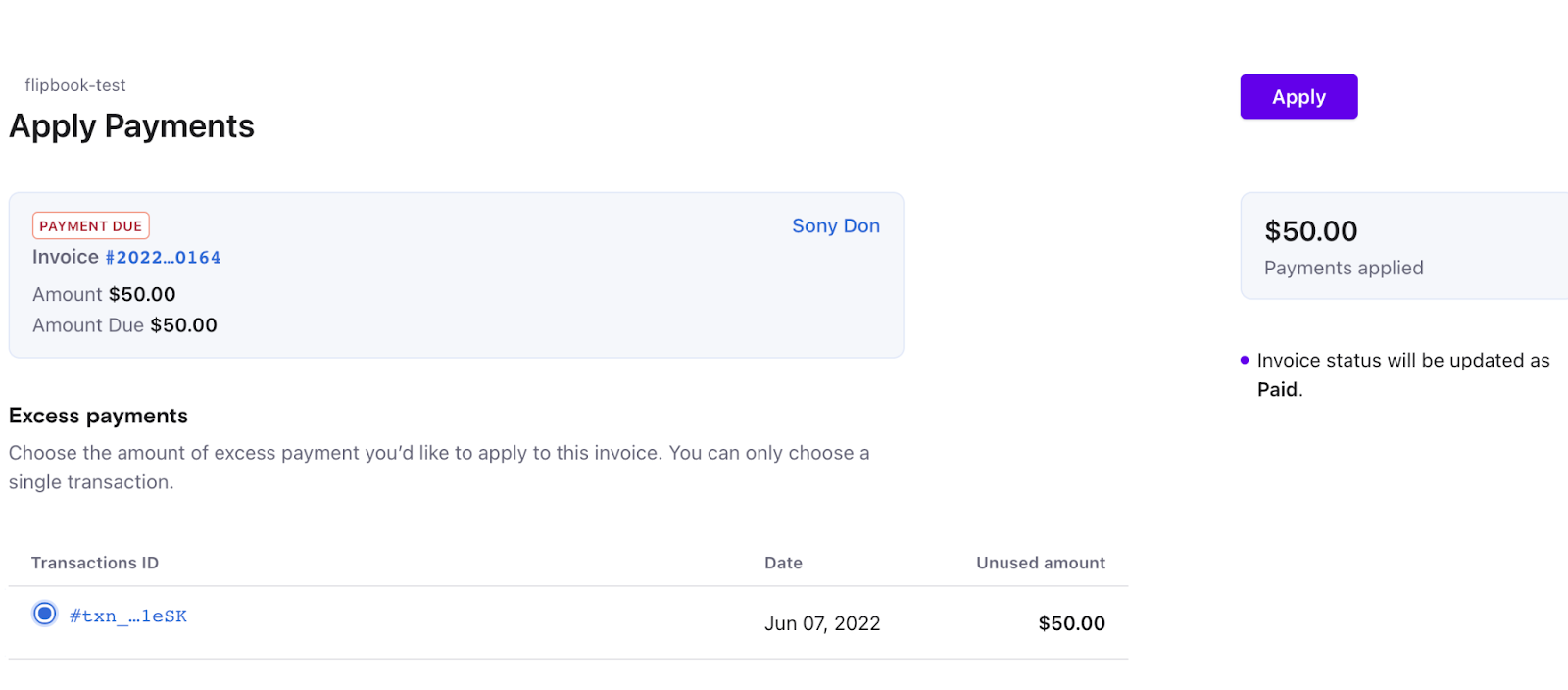
Step 2: To link the payment used to the deleted invoice, use the 'Apply Payments' option on the invoice.
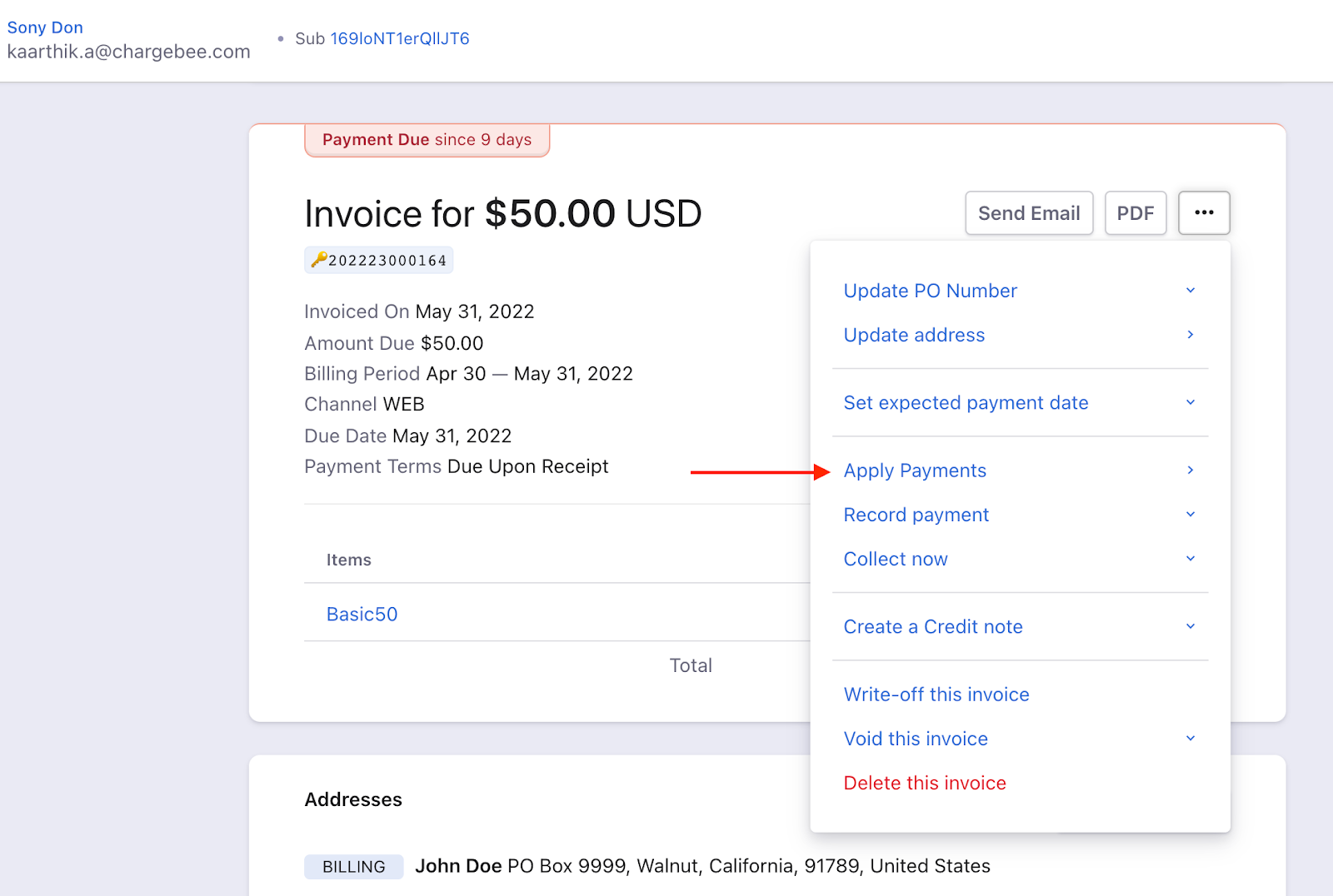
You will be prompted to link the excess payment, and click 'Apply'
Option 2: Bulk Operation
Step 1: You can perform this action from Settings > Configure Chargebee > Import & Export Data > Choose a Bulk Operation > Invoices > Import Invoice

Step 2: Download the sample CSV file
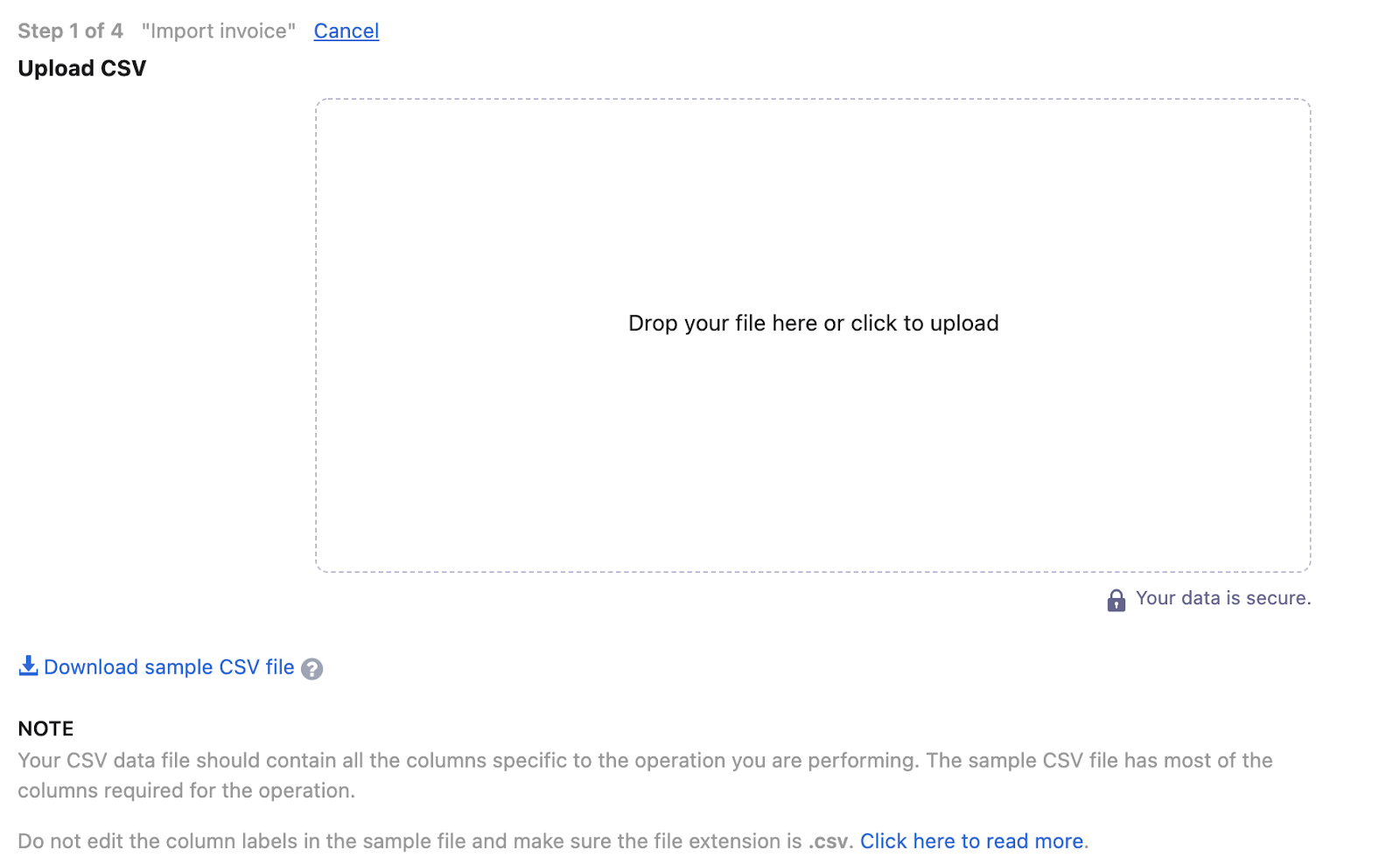
This file contains sample records that you can replace with your own records. Note that the data needs to be added to the sheet in the same format as the sample data.

- Upon downloading the CSV 'import_invoice_sample_data.csv' file, update the current data from your site to the sample CSV
Step 4: This file will contain sample records that you can replace with the current data records. The data that needs to be added to the sheet should be in the same format as the sample data.
Now, you can update the invoice data in the 'import_invoice_sample_data.csv'
Step 5: Drag and drop your data file into the web interface or upload it:
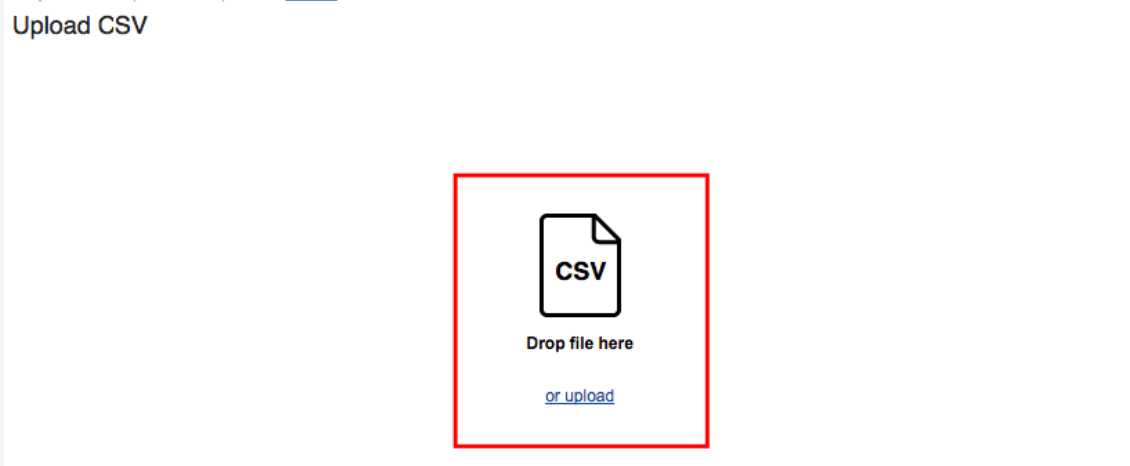
Once you've added all the information and the data file is ready, upload it.
To find the source activity of the invoice (imported or scheduled activity)
Please navigate to logs->Events->Select the event type as mentioned below:
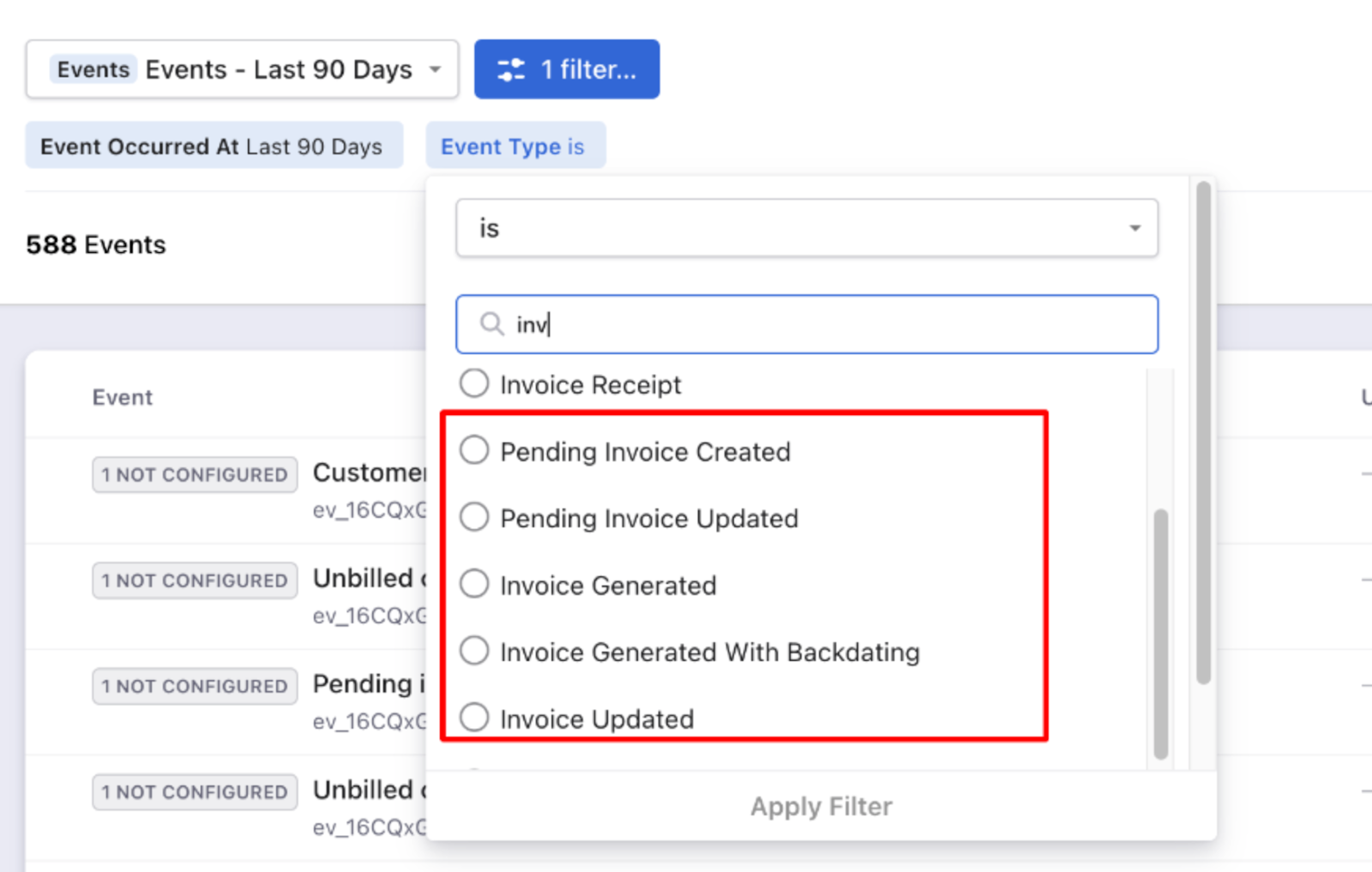
Also, you can go to invoices->Load the invoice for that specific period->Check the invoice activity->Click on details->See the source
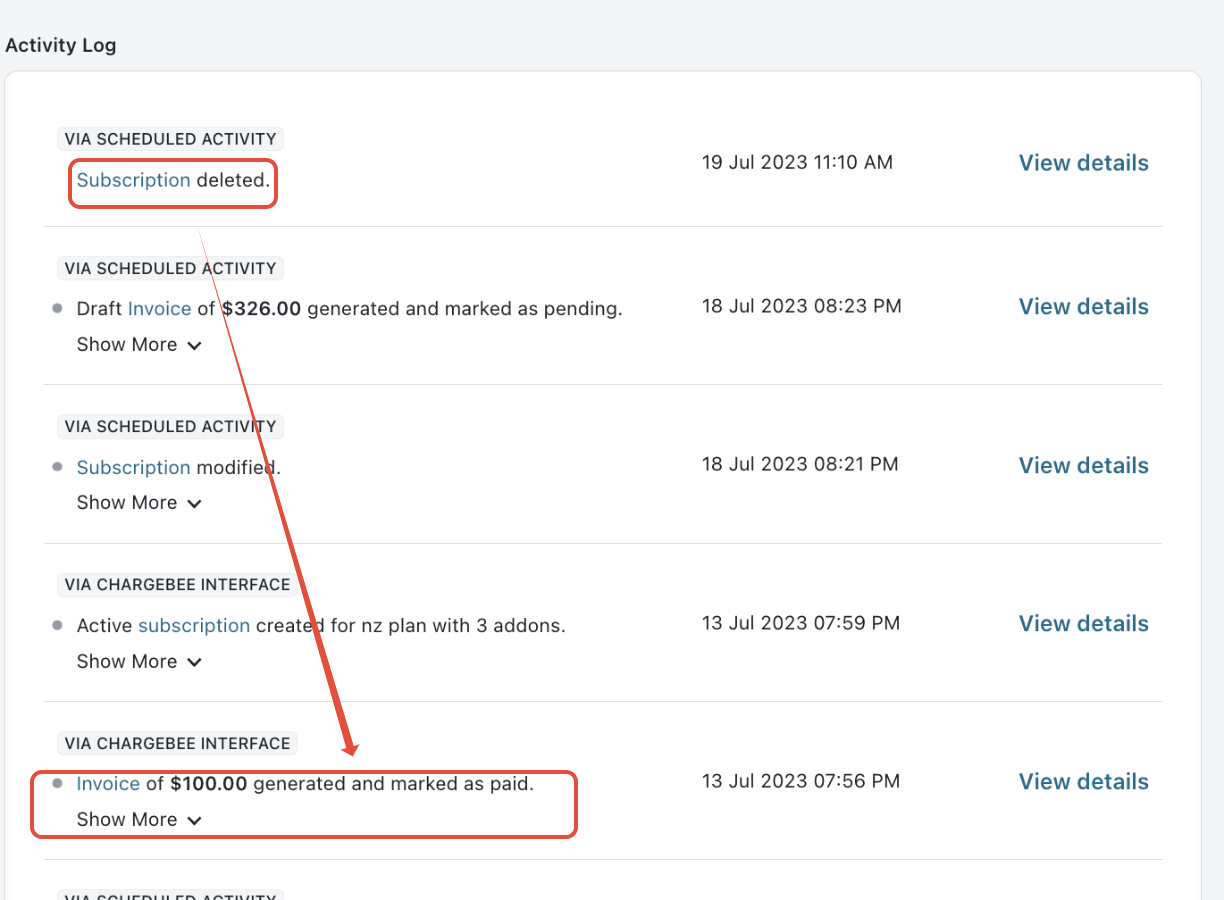
To import invoices from deleted subscriptions, you need to capture the invoice-generated logs from Customers > Activity Logs > View Details of the Specific Invoice Events using the subscription ID (you can find the subscription ID from the deleted subscription event).
Please refer to this link Bulk operations if you have received any errors while uploading the file.
Was this article helpful?