How to manage billing address of a customer?
Problem Statement
You want to know how to manage billing address of a customer.
Solution
Scope
Add billing address for customer
Change the billing address of a customer
How to manage the billing address for online and offline customers?
Summary
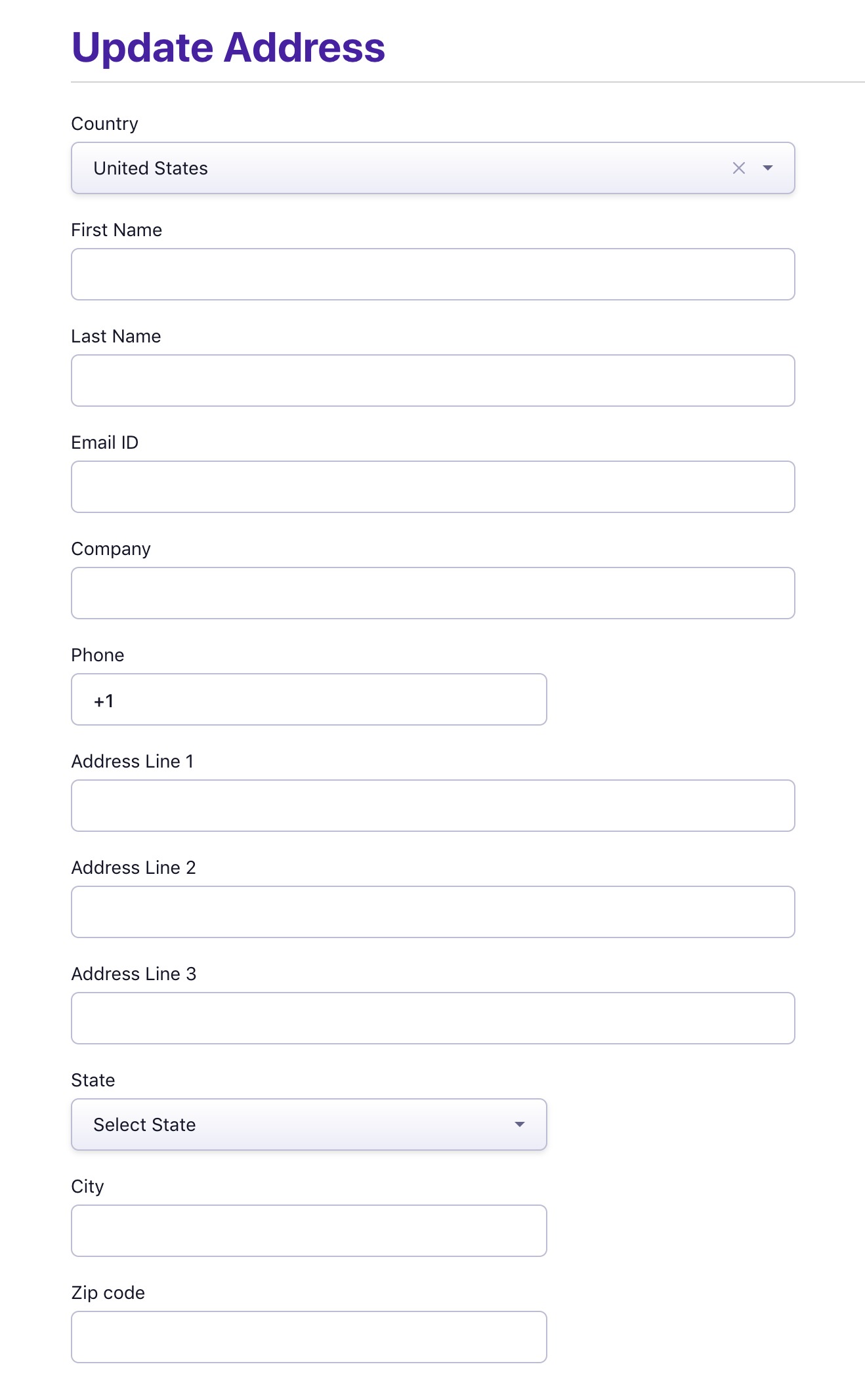
A customer's billing address can be captured during the sign-up for customers with and without a card. If you've enabled billing address validation, then the billing address information needs to be provided by the customer during sign-up. You can also edit the customer's billing info if needed, using the Update Billing Info option available in the Actions panel on the Customer's page in Chargebee app.
For merchants in the EU region who've enabled EU VAT, the taxes will be applied based on the billing country specified during sign up. So when creating subscriptions, you need to explicitly provide the billing country for the system to decide whether tax needs to be applied or not
Billing address for customers with card
The customer's billing information and the card's billing information are handled separately for online subscriptions.
When a subscription is created with a card on file, the billing address captured along with the card details is not automatically used as the customer's billing address. If needed, you can update the customer's billing information using the Update Billing Info option available in the Actions panel.
Updating the customer's billing information does not update the card's billing information. Similarly, updating the card's billing information does not automatically update the customer's billing information.
In short, for customers with a card, the customer billing address and the card billing address are not automatically kept in sync.
Billing address for offline customers
Offline customers are subscribers who do not have a card on file and have an offline subscription.
For offline subscriptions, the billing information can also be collected during sign up. If you've selected the billing address fields for validation, these fields will be automatically displayed when creating the offline subscription through the Chargebee user interface.
When creating offline subscriptions using the API, you can include the additional attributes for billing_address using the customer object.
For offline subscriptions, you can update the billing information within the subscription through the web interface or through the update billing info for customer API.
Was this article helpful?