What are the actions that can be performed on a refundable credit note?
Problem Statement
You want to understand what the actions that can be performed on a refundable credit note are.
Solution
Scope
What is a refundable credit note?
When can I create a refundable credit note?
How is a refundable credit note created automatically?
What are the options available in a refundable credit note?
to check upon cancellation, whether credits have been initiated or not.
What is the status of a refund in Chargebee?
What is the difference between Refund due and Refunded status in credit note?
Summary
A Refundable Credit Note can be created if you would like to repay a certain amount to the customer. This can be retained as credits without refunding to the actual source of payment (for example Credit card, bank, direct debit, etc.)
This credit amount will be automatically applied to upcoming invoices and you can also choose to apply them to existing unpaid invoices, (or) refund the amount to the payment source. In Chargebee, Refundable Credits are automatically created when:
- Invoice (Manually creating a refundable credit note from a paid invoice as a Waiver or discount)
- Subscription Change
- Subscription Cancellation
Note
Total Refundable Credits for a specific customer We have updated our summary box to provide a more streamlined and elegant user experience. With this upgrade, hyperlinks have been added to the summary box, allowing users to easily access related information. The Total Refundable Credits on Summary Section is available at the top of the Customer details page which provides a total amount due of a customer and hyperlink that directs to the details. Refer to this link for more details.
With the help of "The line items' billing period on the invoice" settings, the service period for the line items in the credit notes will be the same as their respective billing periods on the invoice.
Navigate to Settings > Configure Chargebee > Billing LogIQ > Billing & Invoices > Set default service period for credit note line items. Please refer to this link for more information.
Solution
- Paid Invoice
If the invoice is in the Paid state, then you will be able to create a Credit Note to provide refundable credits. If the invoice is Partially Paid, you can choose to either adjust the due amount for the unpaid amount (Adjustable credit note) or provide credits against the paid amount (Refundable credit note).

To create a Credit Note, navigate from the Specific Invoice > Ellipsis > Create Create Note > Choose to Provide Refundable Credits
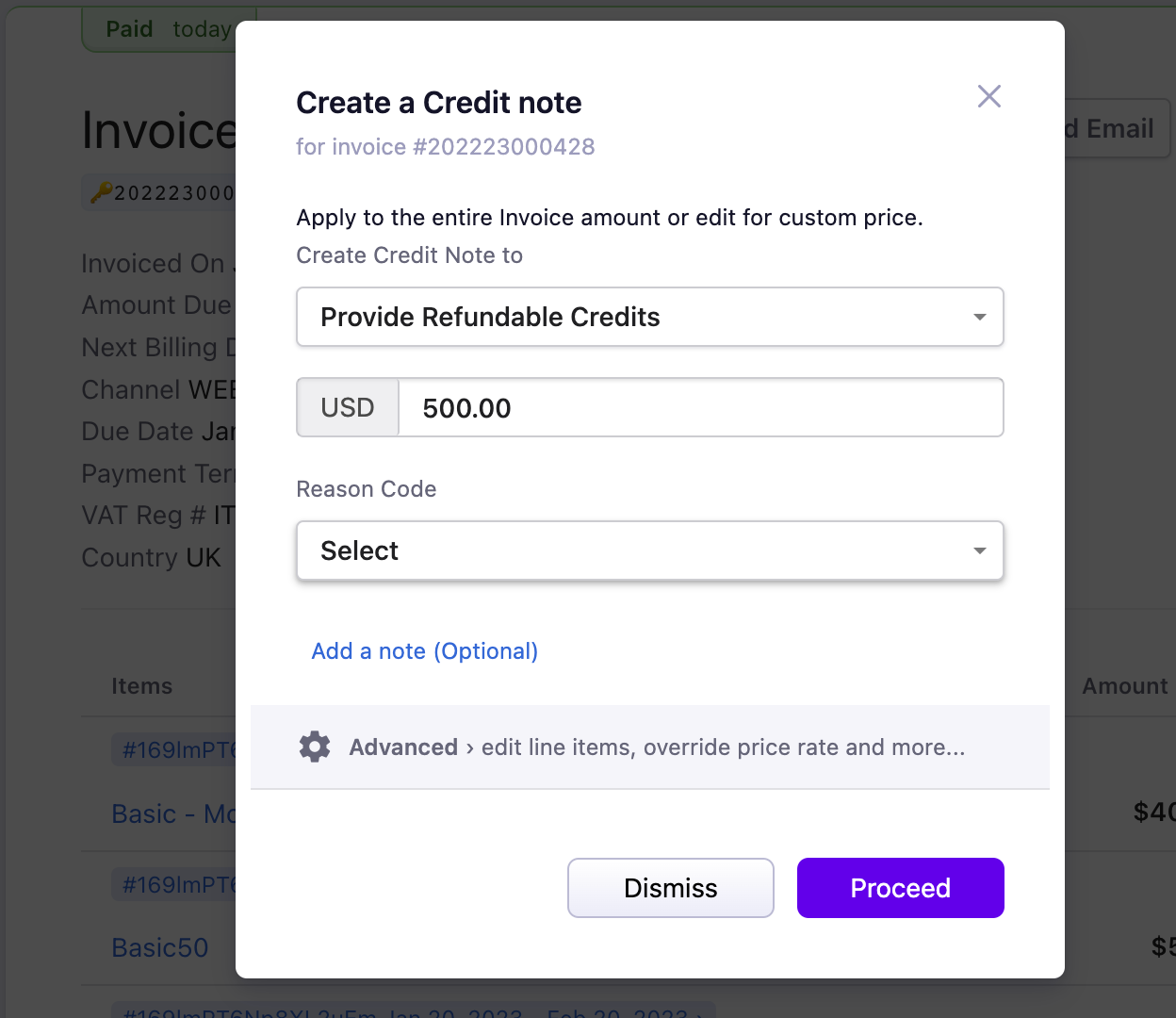
a) To refund a Refundable Credit Note:
-
Navigate from Invoices & Credit Notes > Credit Notes > Choose a Refund due credit note > ellipsis(...) > Issue a refund.
-
You can provide a partial refund or a complete refund.
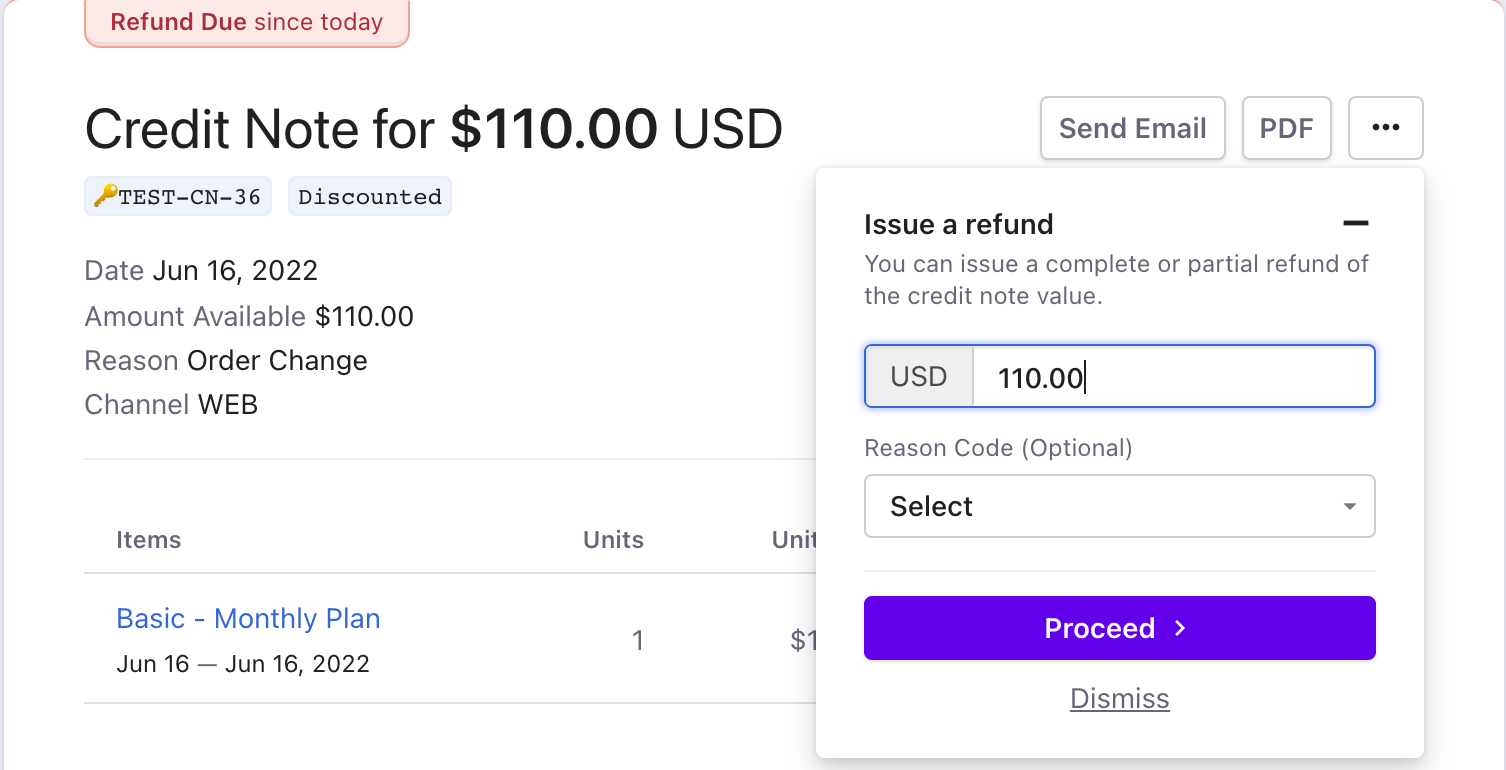
- Subscription Change
A subscription is changed with the proration enabled and the current term's invoice is in the Paid state. Here, the Refundable Credits will be automatically applied to the forthcoming invoices or you can choose to refund the credits to the original payment method.
Note: Refundable Credits appear in Credits in the invoice. Also, the Refundable credit will have the status as 'Refund Due' marked in 'Red'.
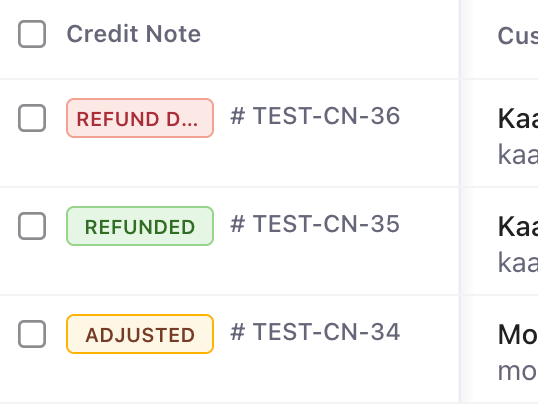
If you change the subscription, and if there are any credits that need to be applied back to the customer, they will be applied as a Refundable credit back to their account. It can either be refunded or allocated for the upcoming invoices.
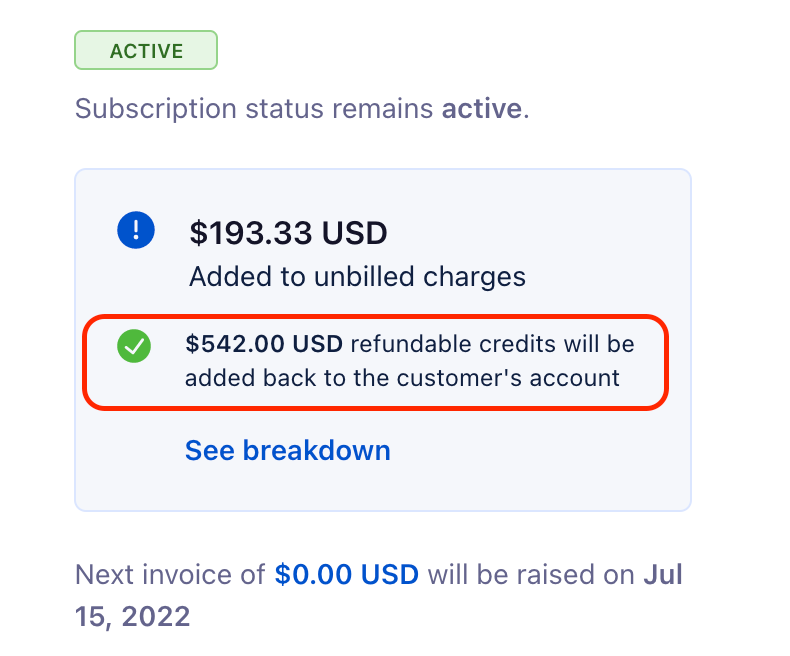
a) Credit Note allocation for the upcoming invoice:
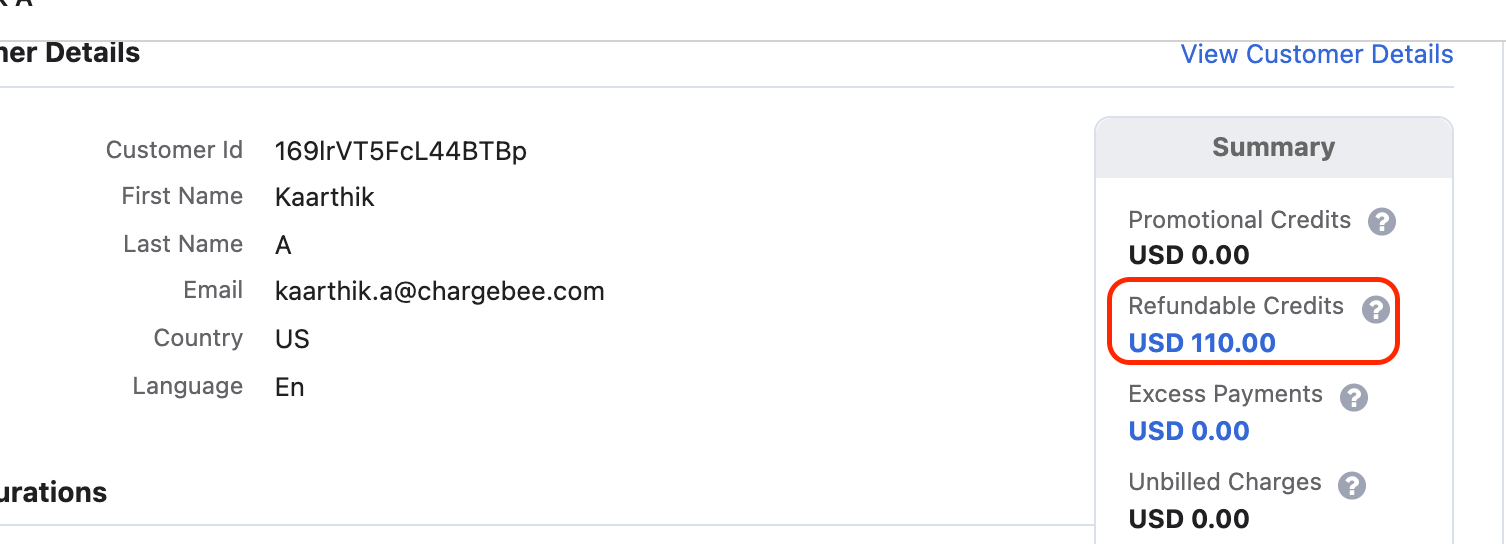
You can check the credit note allocated on the Customer details page which will be applied to the upcoming invoice if not refunded.
Classic UI
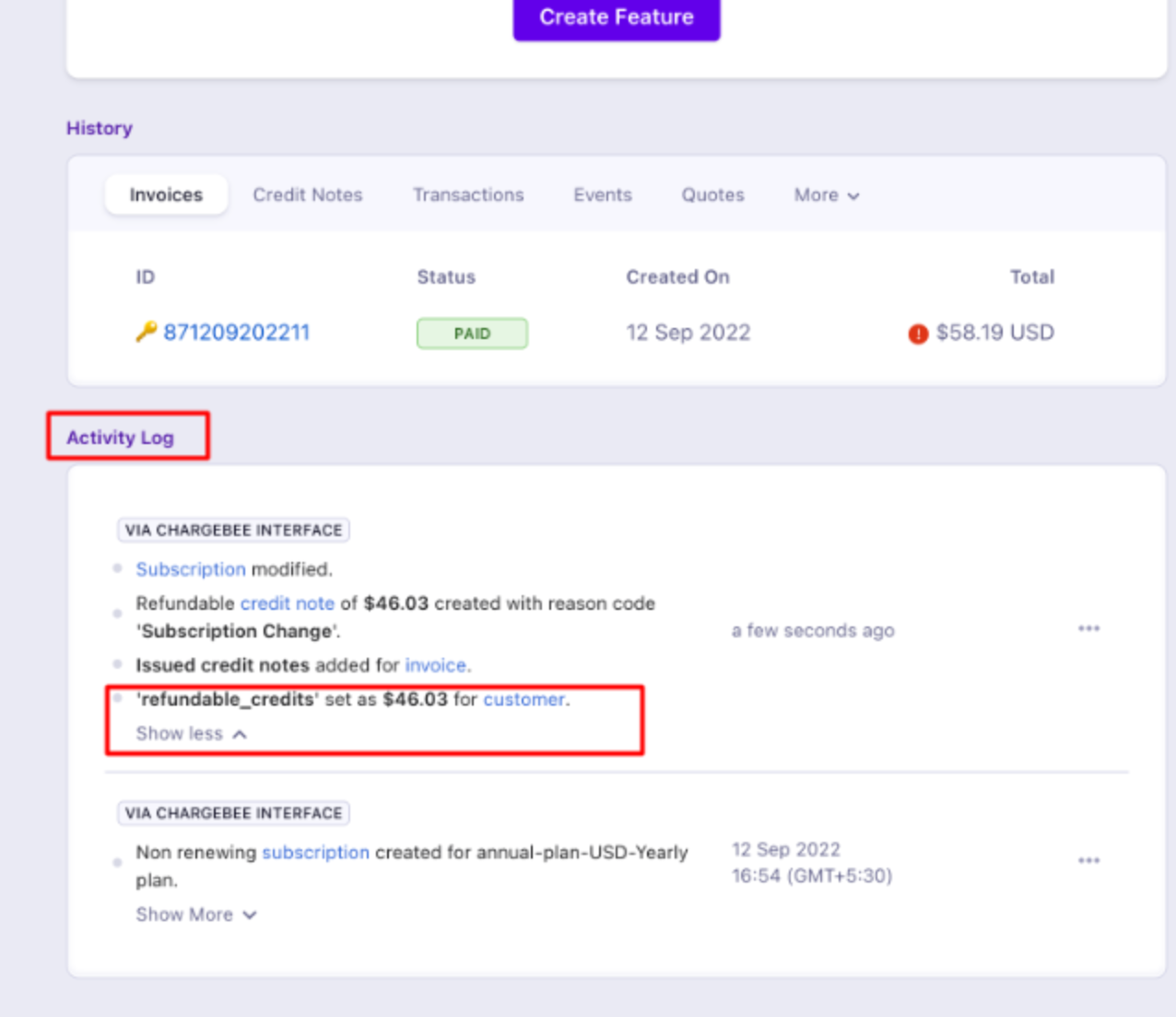
To check whether credits have been initiated, go to Subscription > Activity logs > Ellipsis > Show more for details.
3. Subscription Cancellation
You can configure Chargebee's default subscription cancellation settings by navigating to Settings > Configure Chargebee > Billing LogIQ > Subscription Cancellation. We have the option to issue credit on subscription cancellation for the unused period. You can set the options mentioned below. If you have configured to issue prorated/full credits, then the Refundable Credit Note will be created_._
| When a subscription is canceled mid-term, how do you want to handle credits for the unused period? | Don't issue credits: The subscription is canceled without giving any credits for the unused period. Issue prorated credits: The subscription is canceled and prorated credits are given for the unused period. (Not advised for shippable subscriptions as proration in Chargebee is time-based.) Issue full credits: Issues full credits for the entire term. |
Similarly, as the subscription change, this credit note will be displayed on the customer details page which can be refunded or applied to upcoming payments.
Leap UI

Related Articles:
Why am I unable to refund the refundable credits present on a credit note?
Can one credit note be applied to two invoices?
What is the status of a refund in Chargebee?
Was this article helpful?