Chargebee CPQ Selling Rules
Overview
Selling Rules in Chargebee CPQ lets your RevOps teams define no-code, conditional logic that governs how quotes are created and applied in Chargebee CPQ. These custom rules help your RevOps teams standardize pricing behaviour, enforce packaging guidelines for your offerings, manage product visibility and discounting, and reduce quoting errors. Setting up these rules helps optimize the efficiency of sales-led growth by tailoring the quoting experience to your business-specific logic.
Why Selling Rules?
As your revenue and sales teams scale, enforcing pricing policies, discount controls, and product packaging rules manually can lead to inconsistencies, approval bottlenecks, and quoting errors since they often rely on fragmented processes and manual decision-making across complex sales scenarios. Selling Rules is designed to solve this gap by enabling your RevOps teams to automate and enforce business-specific quoting logic directly within the sales workflow.
Rules can be triggered based on a wide range of attributes, including:
- Customer profile and custom fields.
- Quote details such as contract type, duration, payment terms, and currency.
- Item-level attributes such as plans, addons, charges, discount, and quantity.
- Sales context, such as quote creator role, sales channel, and geography.
Selling Rules vs Approval Workflows
Selling Rules automatically enforce quoting policies in real time based on predefined conditions set by your business. They help guide and restrict quote configuration at a detailed level, such as discounts, quantities, product combinations, and pricing policies.
Approval Workflows provide an additional layer of governance for sales scenarios that require business review and sign-off, such as high-value deals or pricing exceptions.
Who benefits from Selling Rules?
RevOps Leaders
- Automate discount controls, margin thresholds, and product visibility rules.
- Reduce manual oversight and configuration errors while maintaining consistent pricing and discount policies across teams.
- Turn GTM playbooks into automated quoting rules that help enforce policy compliance.
- Help enforce internal pricing and packaging policies consistently across sales workflows.
Sales Agents and Leaders
- Generate accurate quotes faster and move deals forward with confidence.
- Receive guided quoting with built-in rules that remove guesswork and rework.
- Automatically apply eligible discounts and configurations based on deal context.
Understanding Selling Rules
A Selling Rule follows a Condition → Action logic flow. When the defined conditions are met during quote creation or updates, Chargebee CPQ automatically applies the configured action in real time.
Examples of Selling Rules
Depending on the configured conditions, Selling Rules can automatically apply actions that guide, restrict, or validate quote configurations in real time. The following examples demonstrate common Selling Rule scenarios. The supported conditions and actions for Selling Rules are explained in more detail later in this document.
- Apply Discount: Automatically apply a 15% discount for all New Sale quotes.
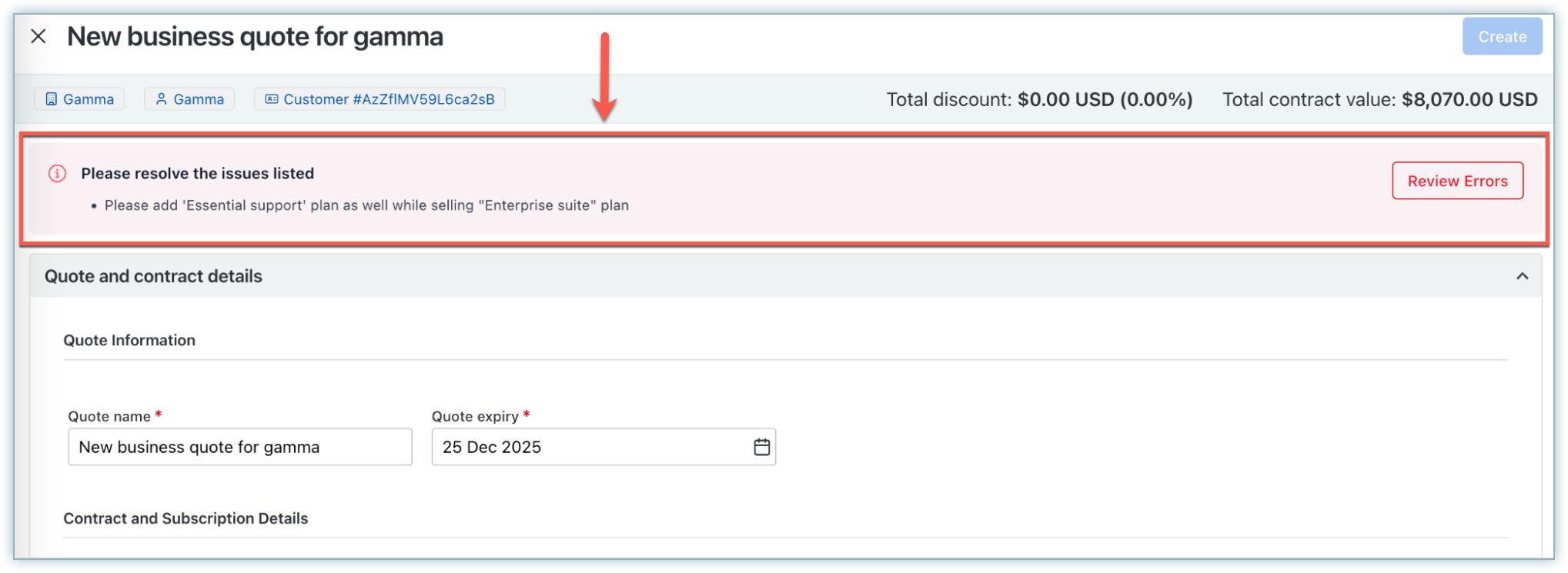
- Block Quote: Prevent sales reps from selling Product B unless Product A is included in the quote.
- Limit Discount: Enforce a maximum discount percentage for specific product lines.
- Limit Quantity: Enforce minimum quantity requirements for selected products.
Supported conditions
Chargebee CPQ supports configuring Selling Rules using quote, customer, and item-level attributes to determine when a rule should run.
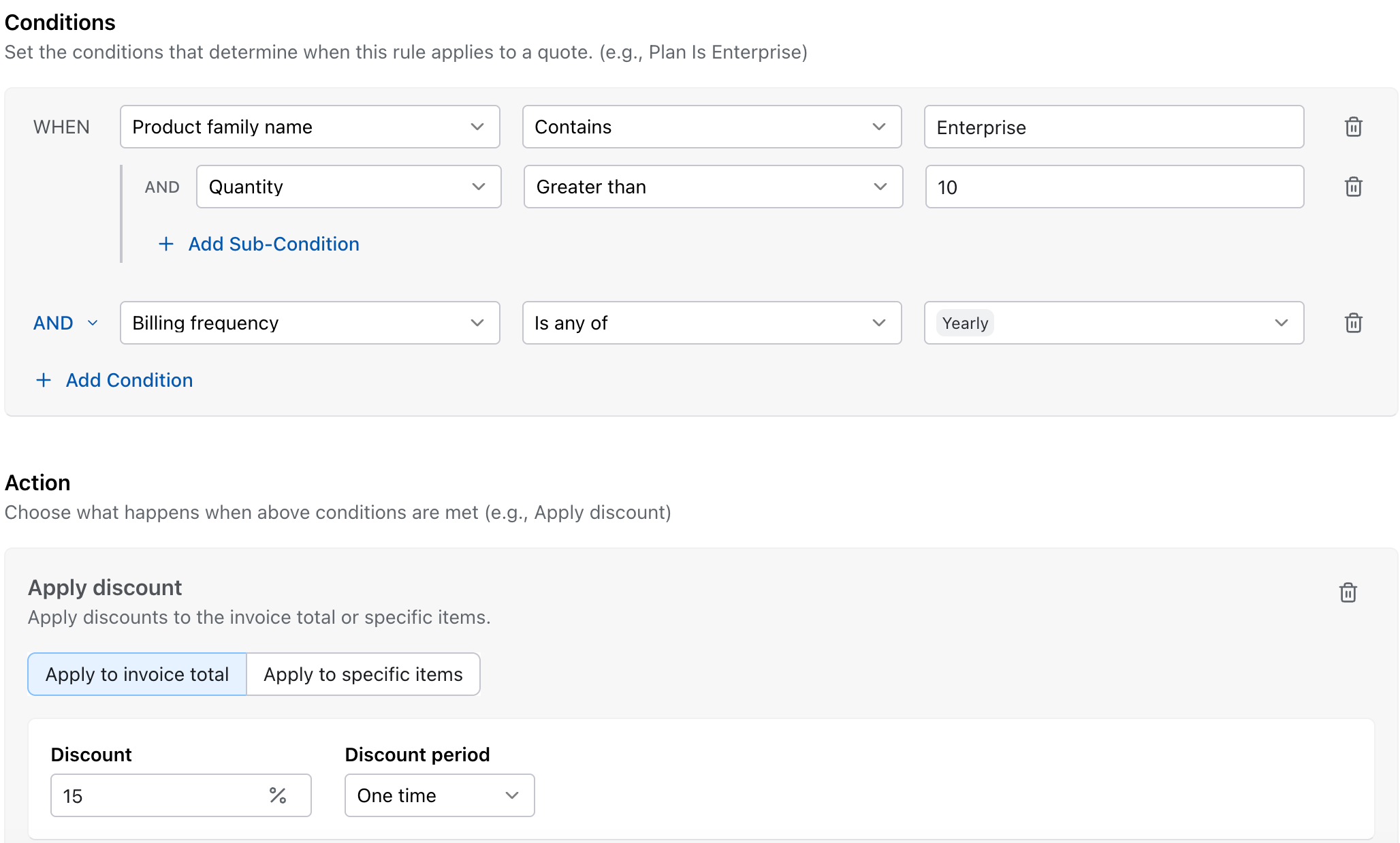
Multiple conditions and sub-conditions can be combined with AND/OR logic to define how and when a selling rule should be triggered.
Supported condition fields
The following fields are the attributes your teams can use for defining conditions/triggers while configuring Selling Rules.
Quote-level fields
- Quote Type, Contract Type, Contract Duration
- Billing/Shipping Country, Billing/Shipping City
- Payment Terms, Billing Frequency, Billing Currency
- Quote Creator Email, Quote Creator Role
- Quote Custom Fields
Customer fields
- Customer Custom Fields, Language
Item-level fields
- Net Amount, Quantity, Discount, Type, Frequency, Currency
- Product Family Name, Item Name
Supported actions
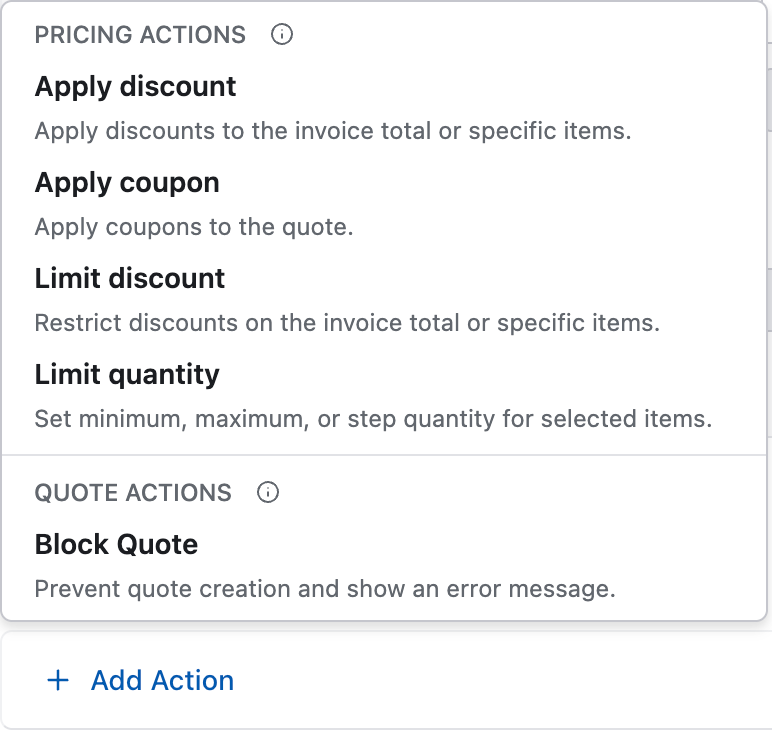
Once the configured conditions are met, Selling Rules automatically start executing the corresponding action to guide, validate, or restrict quote configurations during the quoting process.
Note
All Selling Rule actions execute dynamically whenever a quote is updated.
Apply Discount
Use this action to automatically apply discounts when the configured conditions are met.
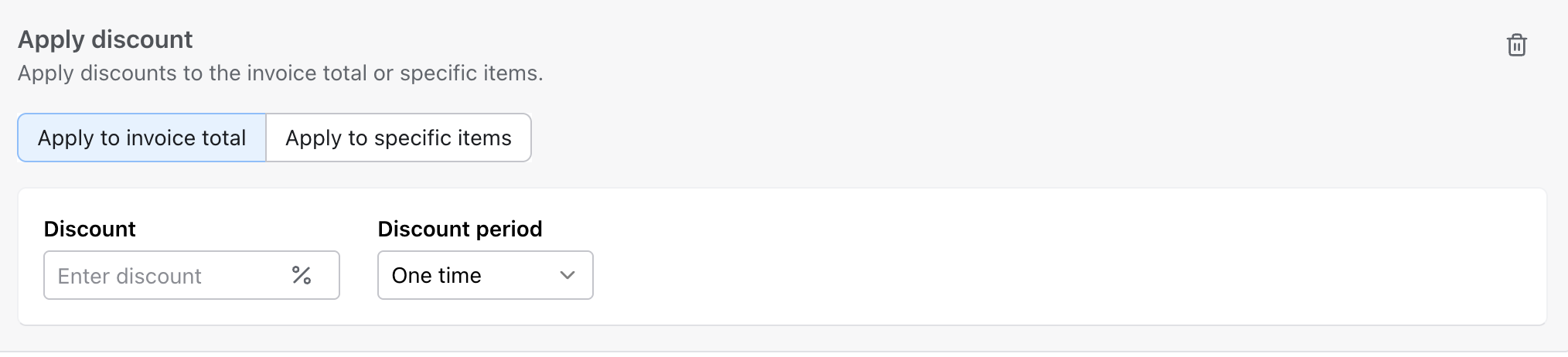
You can:
- apply discounts to the invoice total or specific items
- configure the discount percentage/value
- define the discount period
This action is useful for applying promotional, volume-based, or deal-specific discounts during quote creation.
Apply Coupon
Use this action to automatically apply coupons to quotes when the configured conditions are met.
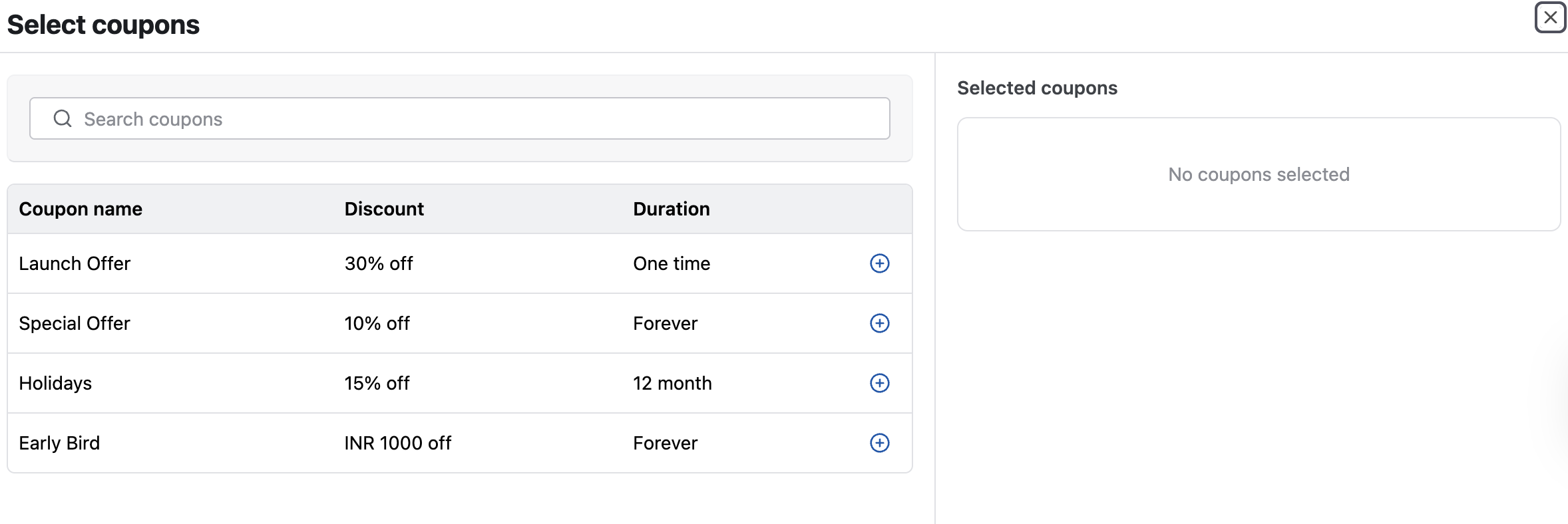
You can:
- search and select from available coupons
- apply percentage-based or fixed-amount coupons
- configure coupons with different durations, such as one-time, recurring, or forever
This action is useful for applying promotional or campaign-specific offers during quote creation.
Limit Discount
Use this action to restrict discounts that can be applied to the invoice total or selected items when the configured conditions are met.

You can:
- set discount limits for the invoice total or specific items
- define the maximum discount percentage allowed
- disable manual price overrides
This action is useful for enforcing pricing policies and preventing excessive discounting during quote creation.
Limit Quantity
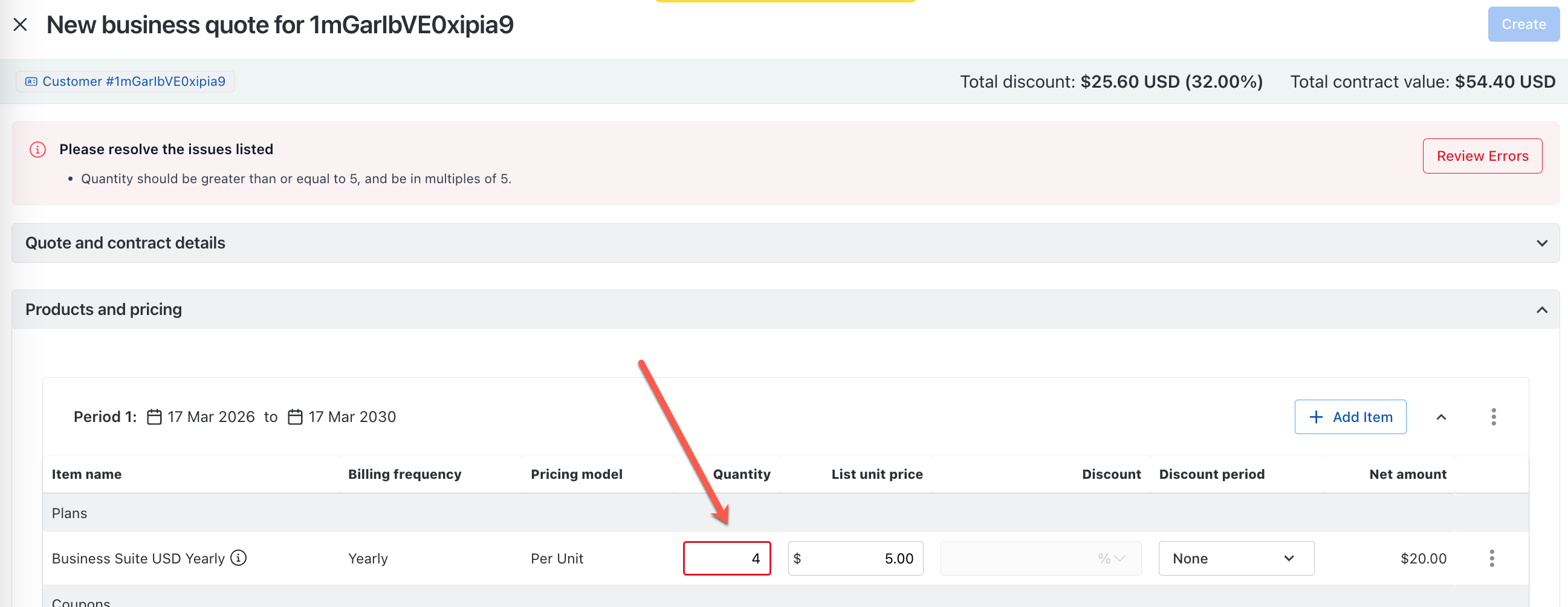
Use this action to control the quantity that can be added for selected items when the configured conditions are met.
You can:
- define minimum and maximum quantity limits
- configure quantity increments or step values
- apply quantity restrictions using item-level filters
This action is useful for enforcing packaging requirements and controlling how products or addons are sold in quotes.
Block Quote
Use this action to prevent quote creation when configured conditions are met.
This action is useful for:
- display validation or policy error messages
- prevent invalid product or pricing configurations
- enforce mandatory product dependencies
This action is useful for enforcing packaging policies and preventing invalid quote submissions.
You can create Selling Rules using the supported conditions and actions that best fit your business requirements.
How to create a Selling Rule
To create a new selling rule in your Chargebee Billing site, follow these steps:
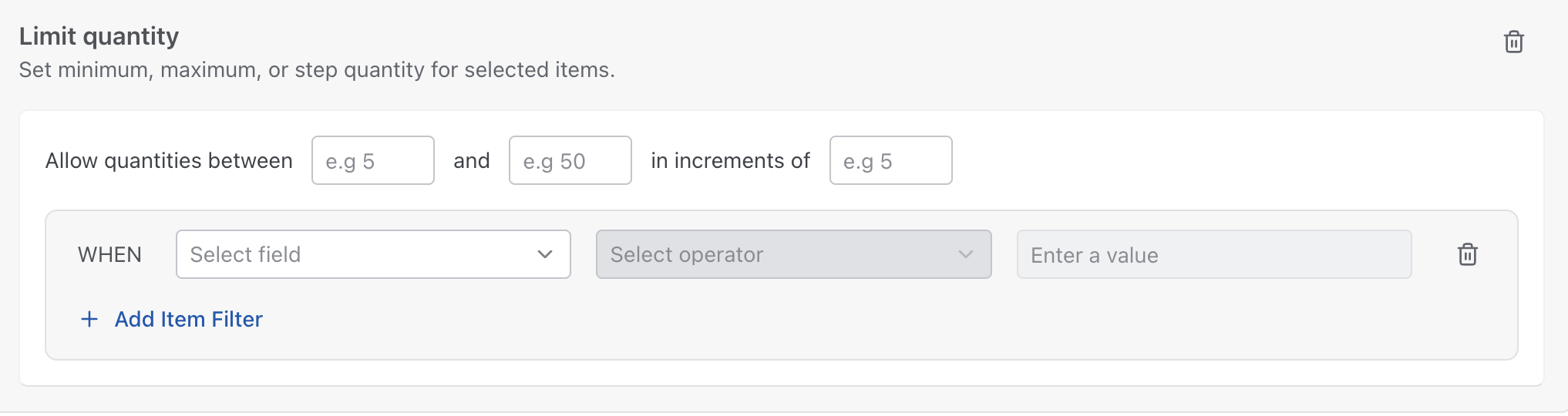
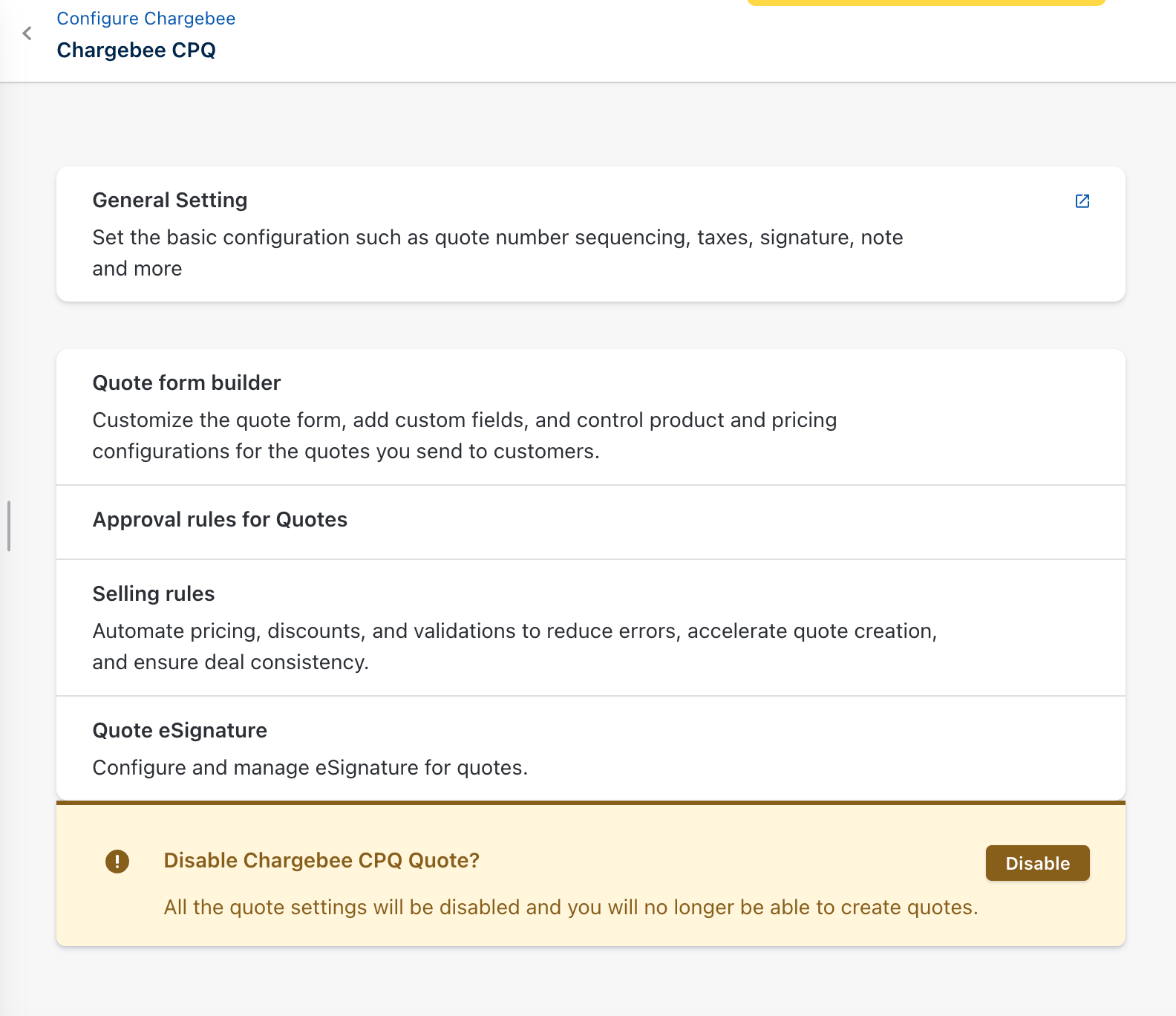
- Navigate to Settings > Configure Chargebee > Chargebee CPQ > Selling Rules.
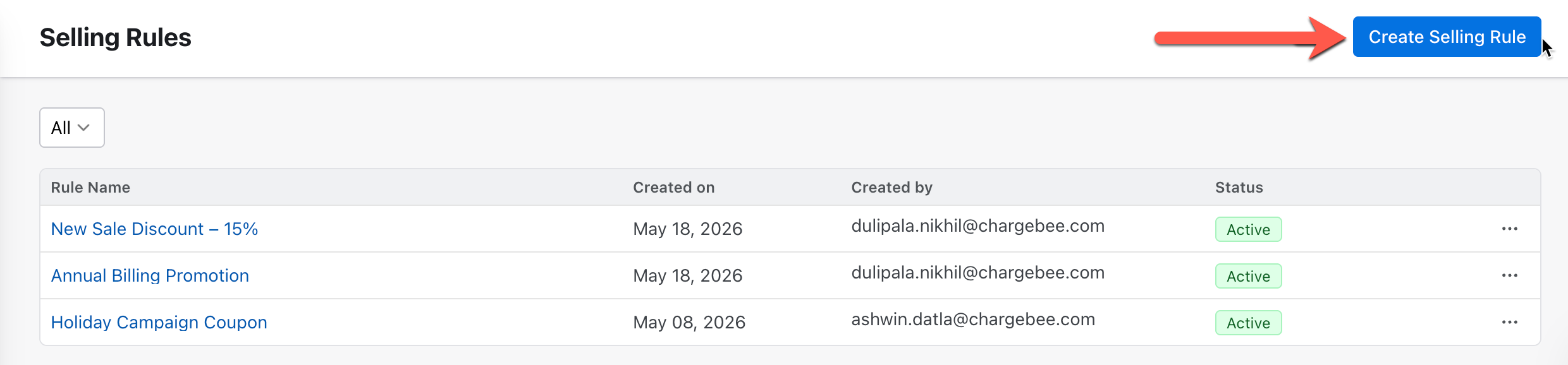
- On the Selling Rules page, select Create Selling Rule on the top right corner.
- On the Create Rule page,
- Under Conditions, select one or more conditions to evaluate. You can configure conditions using quote, customer, or item-level attributes, and combine multiple conditions or sub-conditions using AND and OR operators based on your business requirements.
For example, you can configure conditions for quotes that contain the Enterprise product family, have a quantity greater than 10, and add a sub condition for quotes under Yearly billing frequency.
- Under Actions, choose the corresponding action to apply when the conditions are met. For instance, you can set the action as Apply Discount and specify a 15% discount.
For instance, you can set the action as Apply Discount and configure a one-time 15% discount on the invoice total.
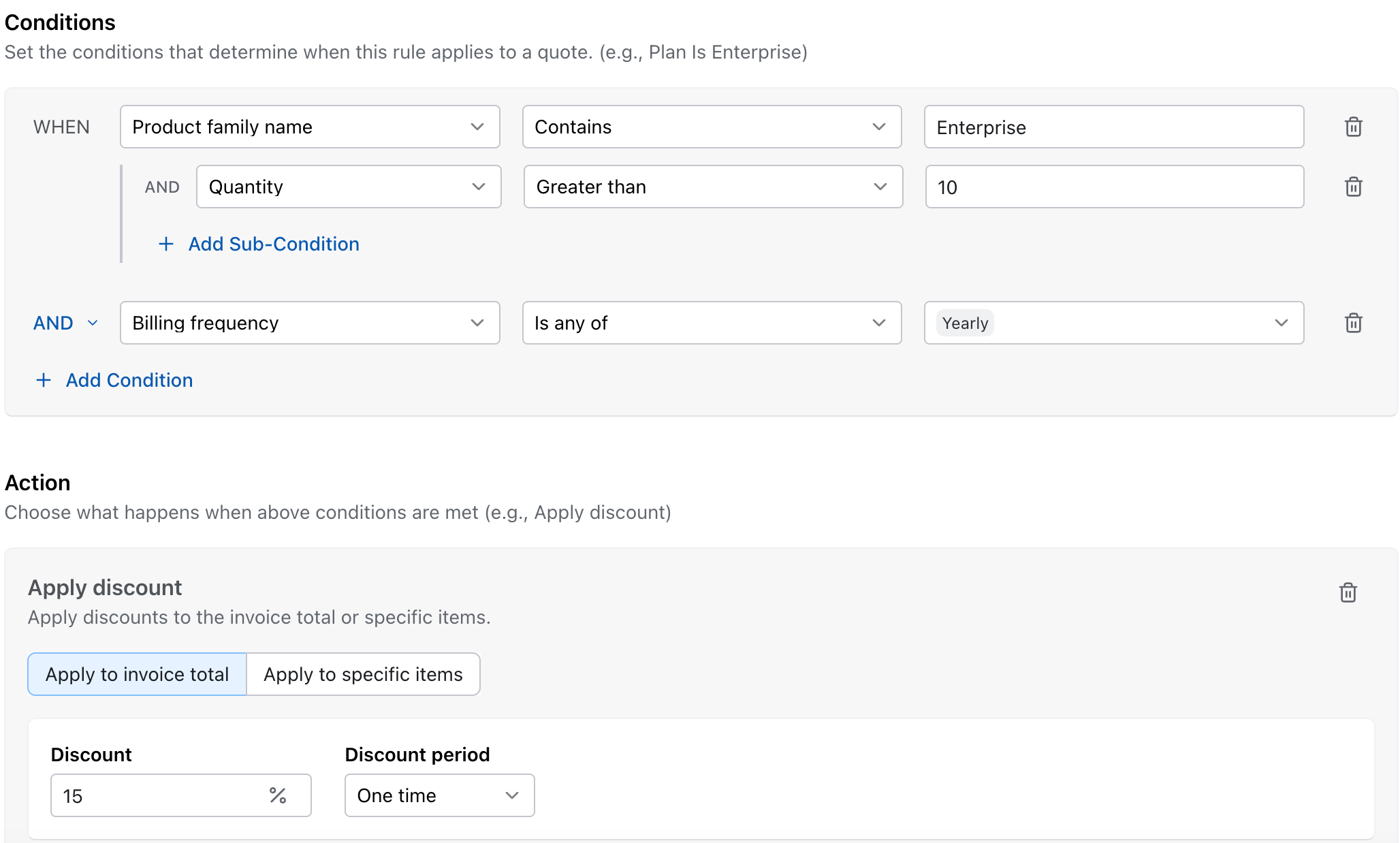
- Review the configured conditions and actions, then enter a descriptive name for the Selling Rule. Click Publish to save the rule. Once published, the rule becomes active and is executed in real time as sales reps create or update quotes.
How Selling Rules apply on a Quote Form
Once a Selling Rule is configured and published, Chargebee CPQ evaluates the rule dynamically during quote creation and updates. Based on the configured conditions, the corresponding actions are automatically applied on the quote form in real time, helping sales reps follow pricing, discounting, and product configuration policies without manual intervention.
The following examples show how Selling Rules appear and behave during the quoting process, including discounts, coupons, quantity restrictions, and quote validation messages.
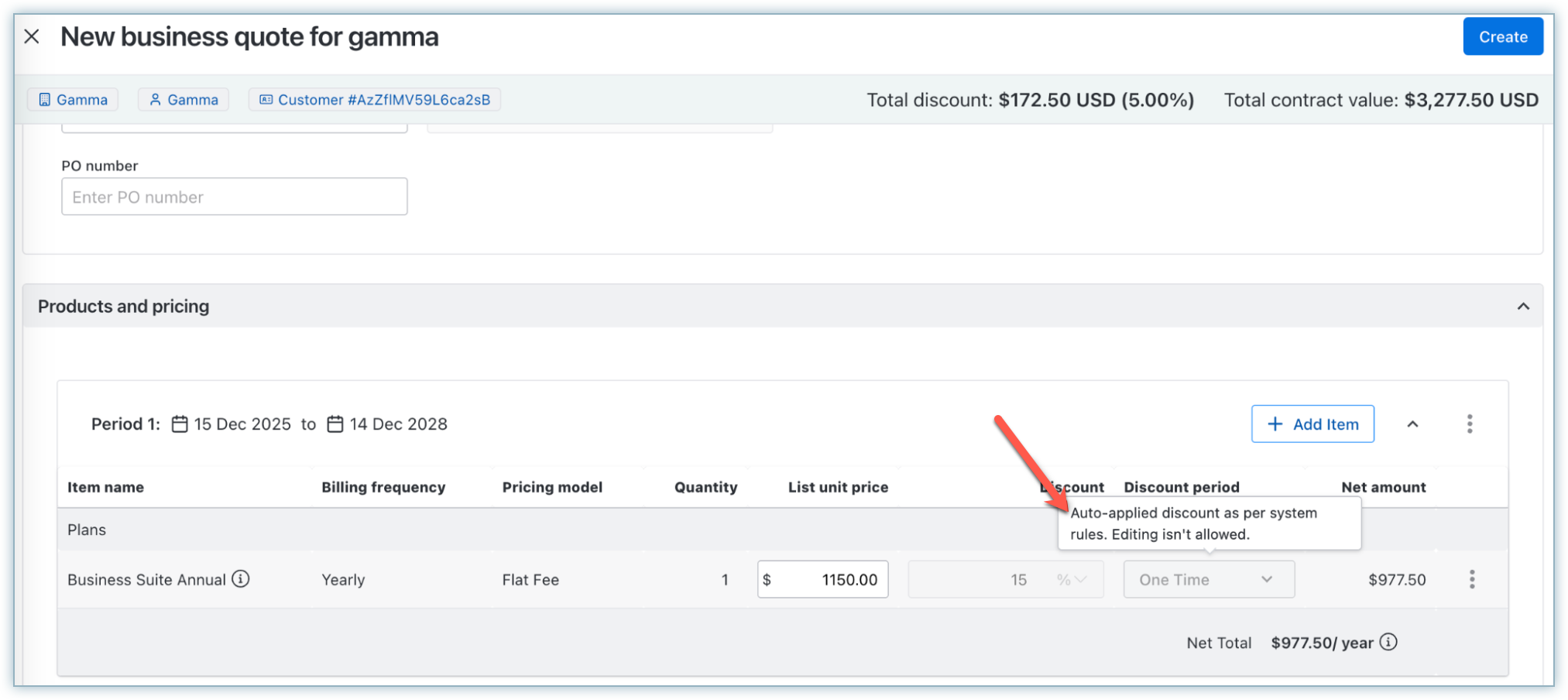
- Apply discount: A line-item discount of 15% is auto-applied for a new sale quote.
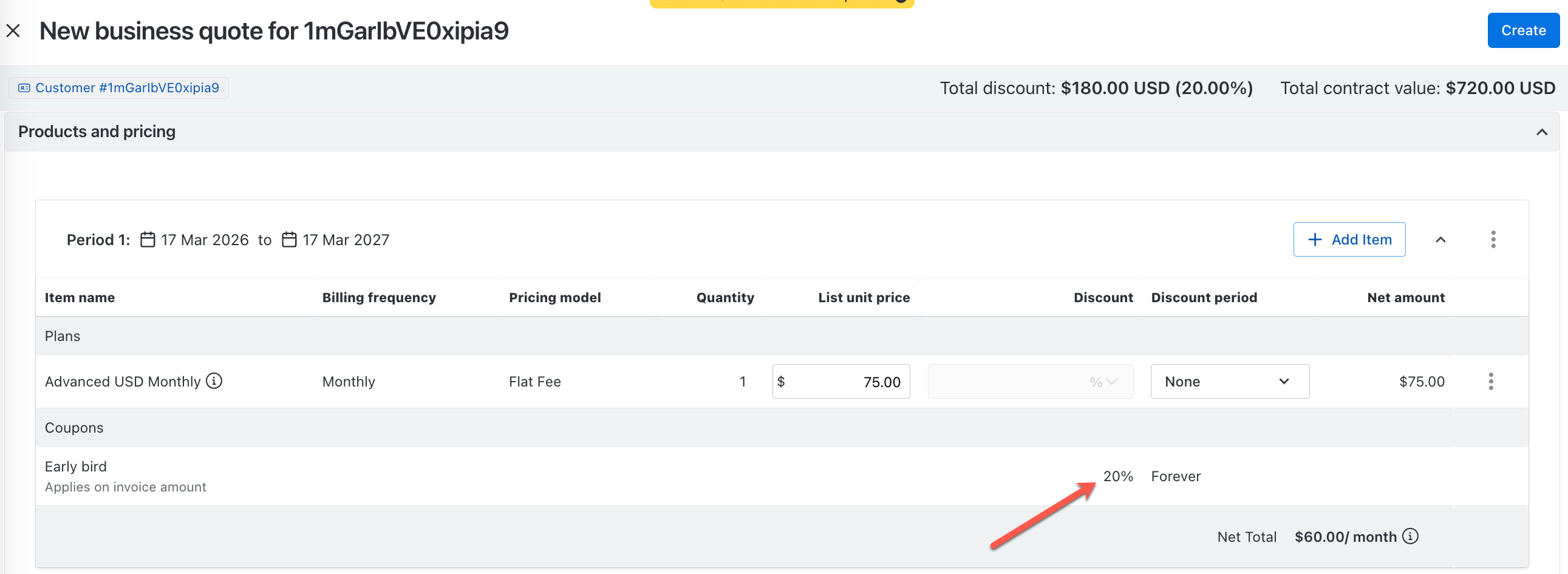
- Apply Coupon: An invoice level coupon of 20% is auto-applied for a new sale quote.
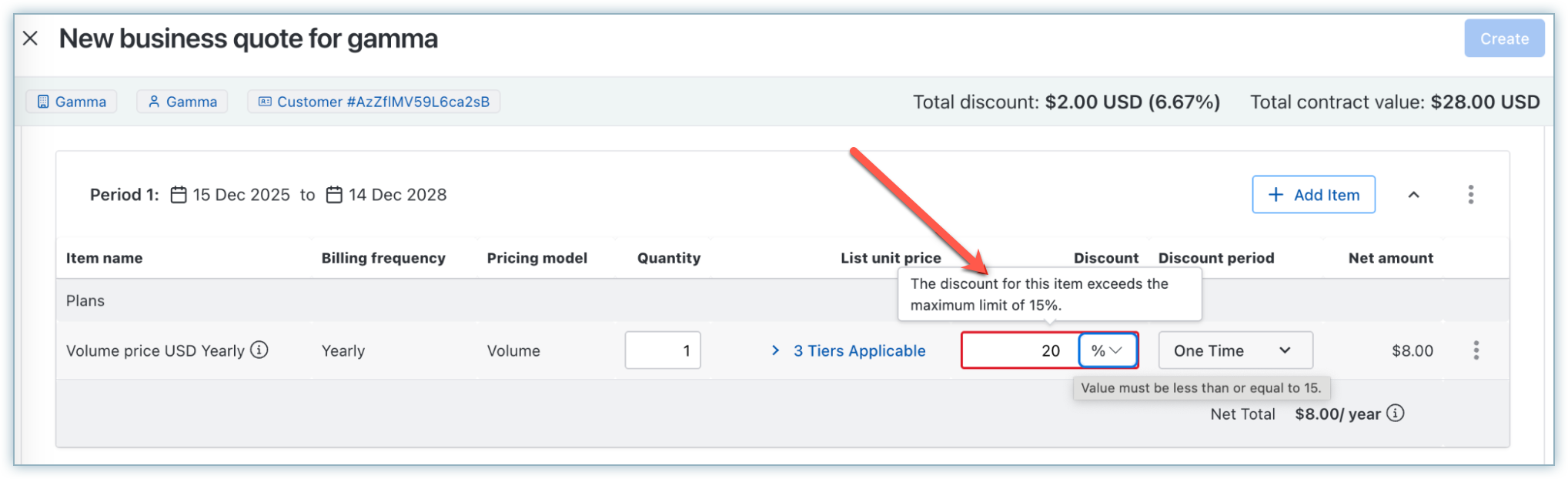
- Limit Discount: Checks for maximum discount for a particular product line.
- Limit Quantity: Checks for minimum quantity allowed for a particular product line.
- Block Quote action: An error message to convey that product B cannot be sold without product A.
Was this article helpful?