Metered Billing
Usage-based Billing - the next evolution of Metered Billing
For modern, scalable, and advanced usage billing requirements, we recommend Usage-based Billing (UBB) — Chargebee’s latest solution designed to handle raw or aggregated usage and support usage at a massive scale. Explore the documentation to learn more.
Overview
Most businesses maintain a single, standard price for their products or services, but some want to charge customers based on usage or consumption.
For example:
- Telecommunication service providers charge based on user consumption. In addition to a base service charge, users pay for what they use.
- Some SaaS businesses have overage charges when users exceed the base limit included in their subscription, such as the number of API calls. A customer is charged a flat fee for their plan plus usage, or if they exceed the allocated amount.
With Chargebee's metered billing solution, you can accurately charge your customers based on their usage of your products and services. You can define plans and addons as metered components in Chargebee. Invoices for subscriptions containing these metered components are generated in a pending state.
Only users assigned to the Full Access role within Chargebee can add usage associated with metered billing. This action cannot be completed by any custom roles. Learn more about users and roles here.
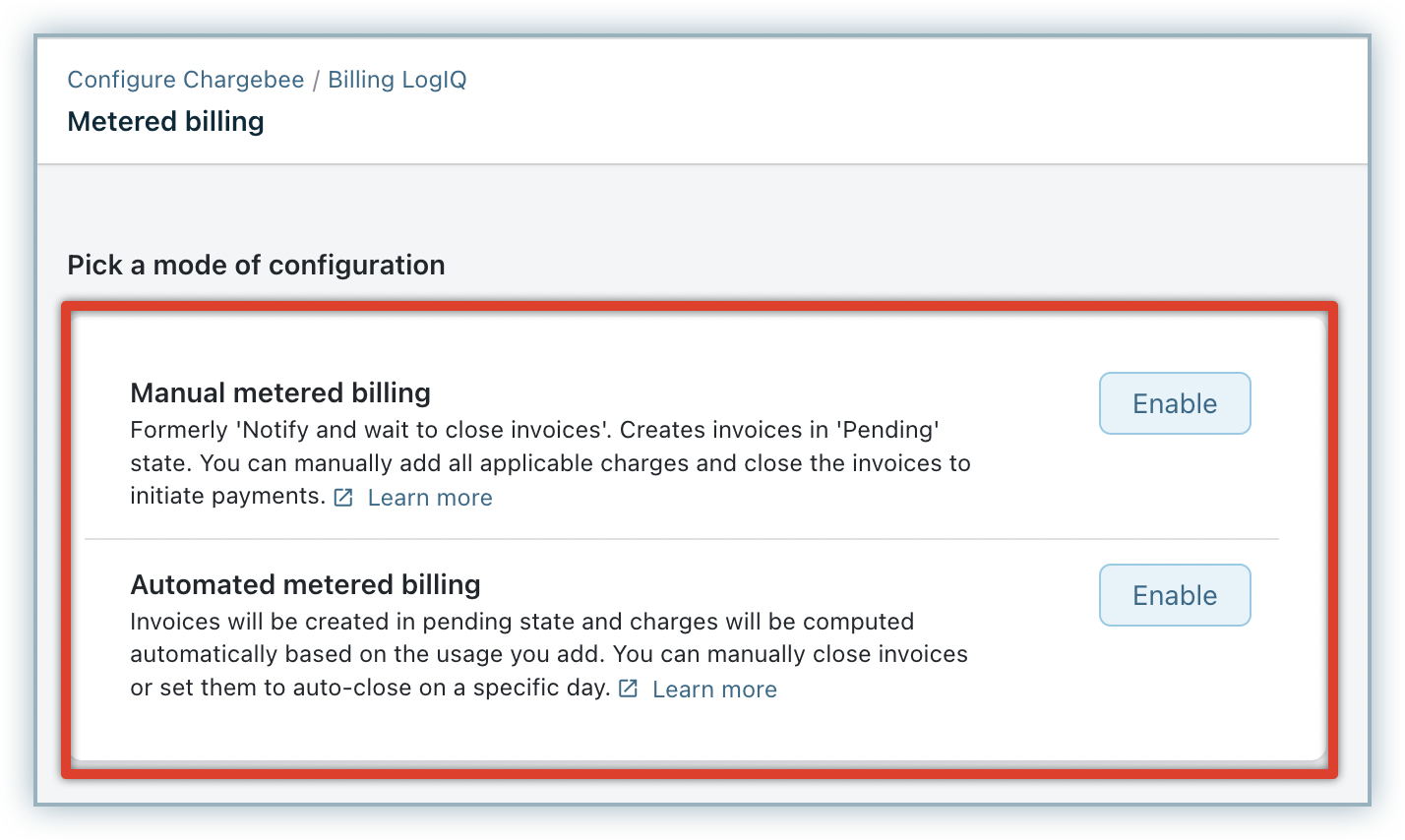
Chargebee allows you to choose either of the following modes of configuration for metered billing:
- Manual metered billing: In this mode, invoices with metered components are created in a 'Pending' state. You can manually add all applicable charges and close the invoices to initiate payments.
- Automated metered billing: Invoices are created in a 'Pending' state and charges are computed automatically based on the usage you add to the subscriptions. You can manually close the invoices or have them auto-closed on a specific day.
Invoices for subscriptions without metered components can also be generated in pending status, if required. You can add charges as needed before closing and sending the invoice to the customer.
You can add usage for these subscriptions to the subscription records. Based on the usage added (sum of all usage data, the latest usage data, or the maximum usage data), Chargebee calculates and adds the price to the respective invoice for closing. You can automate closing these invoices that are in pending status and email them to the respective customers.
You can add, remove, or view the usage data for invoices and subscriptions whenever needed.
Configuring Metered Billing
To enable and configure metered billing in your Chargebee site, follow these steps:
-
Log in to your Chargebee Billing site.
-
Click Settings > Configure Chargebee > Billing LogIQ > Billing & Invoices > Metered Billing.
-
In the Metered billing page, pick a mode of configuration.
-
To configure the Manual metered billing mode, click Enable next to manual mode.
-
On the Manual metered billing popup, click the toggle and under Choose the type select the invoice date that you want to display on the invoices from the drop-down. You can select from the following options:
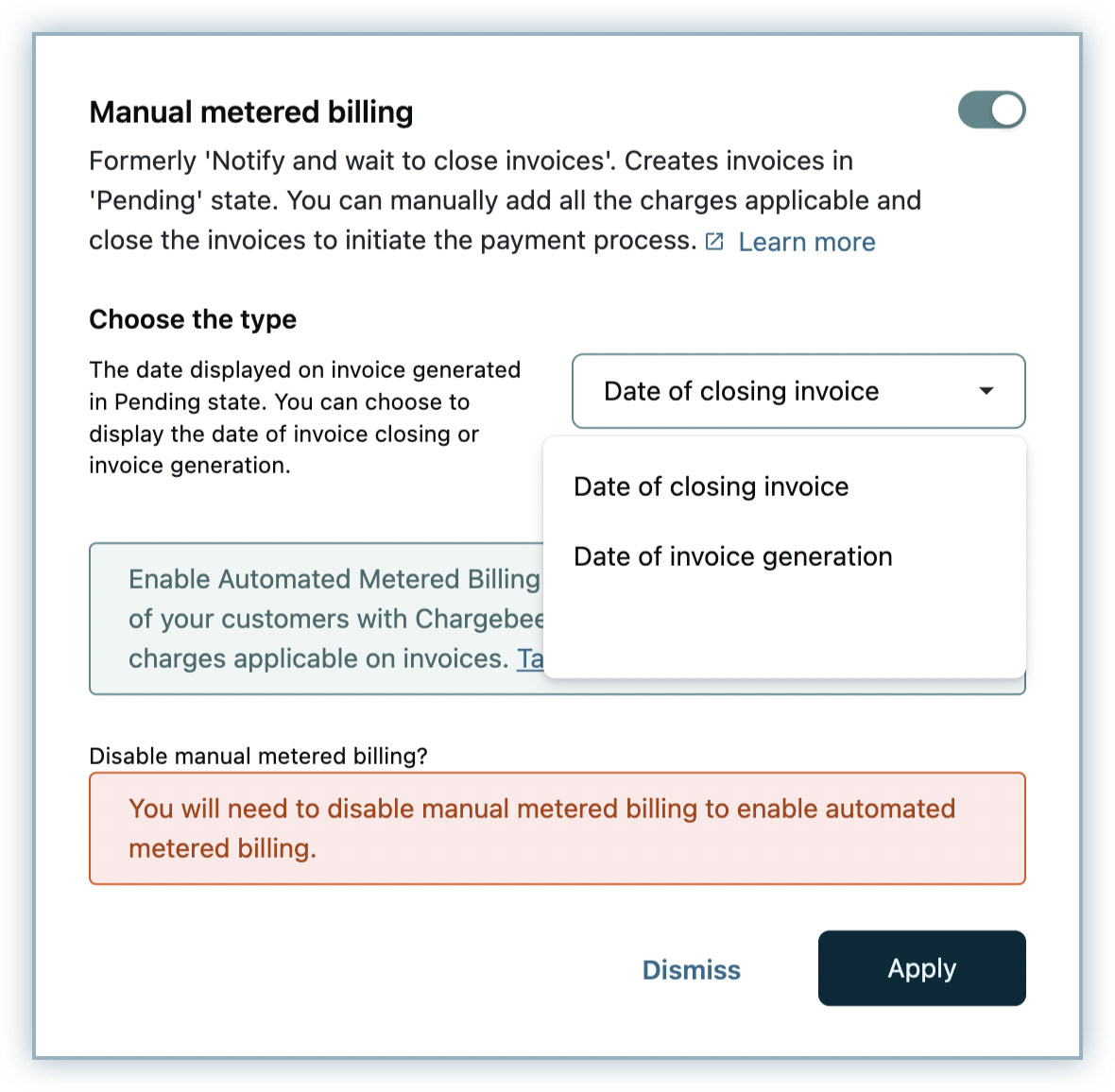
- Date of closing invoice: The date when the invoice is auto-closed or closed by you to add all the metered charges.
- Date of invoice generation: The date when the subscription is renewed and the invoice gets generated in pending status.
-
Click Apply.
-
To configure the Automated metered billing mode, click Enable next to automated mode.
-
Under Enabled Metered Billing, click Enable.
-
In the Metered billing page, configure the following settings that define your metered billing workflow:
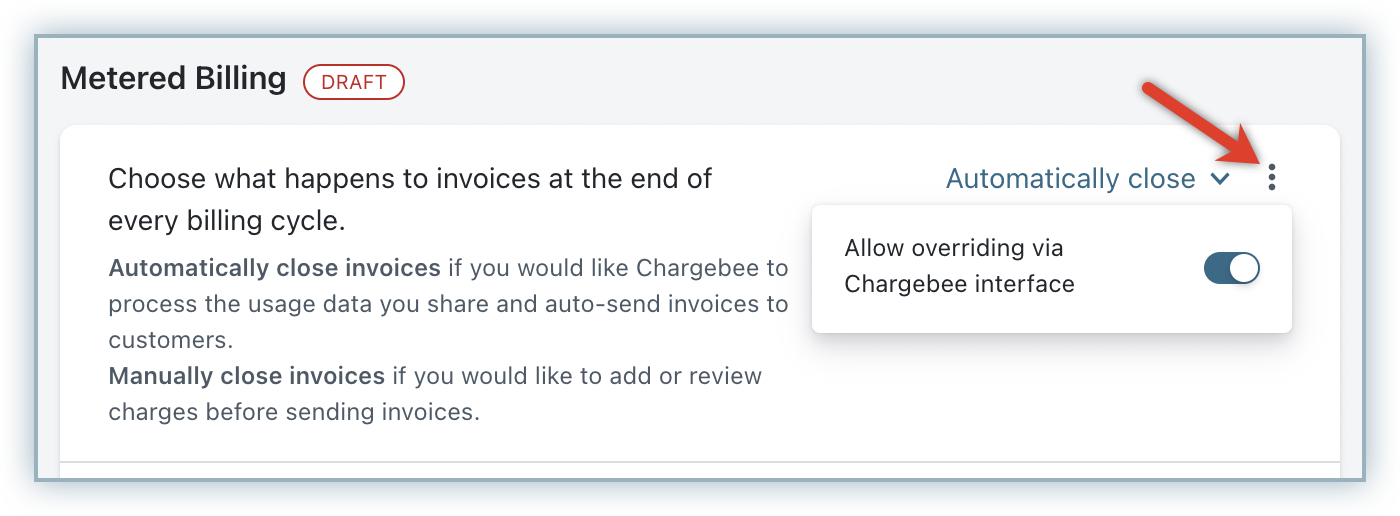
- Choose what happens to invoices at the end of every billing cycle: You can select from the following options:
- Automatically close invoices: Chargebee processes the usage data that you share and automatically closes and sends the invoice to customers. The maximum time limit that you can select here is 50 days.
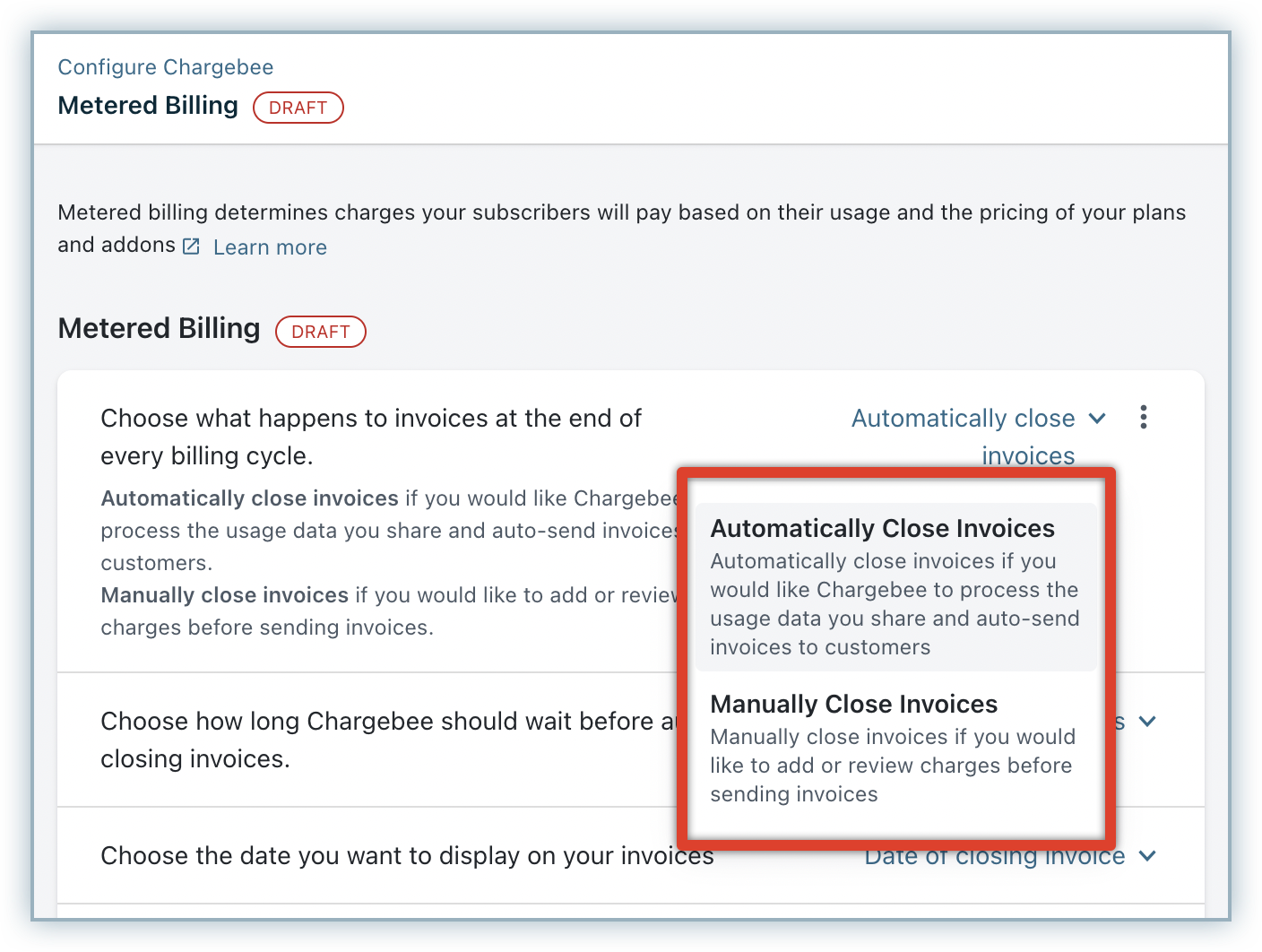
- Manually close invoices: You can add/review the charges and manually close the invoices.
- Automatically close invoices: Chargebee processes the usage data that you share and automatically closes and sends the invoice to customers. The maximum time limit that you can select here is 50 days.
- You can optionally allow overriding via the Chargebee User Interface (UI).
When overriding is allowed, users can turn off auto-closing the invoices for specific customer or subscription records.
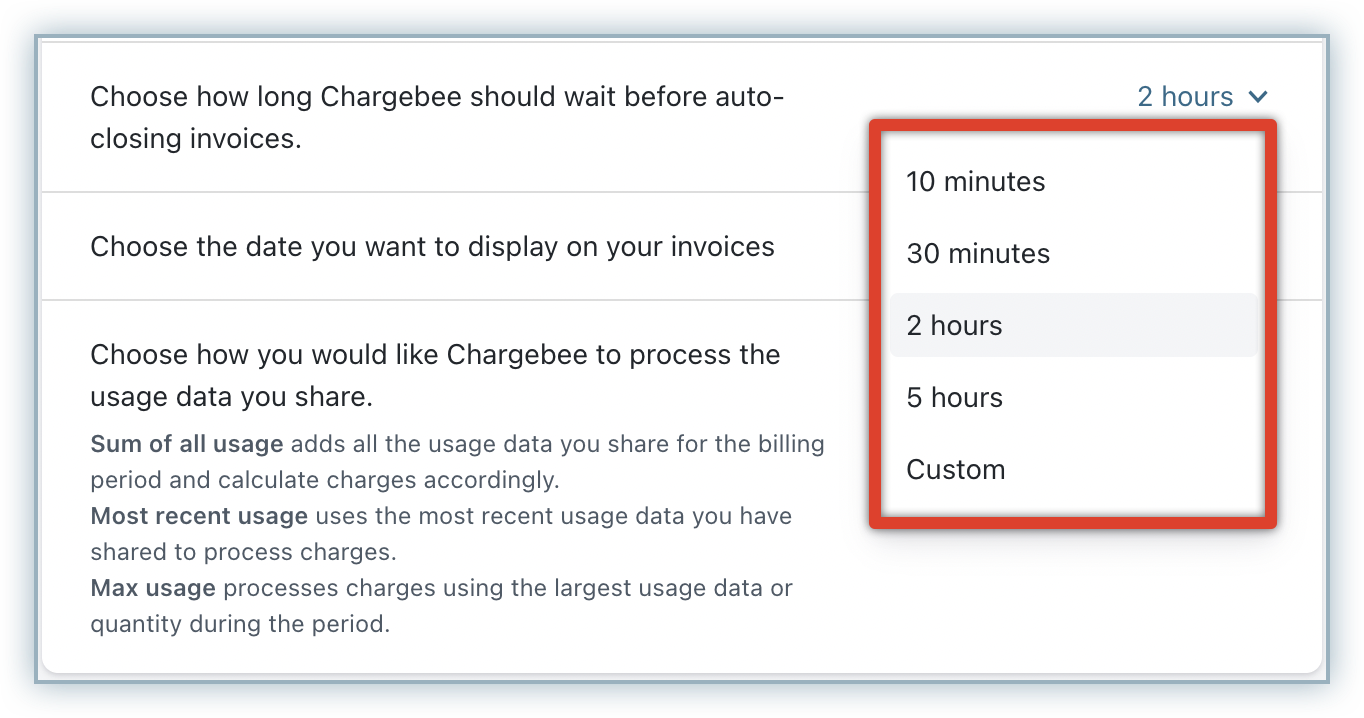
- Choose how long Chargebee should wait before auto-closing invoices: You can specify how long Chargebee should wait before auto-closing the invoices, during when you can add or review the charges as required. By default, Chargebee displays two hours as waiting duration. You can click the drop down to select your preferred duration, or add a custom duration. You can specify 10 minutes at the minimum.
- Choose the date that you want to display on your invoices: Select the Invoice date that you want to display on the invoice from the drop-down list. You can select which date gets displayed from the following options:
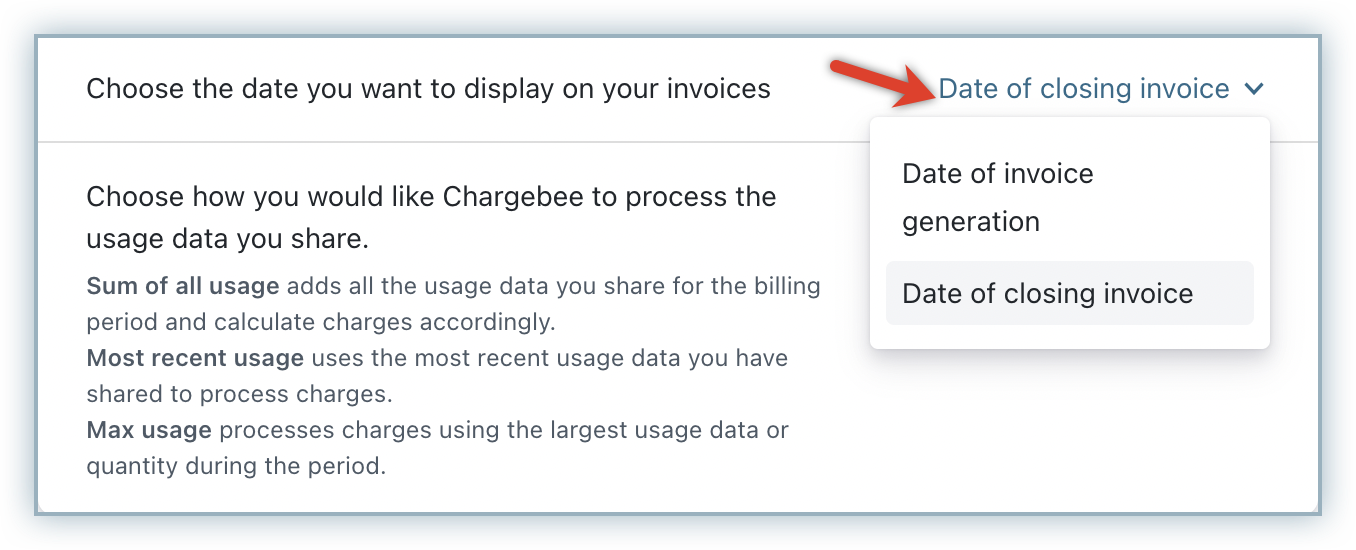
- Date of closing invoice: The date when the invoice is auto-closed or closed by you to add all the metered charges.
- Date of invoice generation: The date when the subscription is renewed and the invoice gets generated in pending status.
- Choose how you would like Chargebee to process the usage data that you share: You can select from the following options:
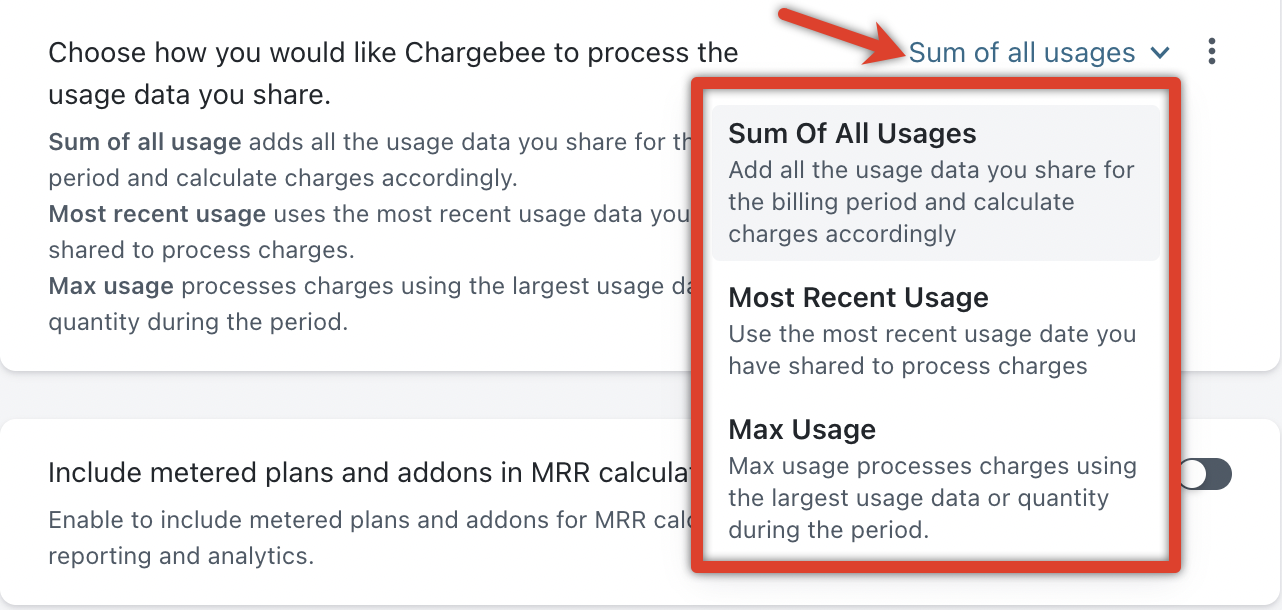
- Sum of all usage: You can add usage data throughout the billing period, and Chargebee sums them up to compute the price accordingly.
- Most recent usage: Chargebee uses the most recent data that you share to compute the price. The usage's date and time is what is considered for identifying the recent usage, and not the time stamp of when the usage is being added in Chargebee. For example, when the usage is shared for June 15, June 12, and June 11 in the same order mentioned, Chargebee considers only whatever is added as part of June 15 usage. You can optionally allow overriding via Chargebee interface. When overriding is allowed, users can modify this site setting for specific metered plan or addon, as required.
- Max Usage: Chargebee uses the largest usage data or the quantity added for the subscription, during that period to compute the price.
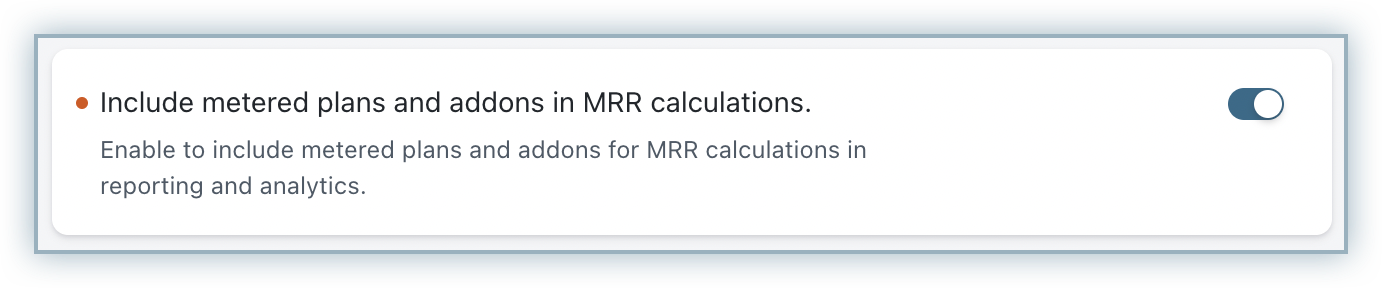
- You can enable the setting to Include metered plans and addons in MRR calculations.
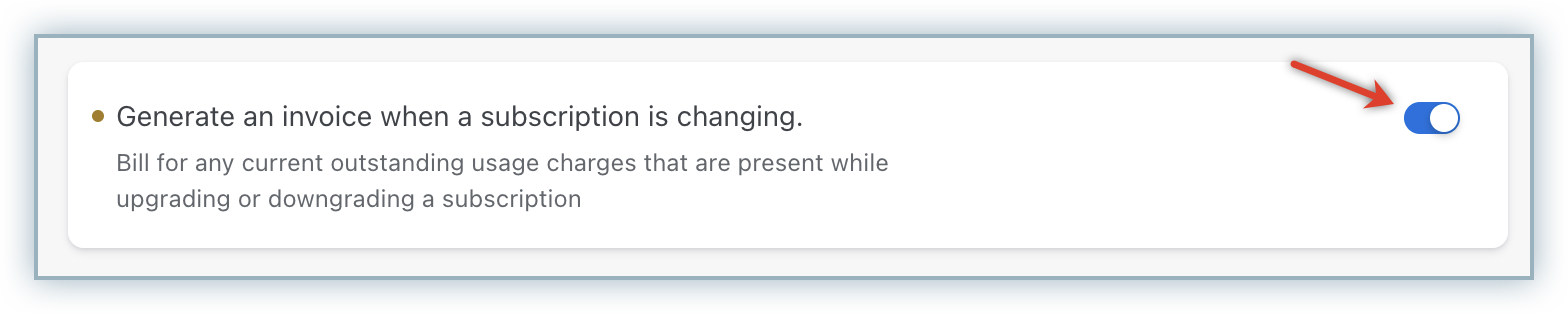
- You can enable the setting to Generate an invoice when a subscription is changing.
- Choose what happens to invoices at the end of every billing cycle: You can select from the following options:
-
Click Apply to save your configuration.
Private Beta
The setting Generate an invoice when a subscription is changing is in Private Beta. Please contact support to enable this feature.
Defining Plans/Addons as Metered Components
After enabling the Metered Billing feature, you can maintain both metered and non-metered plans and addons in your Chargebee site. Plans/addons for which you want to charge your customers on usage basis can be marked as metered components.
While creating a new plan/addon or updating an existing plan/addon, you can mark them as metered components. To define plans and addons as metered components, follow these steps:
-
Click Product Catalog > Plans/Addons > Create Plan/Addon.
-
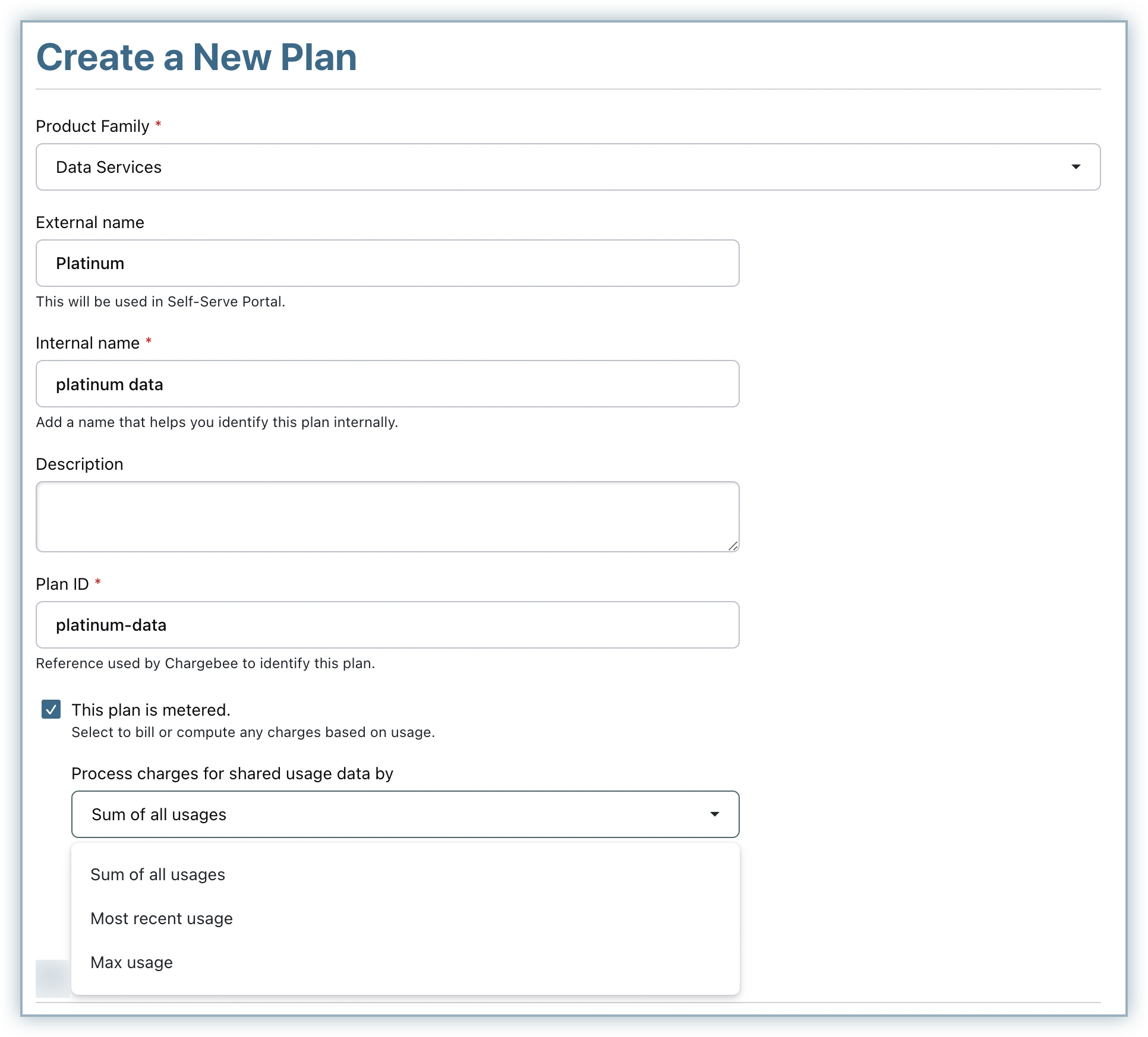
In the Create a New Plan/Addon page, specify the plan/addon details.
-
Select This plan/addon is metered. Invoices created for this plan/addon will be in draft state to add usage based charges before closing them.
- You can additionally override the site settings that you have configured for how you would like Chargebee to process the usage data that you share for this plan/addon. You can select your preferred option to be the sum of all usage data, the most recent usage data, or the max usage data.
-
Click Create.
The plan/addon is successfully created as a metered component. You can start defining price points for your plan/addon as required.
Note
- Once a plan/addon is configured as a metered component, it cannot be modified as a non-metered component.
- For metered plans/addons, you cannot set price points using the flat fee pricing model.
Usage Accumulation
When invoicing your customers frequently, you can control how usages are managed for subscriptions during and beyond their billing period. You can accumulate and reset usages at a frequency different from the associated plan or addon's billing frequency.
For example, consider Plan A, priced at $1,200/year, which comes with 100 images free of cost. When a customer exceeds this limit, additional usage is billed monthly at $20/image.
In such a case, you can set the usage for the metered item to accumulate and reset at a yearly frequency such that the usage gets accumulated beyond a month(billing period of the plan, addon, or charge). When the customer crosses their free limit, they are charged appropriately based on their usage every month.
Follow the steps below to define usage accumulation for a metered item while defining the price points:
-
On the Create a Price Point page, specify the pricing details.
-
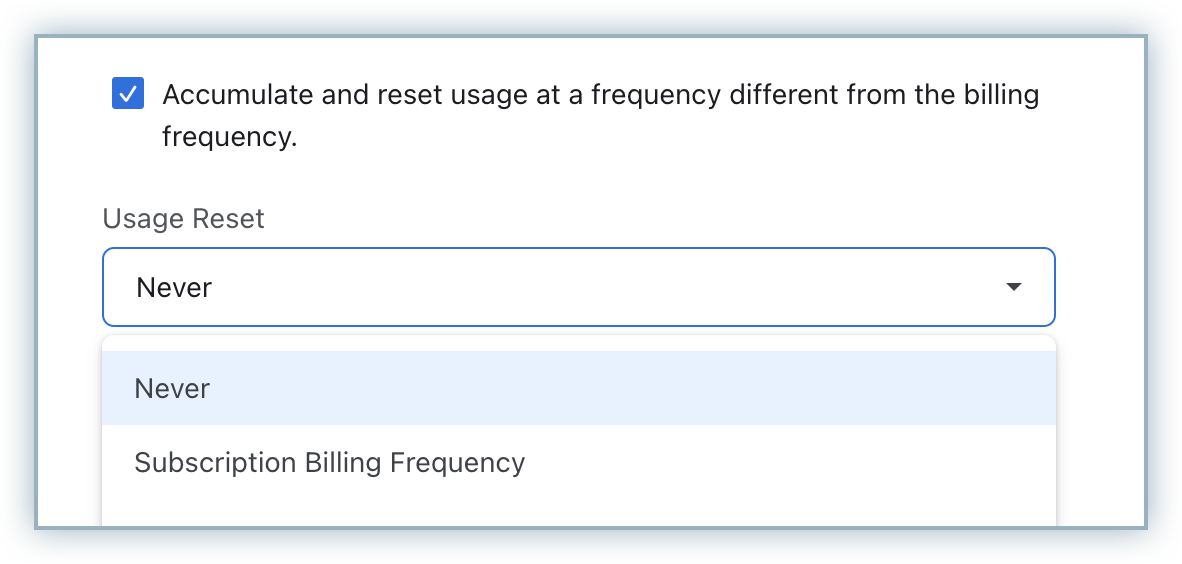
Enable the Accumulate and reset usage at a frequency different from the billing frequency.
-
Click the Usage Reset drop-down and select the frequency at which usage should be reset. You can select:
- Never: Usages accumulate forever, and never resets.
- Subscription Billing Frequency: Usage resets based on the associated subscription's billing frequency.
-
Click Create.
For subscriptions created with this metered item (plan, addon, or charge), usage accumulates for the defined period and does not reset with every billing cycle.
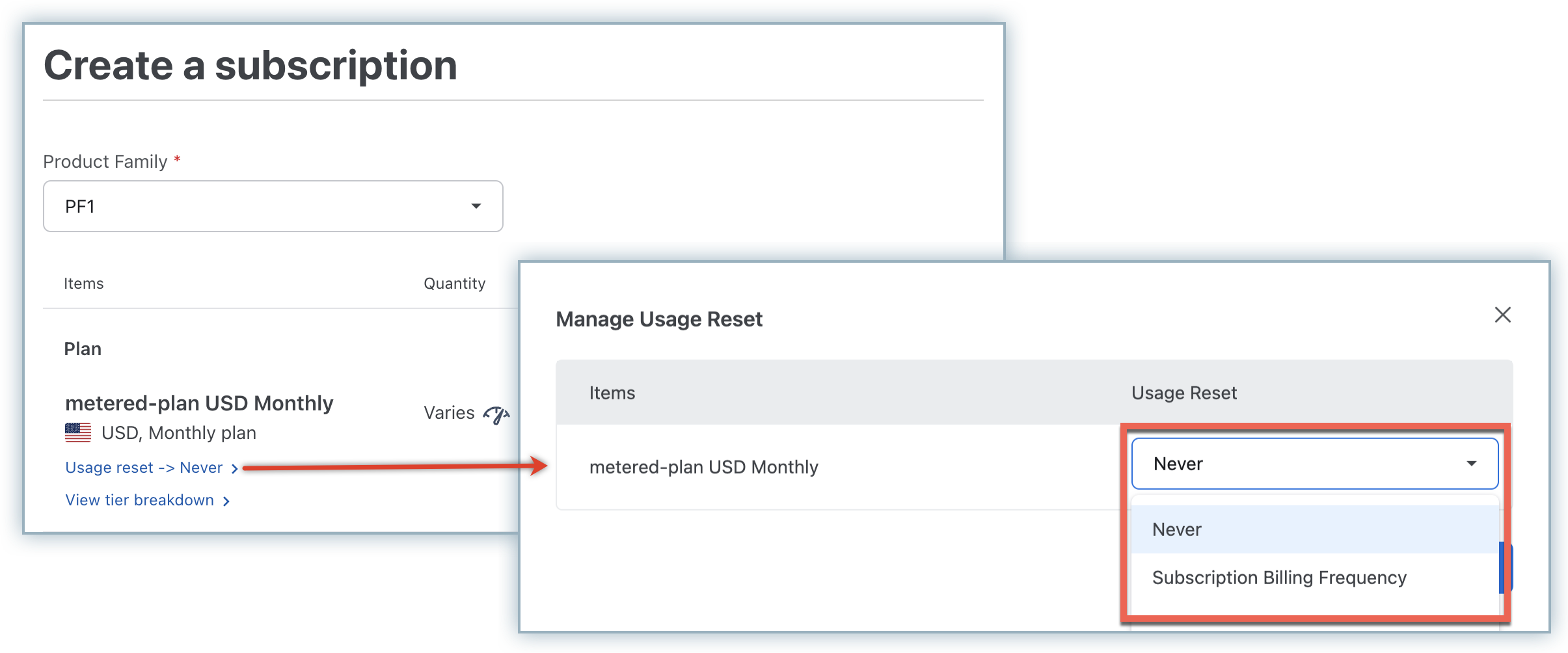
You can also override the Usage Accumulation settings defined at the item price point level for each subscription as required. While creating or editing a subscription record, click the Usage reset link and, on the Manage Usage Reset popup, select your preferred setting from the drop-down.
Limitation
- Chargebee Billing features like Quotes, Contract Terms, Advance Invoicing, Gift Subscriptions, RevenueStory, and Subscription Ramps are incompatible with usage accumulation and must be disabled before using usage accumulation.
Tracking Usage for Metered Components
After creating plans/addons as metered components in your Chargebee site, you can start adding and tracking the usage data for metered components in subscriptions. You can add usage via the Chargebee interface from the subscription details page or by using bulk import/export options. You can also add usage for subscriptions via API.
To add usage data to a subscription with metered components via Chargebee interface, follow these steps:
-
Navigate to the subscription details page.
-
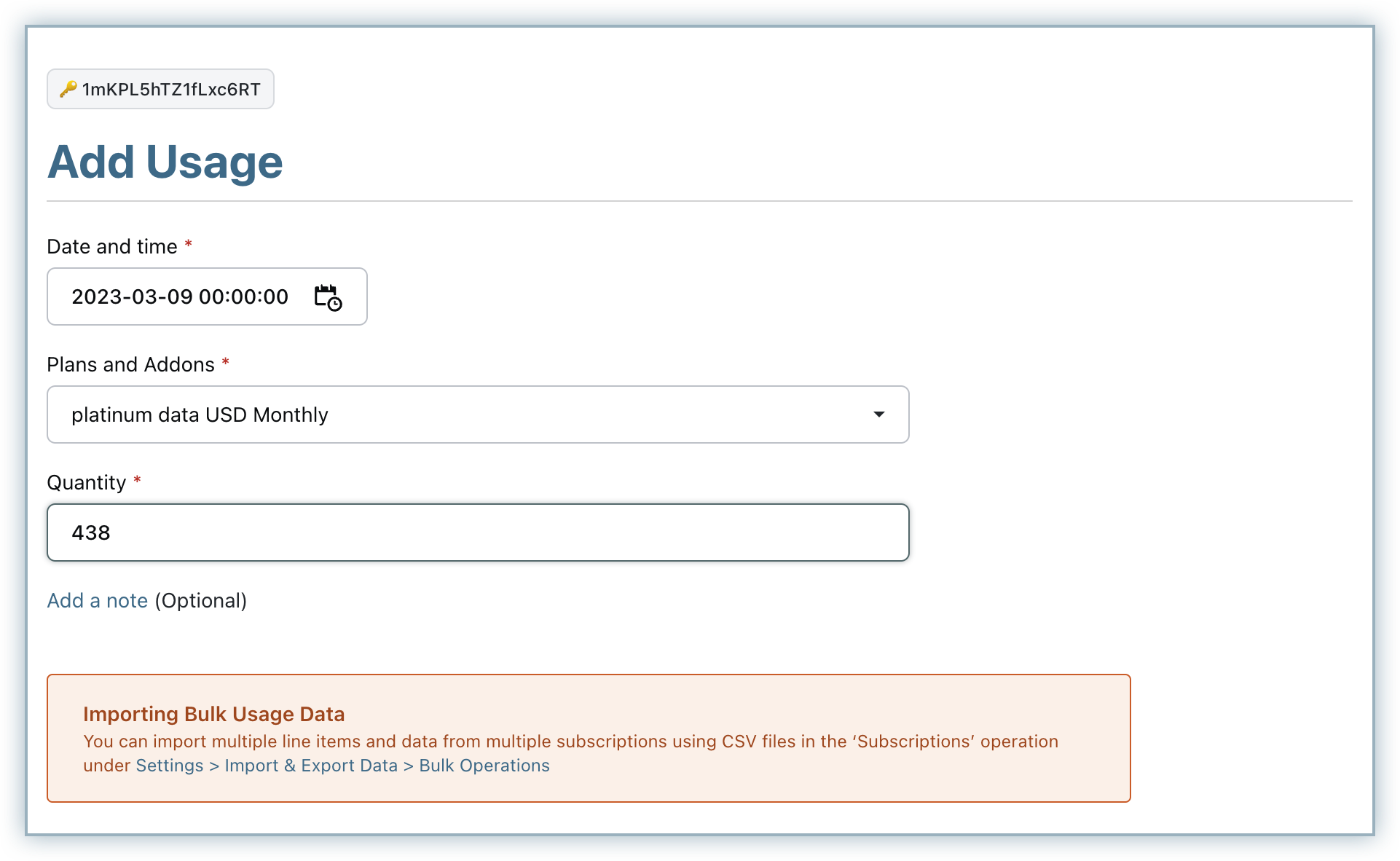
Click Add Usage.
-
Specify the date and time for when the usage is being added.
-
Select the plans/addons for which you are adding the usage.
-
Specify the usage units in the Quantity field.
-
You can optionally add a note while adding usage.
-
Click Add.
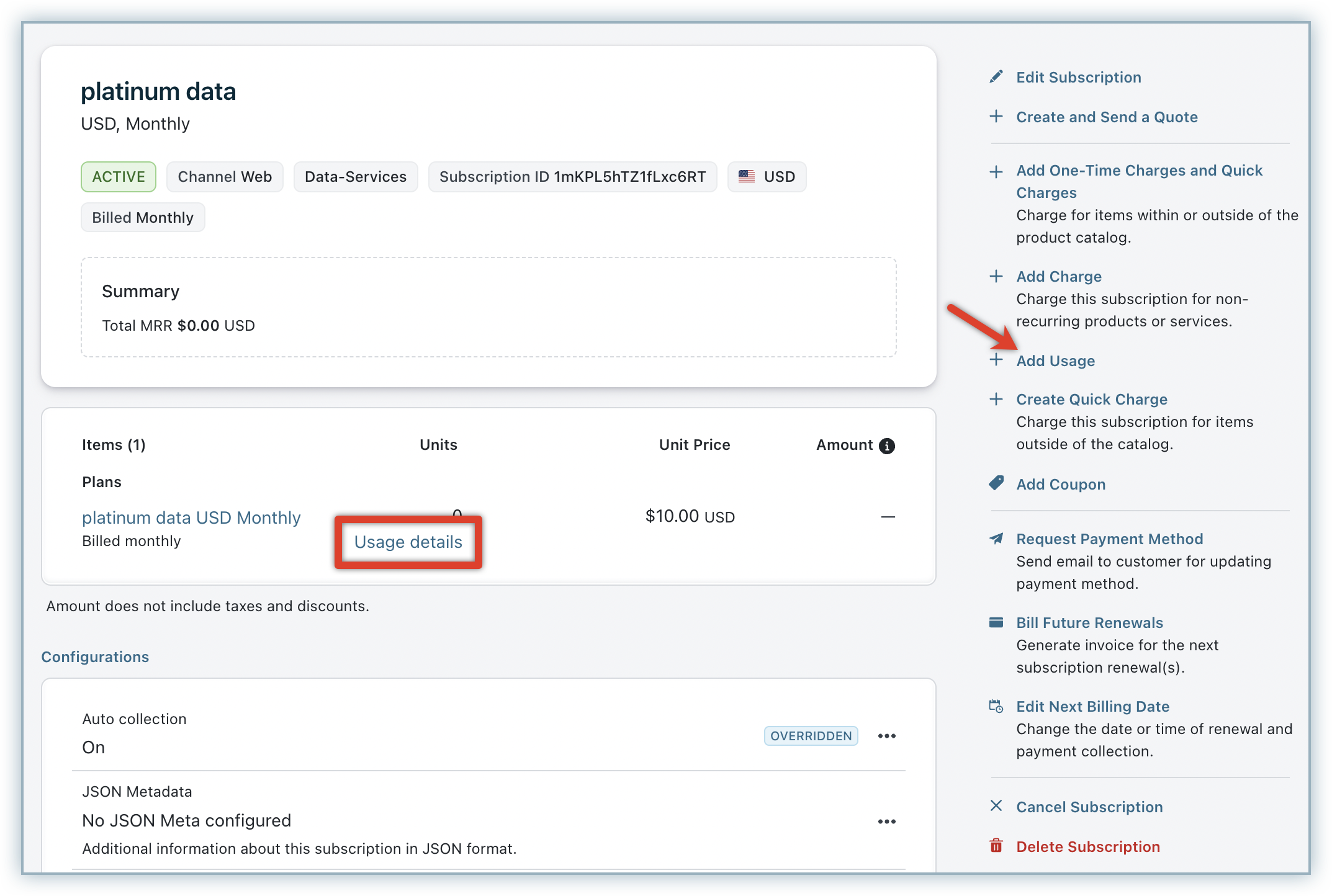
The subscription details page displays the usage details for metered components as shown in the screenshot below.
Note
- You cannot add usage data for a future period.
- Legacy metered billing applies per-subscription usage limits over the subscription lifetime. Contact support for the limit on your site or to request an increase. For high-volume usage at scale, see Usage-based Billing.
Click Usage details to view the complete list of usage data added for the respective metered plan/addon.
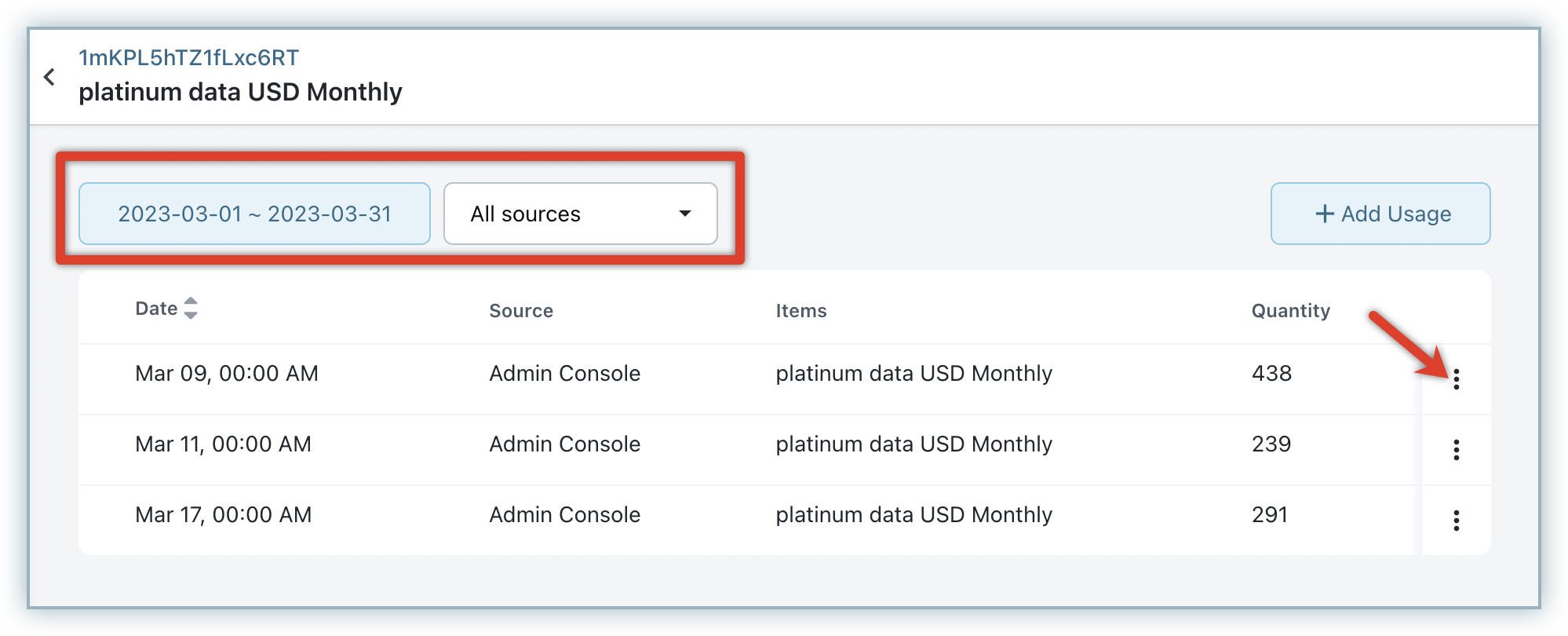
You can use the Duration and All sources filters to track usage added for a particular time period and via specific sources.
Click the ellipsis icon to Delete usage if required.
Chargebee considers the usage of your metered components added to the subscription (sum/most recent) based on your site setting, and calculates the invoice amount based on the pricing model.
For example, if you have created a metered plan that's priced on a per-unit model,
Price per GB: $10.45
Usage added: 250 units. This usage can be calculated either by summing all of the usage added to the subscription or by using the most recent usage added to the subscription.
Invoice Amount = Plan Price × Usage added.
At any given time, Chargebee considers usage added only for the previous billing period of the subscription. For example, when the current billing period is June 15 to July 15, any usage added for the period of May 15 to June 15 is only considered for invoice amount computation. Usage added outside this period will not be considered for the July 15 renewal cycle.
Note
- Chargebee generates a report based on the usage records passed in the respective term. You can send the report to your customers via email along with the invoice.
- The usage reports are available for download in PDF format on the self-serve portal as well.
- You can also do a bulk import of multiple usage data for multiple subscription records using the Bulk Operations feature (for Subscriptions) in Chargebee.
- You cannot add usage to an invoice that's already closed.
Closing an Invoice in Pending status
Invoices for subscriptions with metered components are automatically generated in pending state. You can add the usage data to the subscription, and the invoices are closed manually or automatically, based on your site setting for metered billing.
When you have opted to manually close the invoices for metered components, invoices remain in pending status until you close them. After you have added all usage-based charges to the subscription, follow these steps to close an invoice:
-
Navigate to the Invoice details page.
-
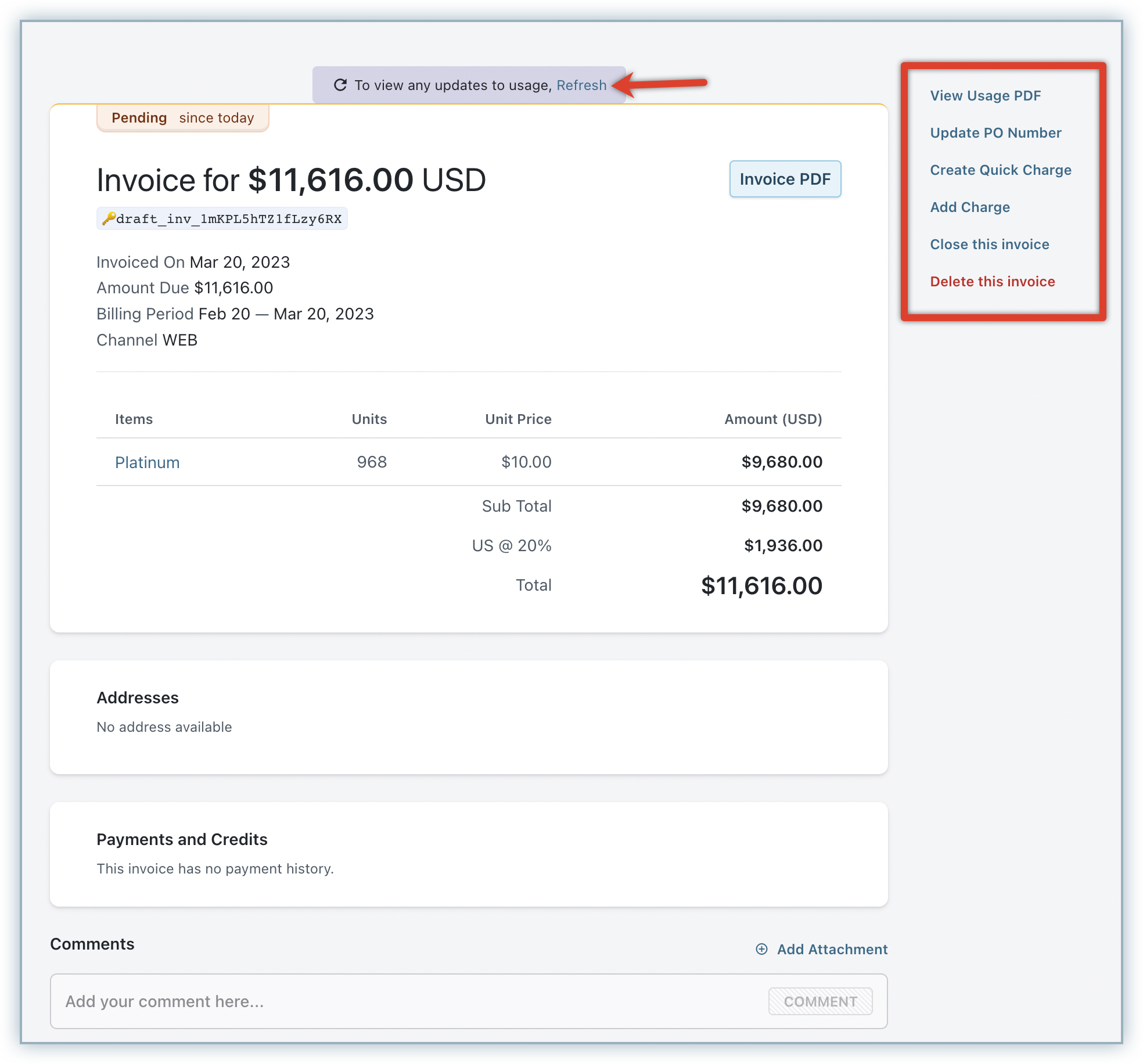
Click Refresh to update all usage based data.
-
You can optionally click View Usage PDF to view an itemized usage breakdown in PDF format.
-
Click Close this Invoice.
-
The Close Invoice dialog displays all the invoice notes present for this invoice. You can remove some of these notes and add a new note as required. This note is displayed first in the invoice under Invoice Notes. You can also add comments for internal reference.
-
Click Confirm.
This initiates the payment process, and the status of the invoice changes from Pending to Payment Due/Paid/Not Paid/Posted.
Note
While closing the pending invoice, the invoice number will be assigned based on the current invoice number sequence.
See also
Subscriptions with Metered Components
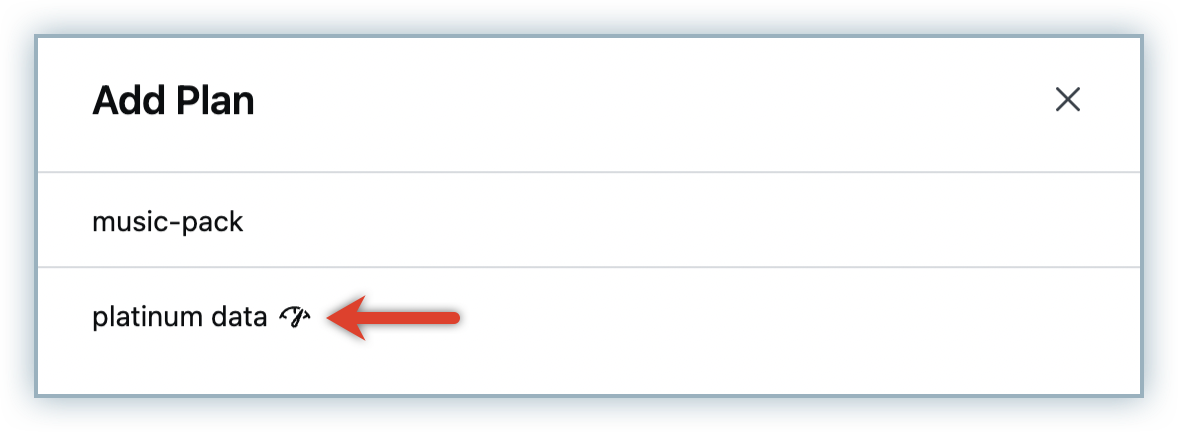
While creating a subscription in your Chargebee site, the Add Plan/Addon dialog displays all the existing plans/addons for selection.
Metered components can be easily differentiated using the metered icon as shown in the screenshot below:
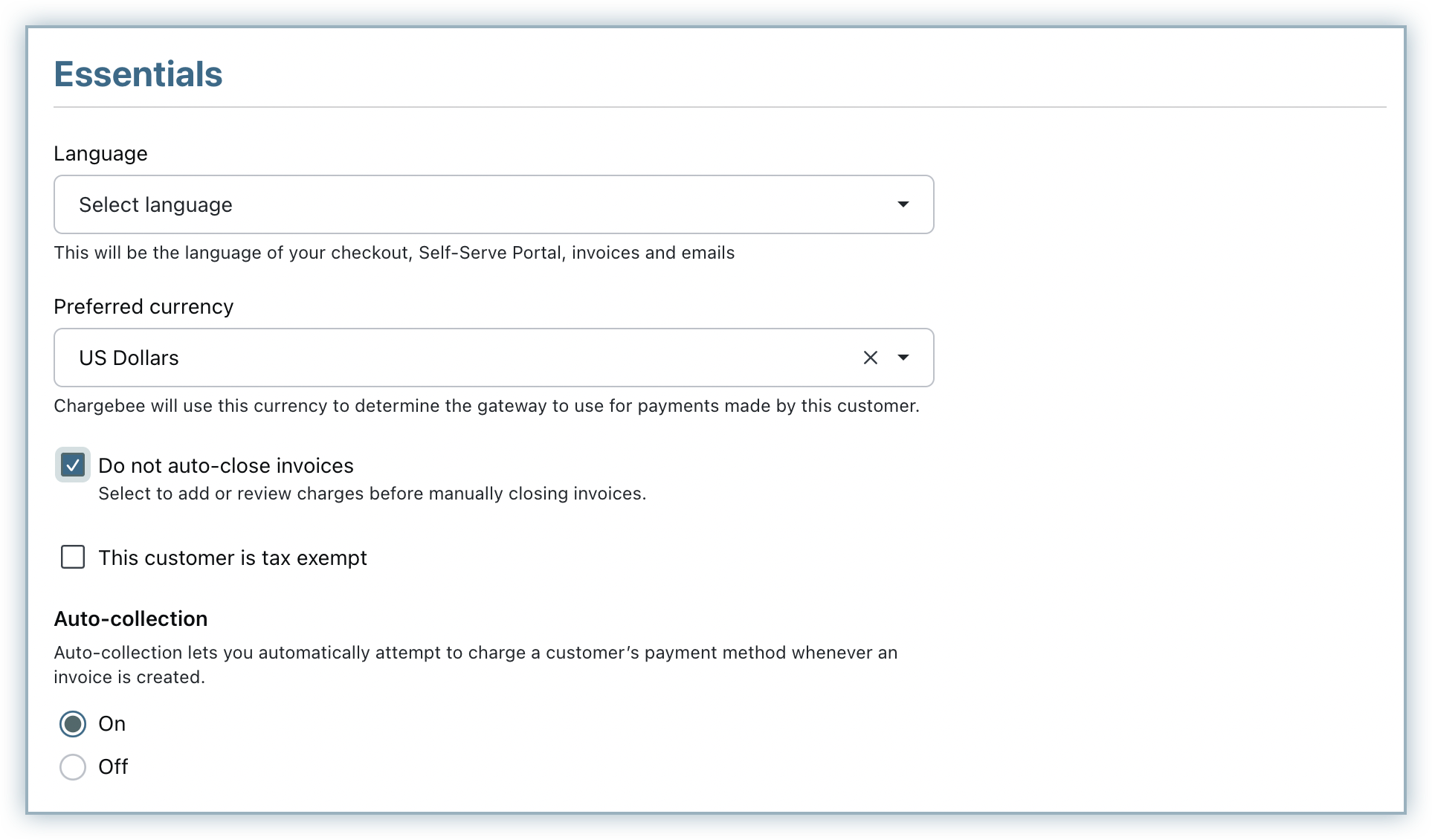
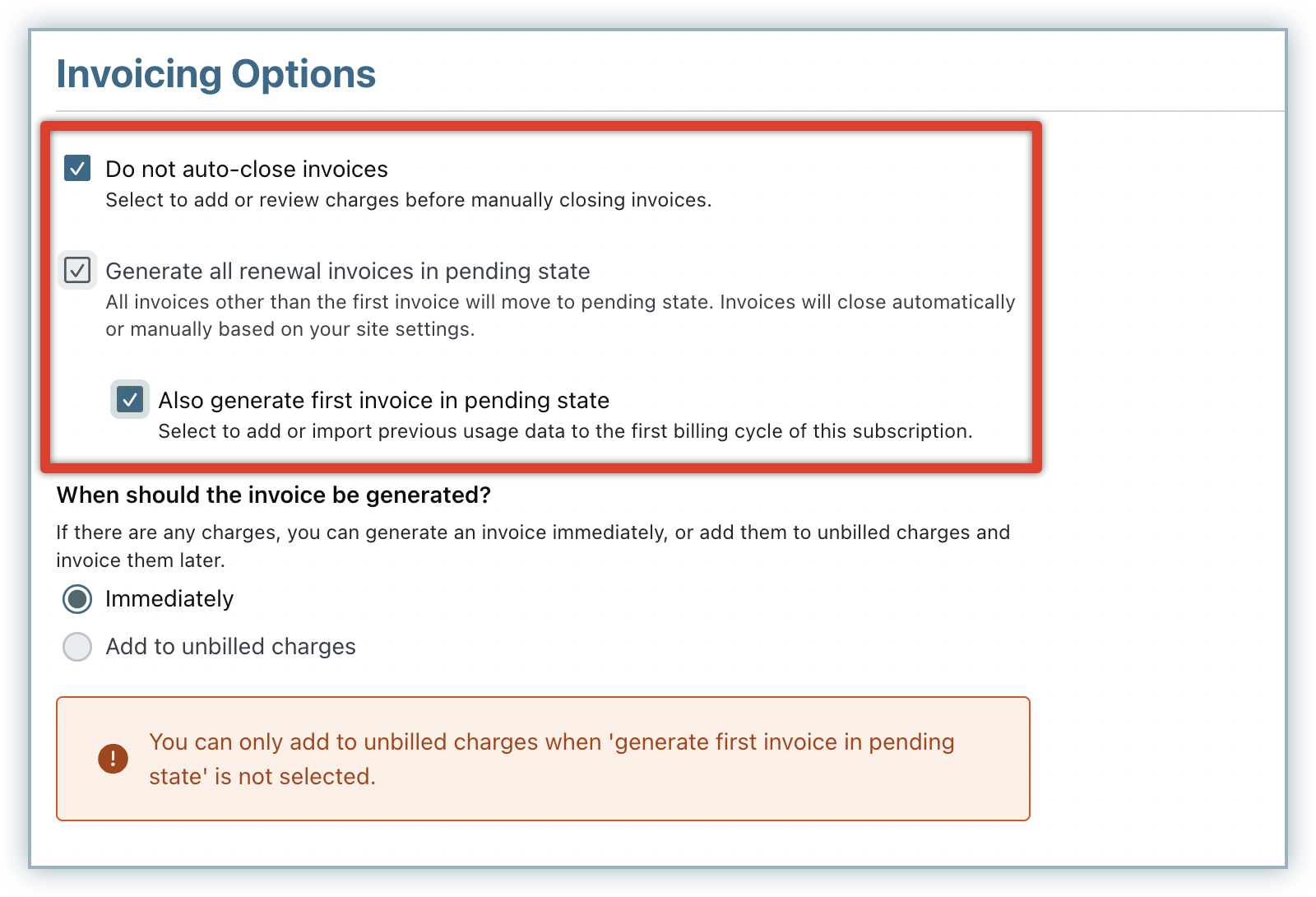
Subscriptions with metered components: When the subscription contains metered components and you have configured to auto-close invoices with overriding enabled, you can override the setting by selecting Do not auto-close invoices. You can also enable Also generate first invoice in pending state. Select this option when you want to add or import previous usage data to the first billing cycle of the subscription.
Subscriptions without metered components: If your business requires invoices to be renewed without the addition of metered components, you can do so by clicking Generate all renewal invoices in pending state. All renewal invoices, excluding the first invoice for the subscription, are generated in pending state. The invoices are closed automatically or manually, based on your site setting for metered billing. You can also enable Also generate first invoice in pending state to add or import previous usage data to the first billing cycle of the subscription.
Note
The Do not auto-close invoices setting in a subscription takes precedence over the same setting in a related customer record. If enabled, this setting overrides the site setting for auto-closing invoices.
Upgrading and Downgrading Subscription with Metered Components
For upgrades and downgrades of subscriptions that contain metered components, by default, the customer will receive an invoice with the usage-based charges by the end of the respective billing cycle.
For upgrades and downgrades of subscriptions with both metered and non-metered components, the customer will receive an invoice with a prorated charge for the non-metered items immediately. The metered components (plan or addon) will not be invoiced during the mid-period change and will be billed only at the end of the billing cycle.
You can invoice overages for subscription changes immediately by enabling this setting. When enabled, for upgrades and downgrades of subscriptions that contain metered components, you can generate an invoice and charge the customer for usage-based charges immediately or by the end of the respective billing cycle. For upgrades and downgrades of subscriptions with both metered and non-metered components, you can generate an invoice and charge the customer for usage-based charges for the metered components along with the prorated charges for the non-metered components immediately or by the end of the billing cycle.
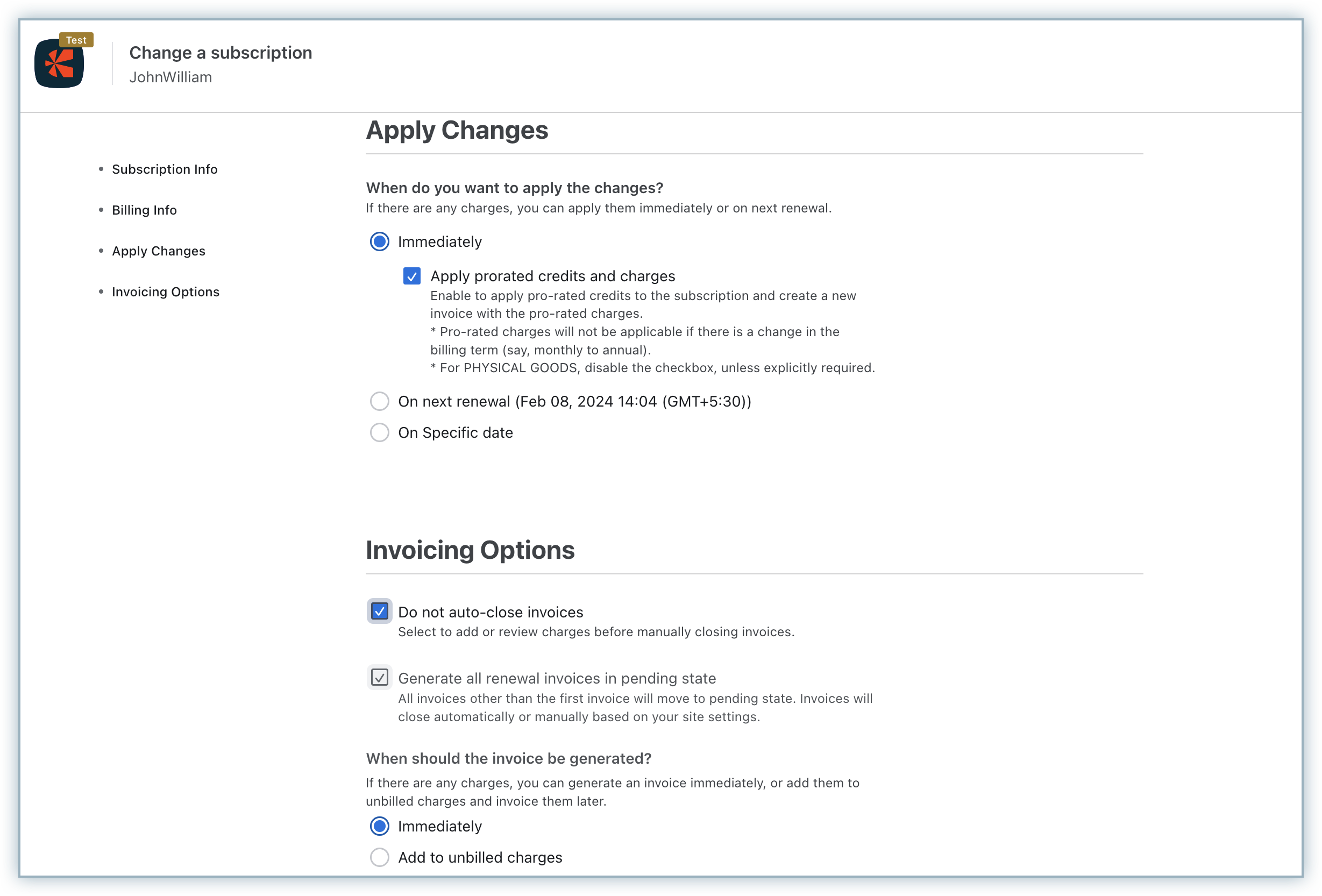
If you decide to invoice the usage immediately, the usage added thus far gets invoiced immediately and the usage counter resets for the subscription from 0.
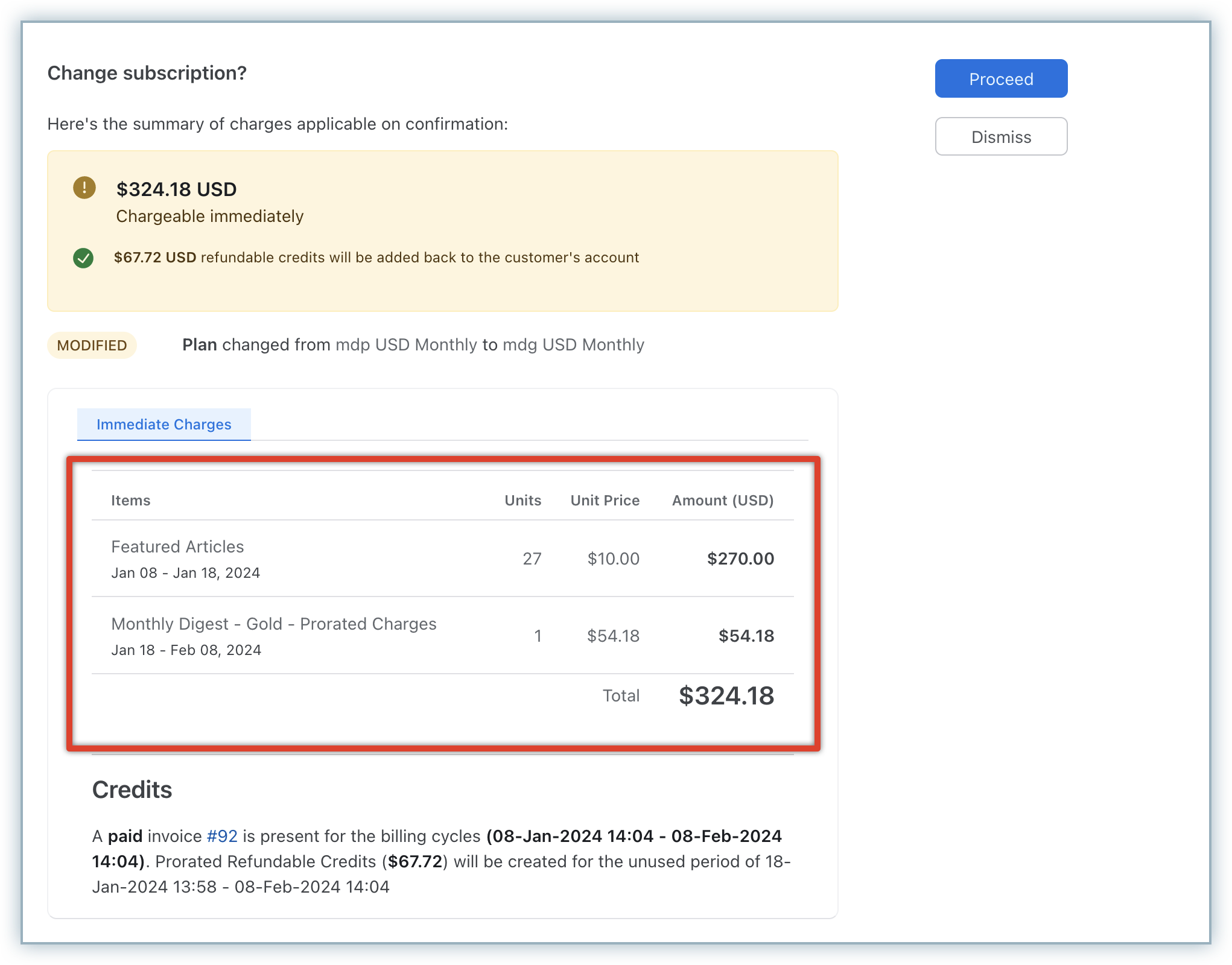
However, if you decide to invoice the usage at the end of the billing cycle and not immediately, all the usage added for the subscription until the end of its billing cycle will be invoiced, not just individual item usage.
Say a customer upgrades from Plan-A to Plan-B, and the subscription cycle for both plans starts on the 1st of the month and ends on the 31st of the month.
At the time of the upgrade, the subscription contains a metered Plan-A with usage charges for $100, and a non-metered addon charge of $50. On the 15th, a mid-period upgrade happens to Plan-B, a non-metered plan ($200), and the addon is removed.
The following charges apply during the subscription change:
- Prorated charges for Plan-B ($100)
- Credits for the addon downgrade ($25)
- If invoiced immediately, usage charges for Plan-A ($100) that are added until the subscription is changed
- If invoiced at the end of the billing cycle, usage charges for Plan-A ($100) plus any further usage charges that are added until the end of the billing cycle
Pausing Subscription with Metered Components
Subscriptions with metered components can be paused. The pause and resume workflows for such subscriptions work as follows:
In-term Resumption: This is when a subscription is paused and resumed within the billing term of the subscription. When the subscription is on pause:
- You can add usage for the period when the subscription was active before it was paused.
- If usage was added to the subscription before it was paused, the usage details page displays the Add Usage option. However, any usage added for the paused period of the subscription is not considered for invoice amount computation.
- When usage was not added to the subscription before it was paused, you cannot view usage details and you cannot add usage for the paused period of the subscription.
Out-of-term Resumption: When a paused subscription resumes after the renewal date/time, it is considered an out-of-term resumption. When the subscription moves from the current billing cycle to the next billing cycle and is still on pause:
- Any usage added for the paused period of the subscription is not considered for invoice amount computation.
- Any usage added for the period when the subscription was active gets automatically added.
Cancelling Subscription with Metered Components
Subscriptions with metered components can be canceled. When a subscription with both metered and non-metered components is canceled, the customer receives an invoice with prorated charges for the non-metered items and usage charges for the usage added until cancellation for metered components.
When cancellation is scheduled for a subscription with both metered and non-metered components, you can still add usage when the subscription is in an active state. The customer receives an invoice with a prorated charge for the non-metered items and usage charges for the usage added until cancellation for metered components at the time of cancellation.
FAQ
1. How do I charge a base fee for a metered plan?
If you have a business case where you want to charge a base fee for a plan and also add usage-based charges, you can create a non-metered plan that carries the base fee and attach a metered addon to the plan. The metered addon gets automatically attached to all subscriptions created for this plan. Usage can be added to the subscriptions via the addon, based on which usage-based charges can be calculated along with the plan's base fee.
Was this article helpful?