What are the GST applicability for businesses in India?
Scope
How to configure tax for regions in India?
What are the prerequisites for GST configuration in India?
Why tax is not applied even after enabling tax for India?
Summary
To configure GST tax for India, follow the prerequisites below
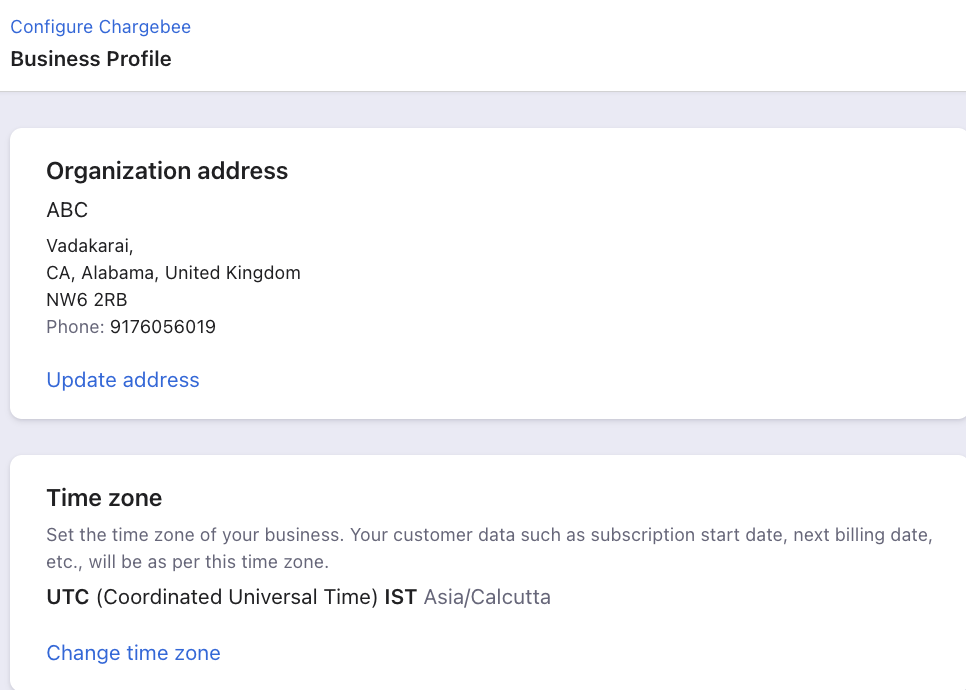
- Click Settings > Configure Chargebee > Business Profile and ensure that your organization address is added and up to date.
- Click Settings > Configure Chargebee > Taxes > Add Region > India > Configure the tax.
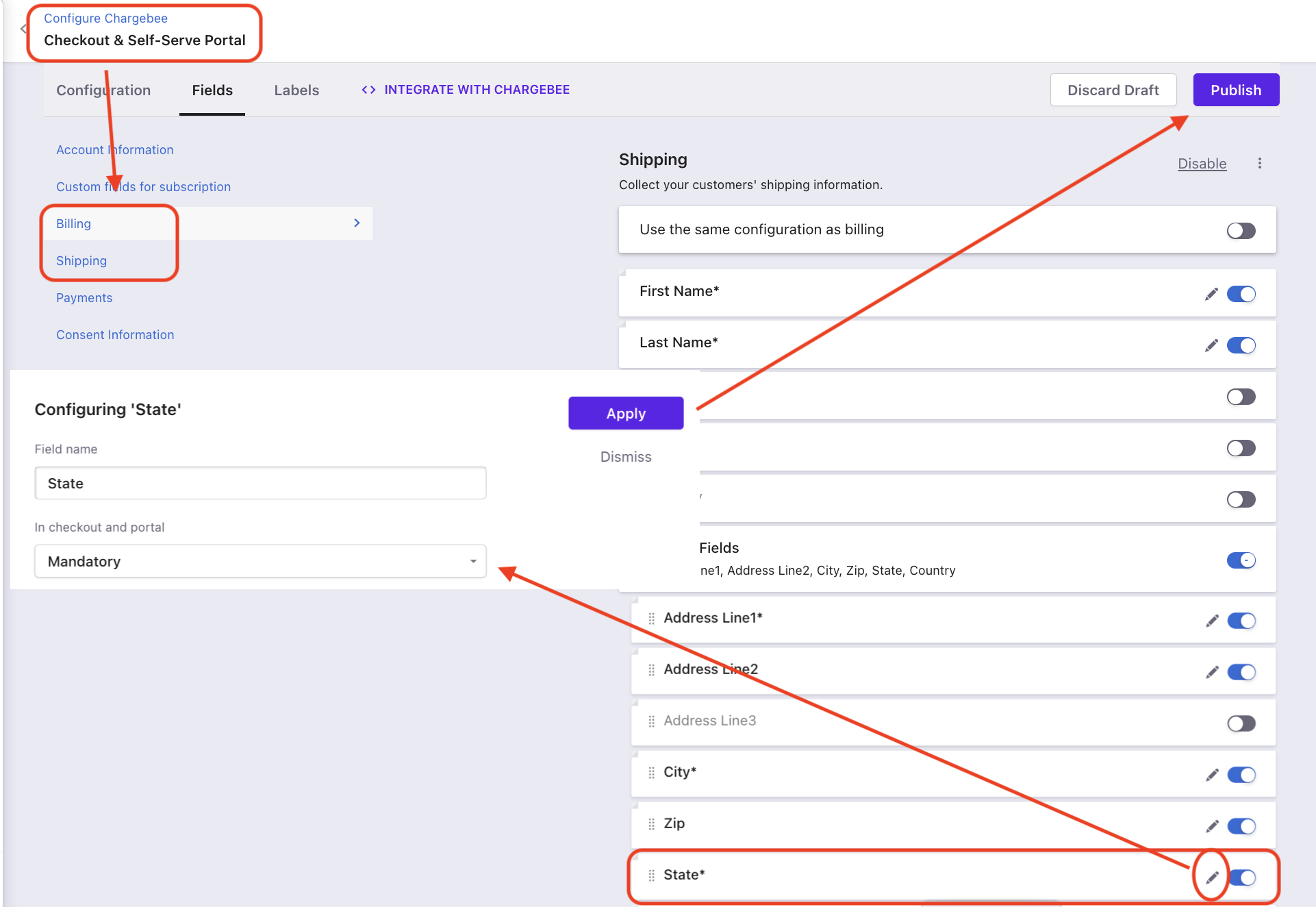
- Tax will not be applied if the customer's billing/shipping address does not have 'State' mentioned, hence enable State as Mandatory from Settings > Configure Chargebee > Checkout and Self Serve Portal > Fields > Shipping/Billing > State > Mandatory > Publish.
Note
** Shipping address takes **precedence for tax validation. So billing address state will be considered only if shipping address is not available.
Solution
Classification of GST
GST can be classified into the following types:
- CGST - Central Goods and Services Tax
- SGST/UTGST -State / Union Territory Goods and Services Tax
- IGST -Integrated Goods and Services Tax(CGST+SGST/UTGST)
According to the modified dual GST model, the tax levied can vary based on the type of transaction.
Within India
Intrastate: When a sale takes place within the same state or union territory, both SGST/UTGST and CGST will be levied.
Interstate: When a sale takes place between two different states or union territories, IGST which is a combination of CGST and SGST will be levied. This is collected by the central government.
The organization address plays a major role in determining the type of GST applied, The Chargebee system determines the type of GST applied using the customer's region.
- If the customer's region matches your organization address, CGST and SGST are applied on the purchase whereas if the customer's region is different from yours, IGST is applied.
- If you are functional in multiple regions, GSTIN has to be provided for each region that you are active in. If the customer's region falls within one of these regions, CGST and SGST are applied.
- When the customer is from a region that doesn't fall within any of the regions that you operate in, IGST is applied.
Outside India
IGST is levied only in the case of B2C transactions where the end customer does not have a GST Identification Number(GSTIN).
In certain situations, unregistered entities that do not have a presence in India might be obligated to collect GST and comply with the regulations. In case of a sale made outside India, GST will not be applied as it is considered an export.
Configuring Indian GST
To configure Indian GST on your Chargebee site, follow these steps:
- Click Settings > Configure Chargebee > Business Profile and ensure that your organization address is added and up to date.
2. Click **Settings** > **Configure Chargebee** > **Taxes**, and click **Enable Tax > Add Region > India > Configure the tax.**
Configuring the price type: You can set up the price type for each currency that you have enabled for your site by navigating to Manage Catalog Price Types on the Taxes page. The price type is set to 'exclusive' by default. For more information on configuring the price type, refer here.
Configuring tax settings for India: On the Taxes page, click Add Region and select India from the drop-down list. You will be redirected to the page where you can pick a mode of configuration to add the taxes.
You can select from the following options:
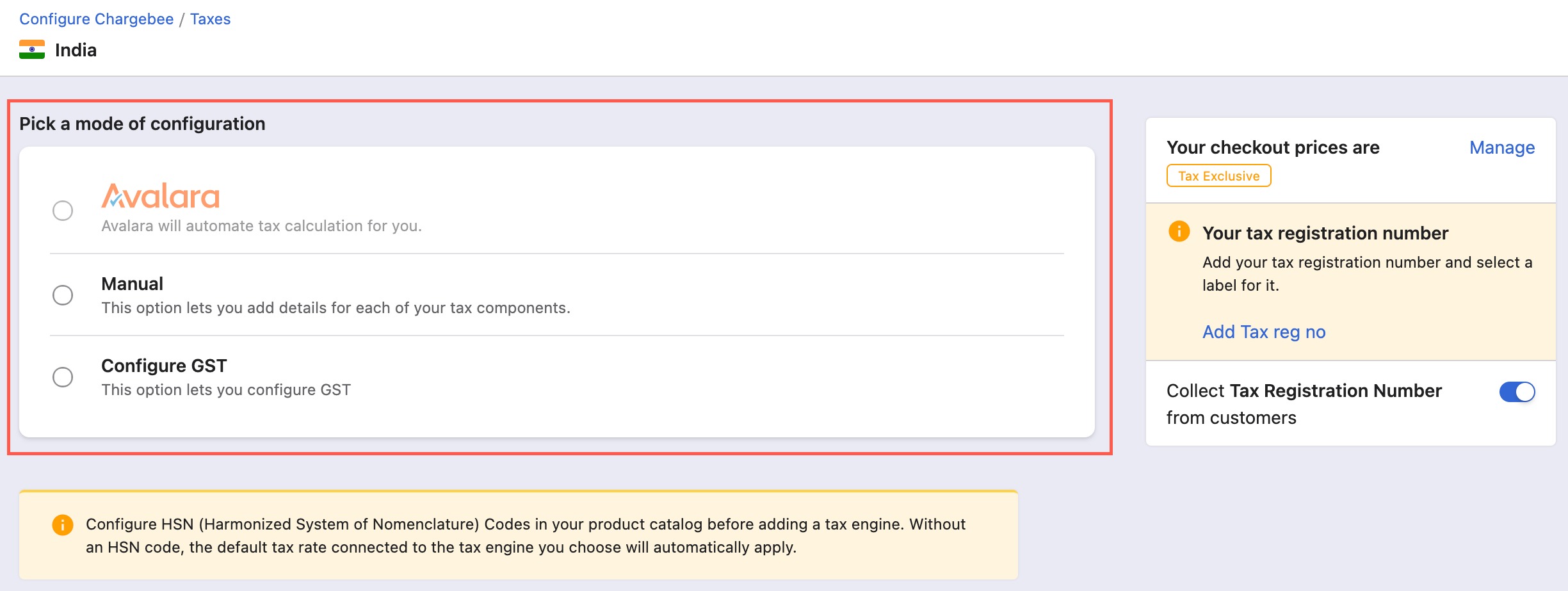
- Avalara: Contact support to enable this setting for your site, if you do not have it already. To automate taxation on your invoices, if you have integrated AvaTax for Sales with Chargebee, you can select Avalara. Ensure that you add the HSN(India Harmonized System of Nomenclature) Codes for all your plans and addons before selecting Avalara as your preferred mode. The appropriate tax rate gets applied for subscription invoices based on the associated plan or addon's HSN code. In the absence of an HSN code, Avalara applies the default tax rate of 18% on the invoices.
- Manual: Select this option to add your preferred tax rates manually.
- Configure GST: Select this option and in the pop-up window that appears, you can set the default CGST, SGST/UTGST rates for all states and union territories.
- Tax will not be applied if the customer's billing/shipping address does not have 'State' mentioned, hence enable State as Mandatory from Settings > Configure Chargebee > Checkout and Self Serve Portal > Fields > Shipping/Billing > State > Mandatory > Publish.
GST Invoices
Once GST configuration is completed, the GSTIN field appears in the customer's billing info while creating a new subscription.
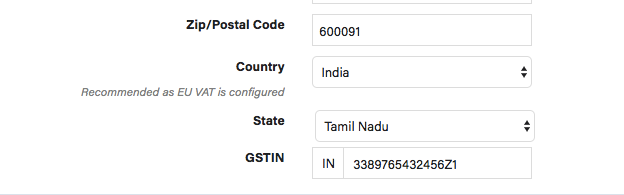
Note: Tax will not be applied if the customer's billing/shipping address does not have 'State' mentioned.
Refer to this link for more information.
Was this article helpful?